
Archive, start over, or delete a workspace
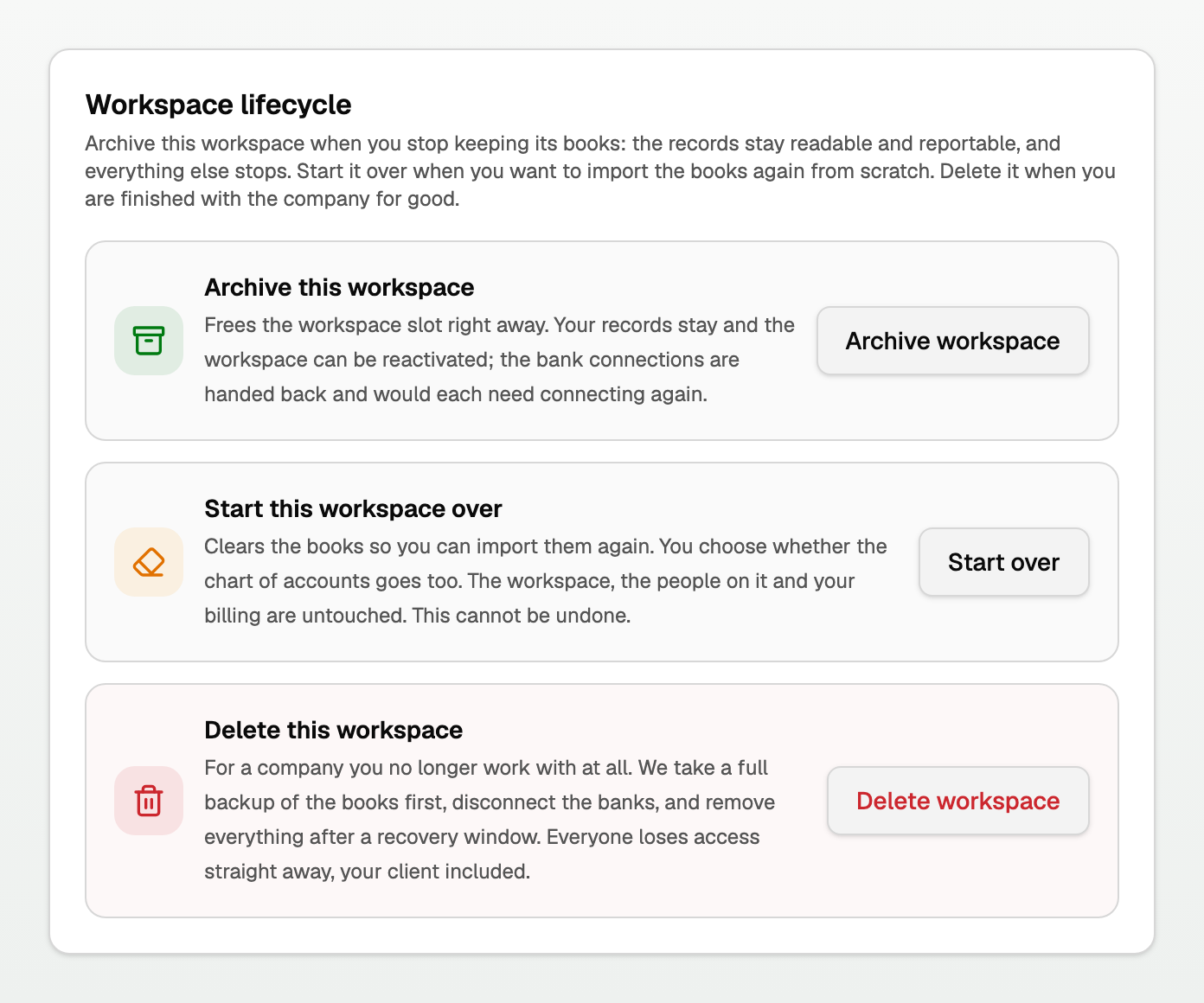
Three different buttons live under Workspace lifecycle. They are not interchangeable.
- Click Settings at the bottom of the sidebar, then Workspace.
- Select Data, beside Details.
Download everything is on that same page, above the three buttons.
On a phone, choose Workspace from the Settings section menu at the top, then select Data. Each button sits under its description.
On a personal workspace, open Settings. Workspace lifecycle is on that page. There is no Data control.
Which one?
- Archive this workspace when you stop keeping the books. Records stay readable. The client keeps access. You can bring it back.
- Start over when the books came in wrong and you want to import again. The workspace stays. The people stay. The books do not. There is no undo. If inventory costing is on, keeping the chart is unavailable, and the full reset clears costing.
- Delete this workspace when you are finished with the company for good. Everyone loses access immediately. You have 30 days to undo from another workspace you own.
Archive
Use this when the engagement is over but the records should still be there.
- The books stay readable and reportable. Nothing is deleted.
- No one can make changes until you reactivate.
- The client keeps their access.
- Bank connections stop for good. Reactivating restores editing; each feed has to be connected again.
- Scheduled reports stop, and stay stopped.
See "Archive a client workspace" for the steps.
Start over
Use this when you want the same workspace, empty, so you can import again.
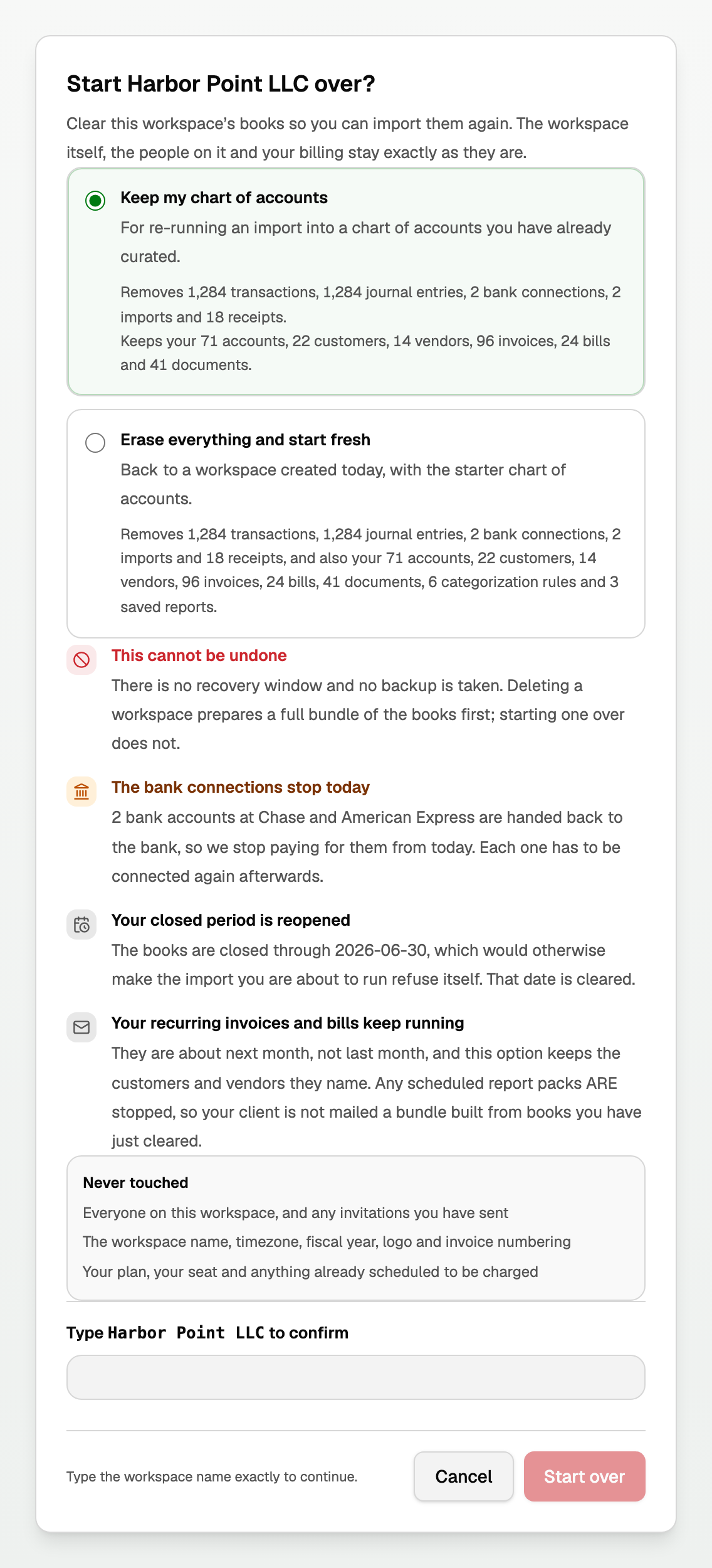
You are asked one question:
- Keep my chart of accounts clears transactions, journal entries, bank connections, imports and receipts. Accounts, customers, vendors, invoices, bills and documents stay.
- Erase everything and start fresh also removes the chart of accounts (it is put back to the starter chart), contacts, invoices, bills, documents, rules, saved reports and recurring series.
The dialog shows the real counts for both options before you commit.
When inventory costing is on
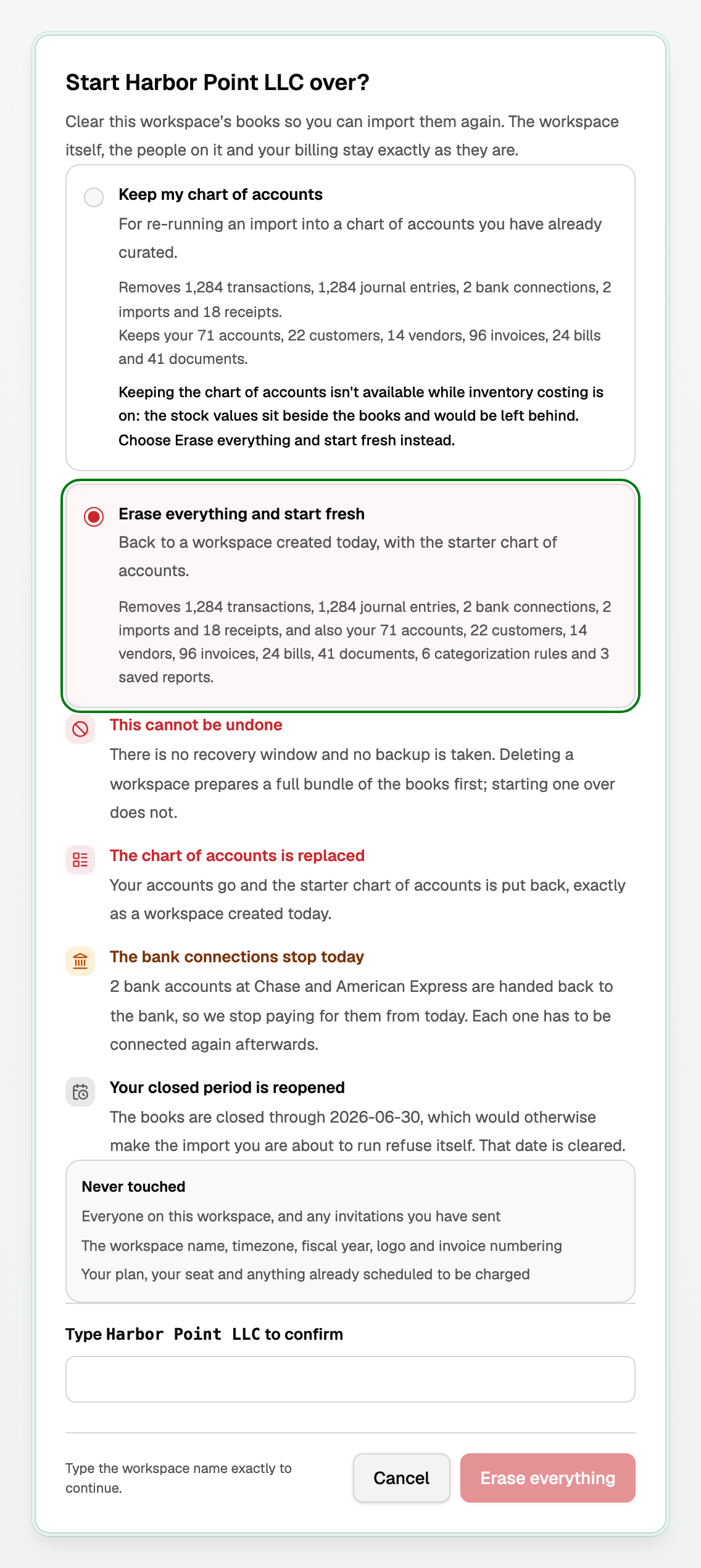
- The unavailable choice stays on the screen and says: "Keeping the chart of accounts isn't available while inventory costing is on: the stock values sit beside the books and would be left behind. Choose Erase everything and start fresh instead."
- Erase everything and start fresh removes those stock values and turns inventory costing off. The button reads Erase everything.
Worth knowing:
- There is no undo and no backup. Delete prepares a copy first; start over does not. Take a copy first if you want one: Download everything is on this same Data page, above Workspace lifecycle. You can leave the page; BooksGPT emails you when the zip is ready.
- Bank connections stop. Each one has to be connected again afterwards.
- A closed period is reopened, so the next import is not refused.
- People, invitations, the workspace name, timezone, fiscal year, logo, invoice numbering, and your plan are never touched.
On a personal workspace the same two choices are there. They say categories instead of chart of accounts.
See "Redo or undo an import" for the steps, including what to do if a QuickBooks import is still running.
Delete
Use this when you are finished with the company entirely.
- A full backup of the books is prepared as soon as you confirm.
- Everyone loses access immediately, your client included.
- Bank connections stop today. Restoring brings the books back, not the feeds.
- You have 30 days to undo from Recently deleted on any other workspace you own.
See "Delete a client workspace" for the steps.
Reports inside Download everything
If your workspace uses Cash but its imported General Ledger cannot support cash reports, Download everything still exports the underlying records. The ZIP's README and manifest list the unavailable cash statements. Each affected PDF is clearly marked as an explanation, not a financial statement. Other available reports remain included. Account balances always uses Accrual.
Updated on: 01/10/2026
Thank you!