
Pick invoices to import from QuickBooks
When you import from QuickBooks, BooksGPT brings in your books: the entries behind your profit and loss and balance sheet, including the total your customers owe you. An invoice is the document behind one sale: the customer, the lines, the due date, and what has been paid. This picker adds the invoice documents you choose on top of those books, so you can open, send, and collect them here. It does not change your profit and loss or balance sheet. The invoices it adds do show in your invoice list and A/R aging.
Open the picker
- Open All pages in the left sidebar, then click Sales and Invoices.
- Click More invoice actions (the three dots beside New invoice), then Import from QuickBooks.
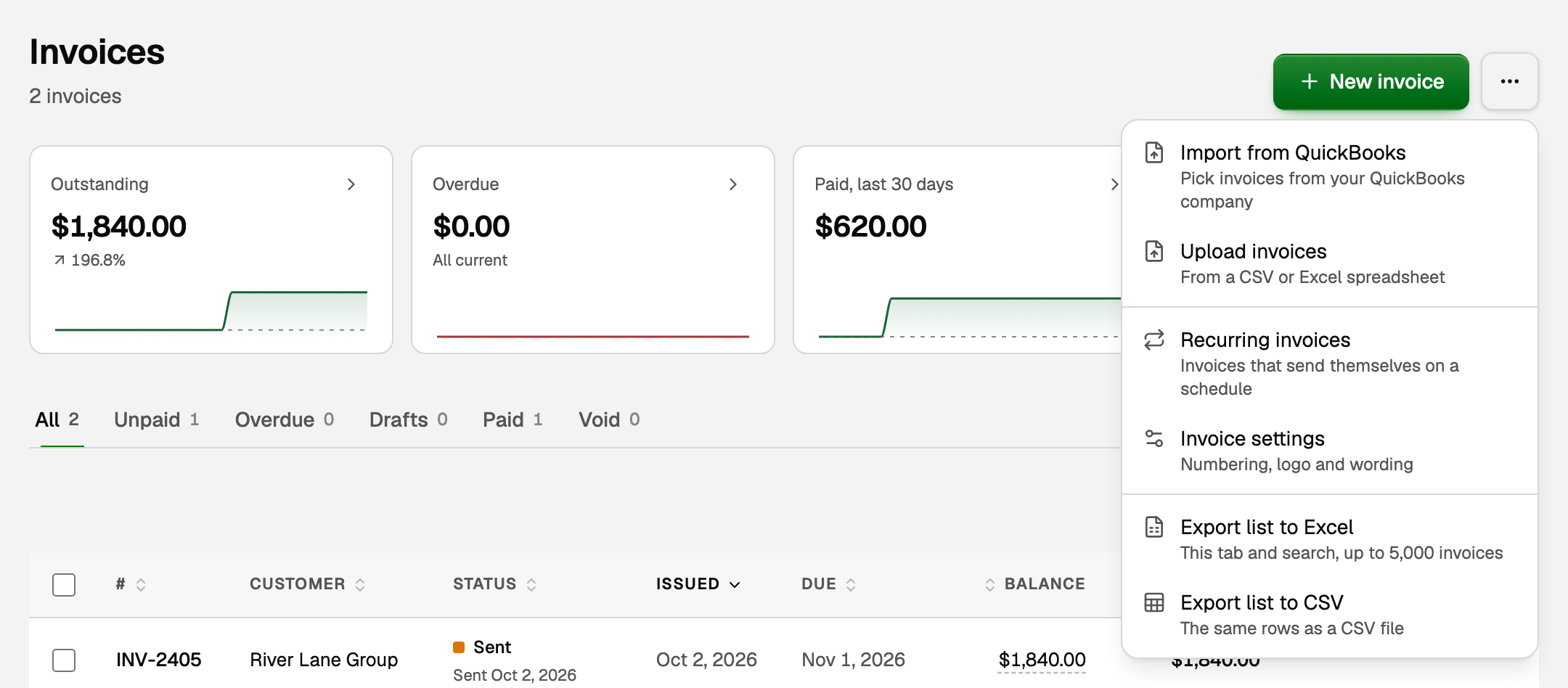
Only the owner and bookkeepers see Import from QuickBooks. Have a CSV or Excel file instead? See "Upload a spreadsheet of invoices".
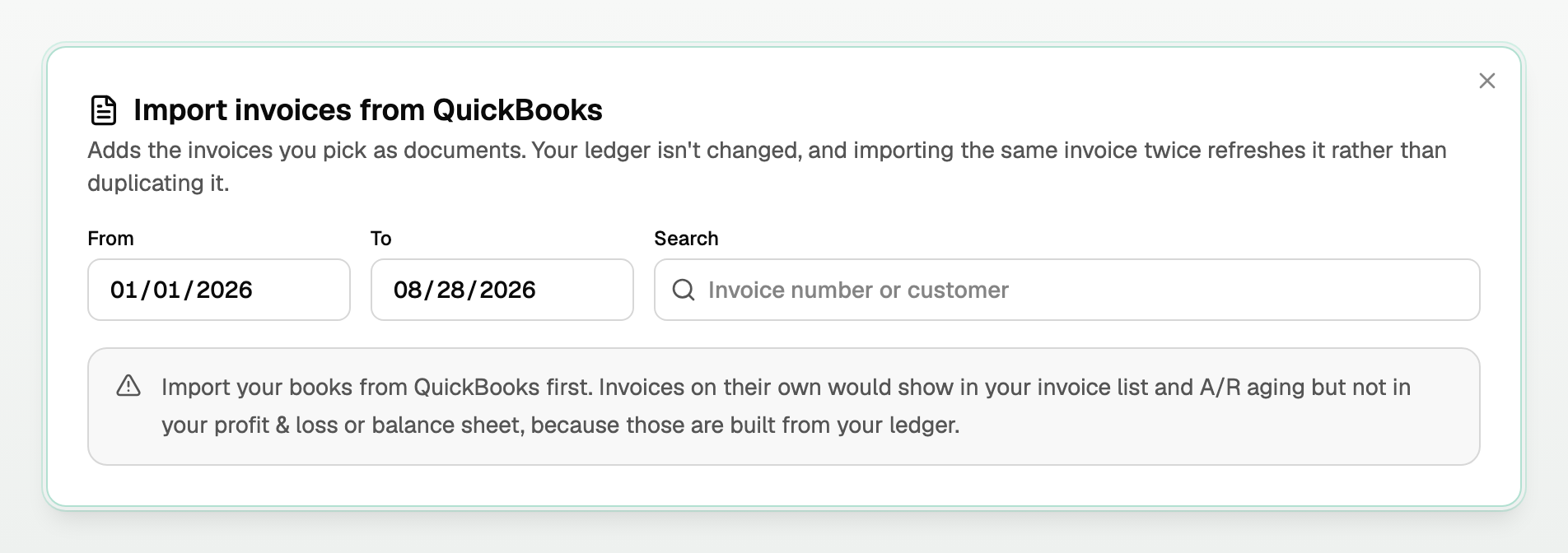
If your books are not imported yet, the picker says so. Import them first from Integrations (see "Integrations: connect QuickBooks Online"), then come back. To reach newer invoices, run the QuickBooks import again with a later end date.
Pick the invoices
- Set From and To.
- Optionally type in Search to find an invoice number or customer.
- Tick the invoices you want. The checkbox in the table header ticks every invoice on the page that can be imported. To take every match across all pages, click Select all N invoices matching this filter.
- Click Import selected.
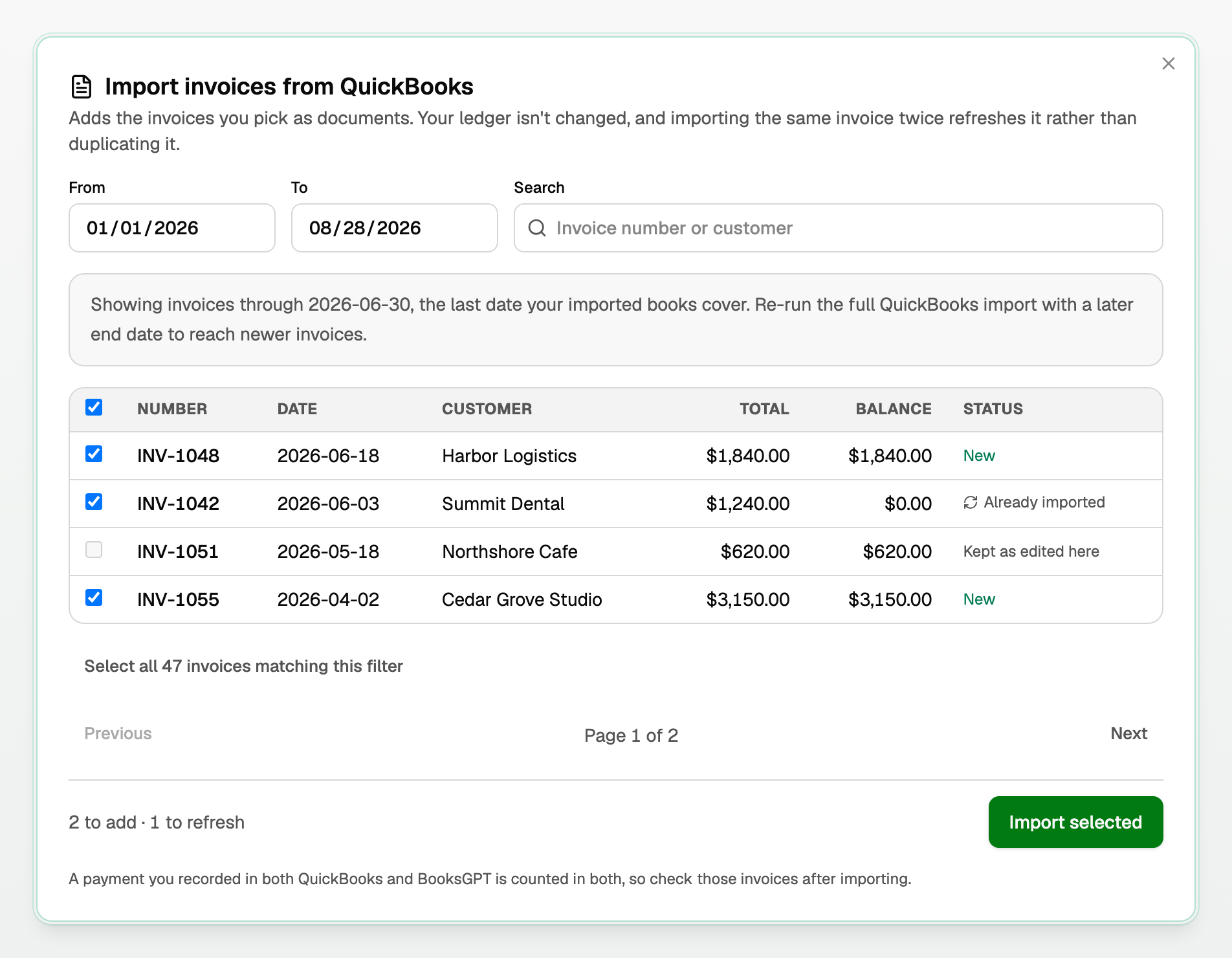
The Status column says what will happen:
- New is added.
- Already imported is refreshed if you tick it again. It is never duplicated.
- Kept as edited here can't be ticked. You changed or voided it in BooksGPT, so your version stays.
- Balance not verified can't be ticked. See "If something goes wrong" below.
What the invoice shows as paid
BooksGPT takes what was already paid from your imported books, as of the last date they cover. It does not copy the balance QuickBooks shows today. Balance in the picker is what was still unpaid on that date.
- An invoice fully paid by that date comes in at $0.00 and shows Paid. A payment made in QuickBooks after that date is not included.
- An invoice that took a deposit and is still partly open shows Partial.
- A payment you recorded in BooksGPT stays and is added on top.
Open an imported invoice to see its Payment history. Each QuickBooks payment is marked as recorded in QuickBooks and already counted in the amount paid, and View bank transaction opens the bank row when that payment is one transaction in your books. To record the rest of a payment, see "Create, send, and get paid on an invoice".
If something goes wrong
- A row says Balance not verified. BooksGPT could not check that invoice's balance against your imported books. Hover Balance not verified for the reason, which also appears above the table, and do what it says. Usually that is to import your books again, then pick the invoice. If it says to contact support, do. Invoices in a currency other than your home currency can't be picked. You can still tick the other invoices on the page.
- The whole import was refused. If your selection includes an invoice whose balance is not verified (for example through Select all N invoices matching this filter), nothing is imported. Tick only the verified invoices and try again.
- More than 2,000 invoices match. Narrow the dates or the search to reach the rest.
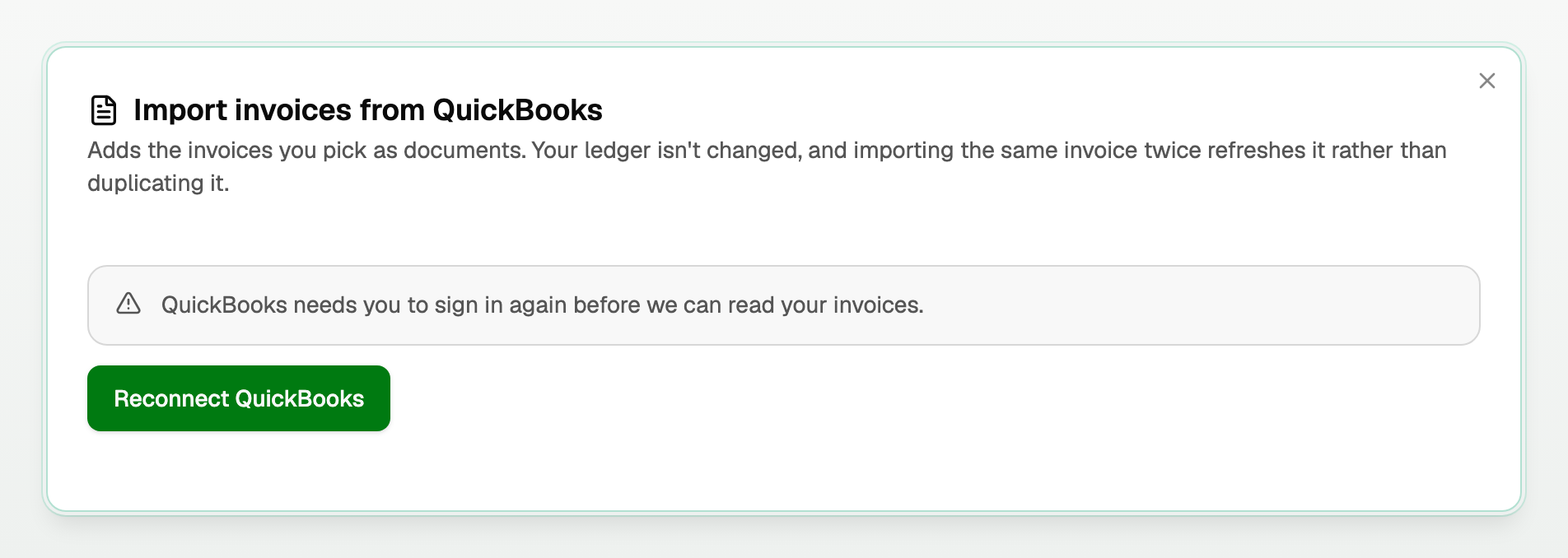
- QuickBooks asks you to sign in again. Click Reconnect QuickBooks in the picker.
- Another import is already running. Your selection is not started. When that import has finished, open the picker and import your selection again.
Coming from a file of your whole books instead of a live QuickBooks connection? See "How to import your data from Wave or QuickBooks".
Updated on: 16/10/2026
Thank you!