
Add or change your payment method
The card on file lives in Settings, on Plan & billing. You can add one, or replace the one we already have.
- Click Settings at the bottom of the sidebar.
- Find Plan & billing.
This block is there on lifetime, and on a monthly or yearly plan. It is not on the 30-day trial you started with your card, which already has it.
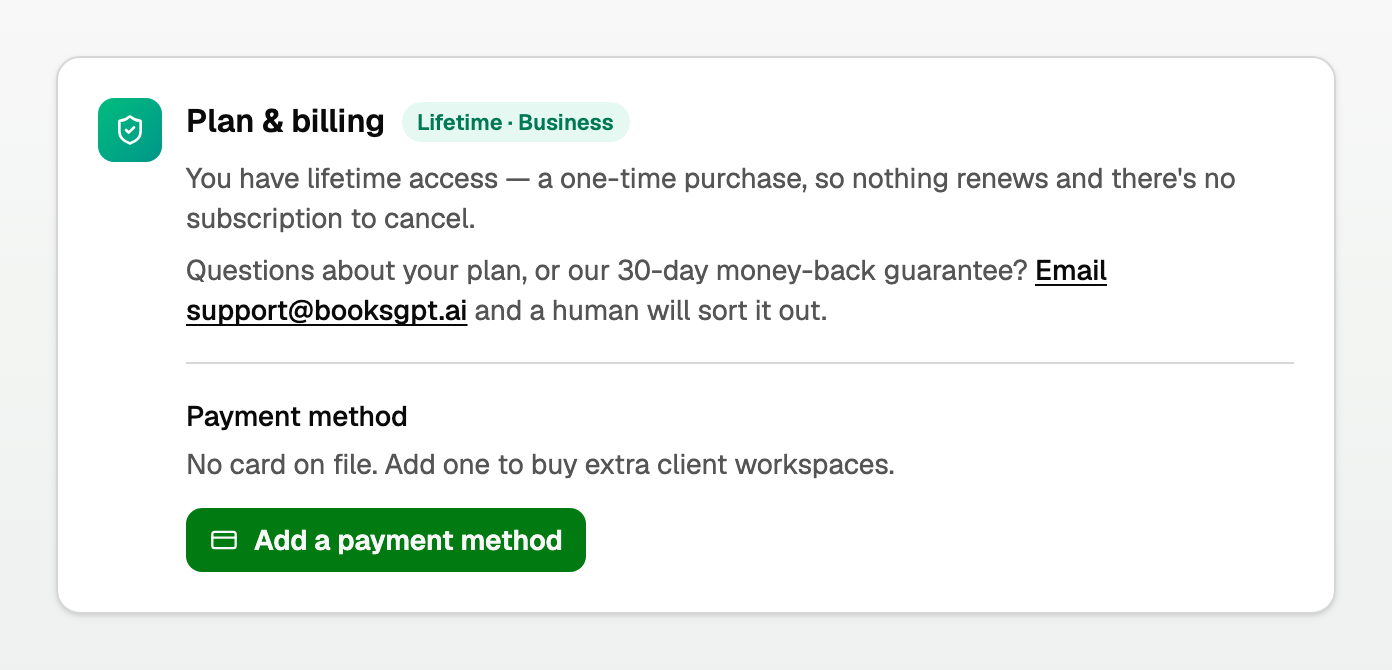
If you have no card yet
- It says No card on file. Add one to buy extra client workspaces.
- Click Add a payment method.
- Card details go straight to Stripe. They never touch our servers.
If a card is already on file
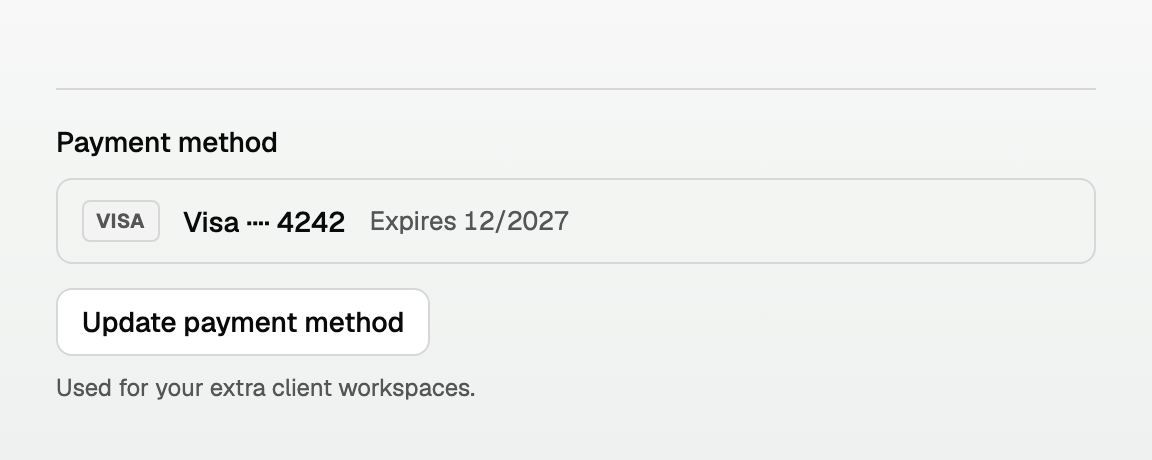
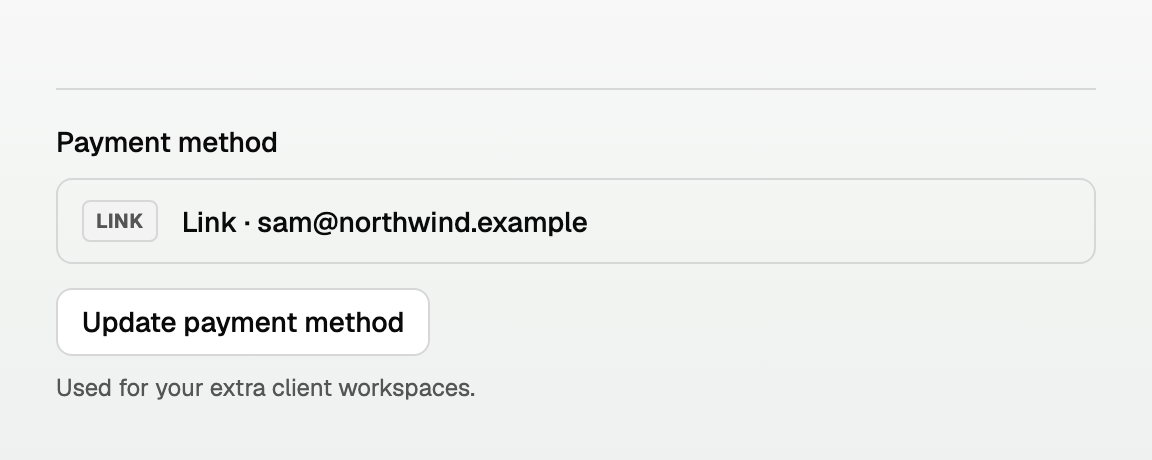
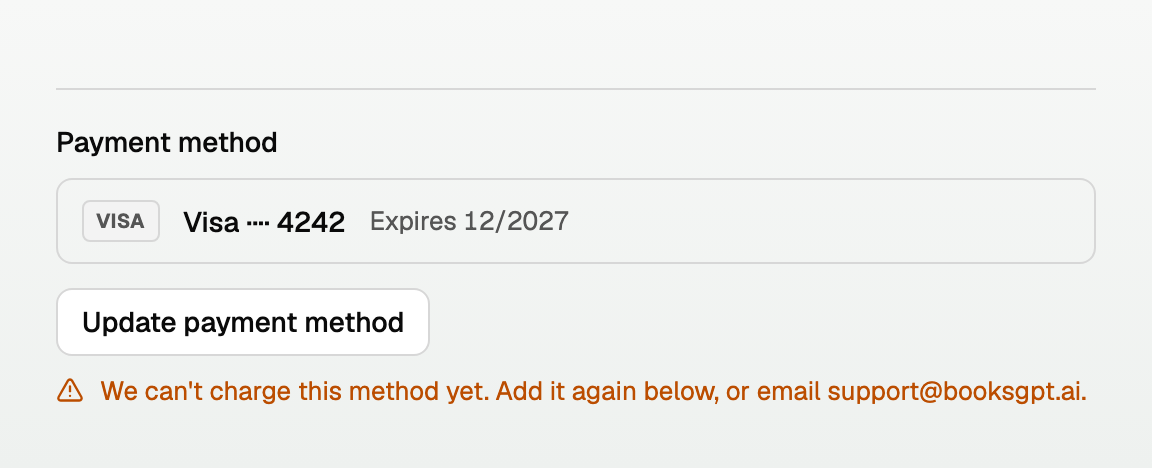
- Brand, last four digits, and expiry.
- Update payment method replaces it.
- A line under it names what it pays for: your plan, Business Max, your extra client workspaces, or more than one of these.
If something is wrong
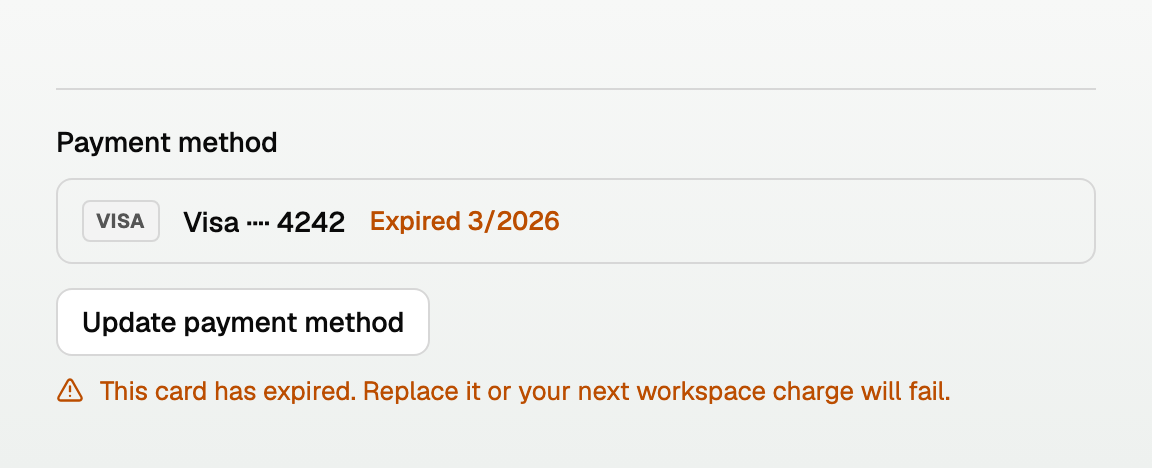
- Expired: the row turns amber. This card has expired. Replace it or your next workspace charge will fail.
- On file but we cannot charge it: We can't charge this method yet. Add it again below, or email support@booksgpt.ai.
If you have an unpaid invoice
Saving a new method discloses this first:
- Saving this card will also let Stripe retry your unpaid invoice of $X.
- If we cannot name the amount: Saving this card will also let Stripe retry the unpaid invoice on your account.
Extra client workspaces
- Buying an extra workspace needs a card on file.
- With no card yet, click Add client workspace under Extra client workspaces. When your plan's workspaces are used up, BooksGPT asks for a card as part of creating the new one, and shows the charge before you confirm. Your current plan stays the same.
- A free-forever founding account with nothing billed has no Payment method block. It adds a card the same way.
Good to know
- Yearly back to monthly is still email support@booksgpt.ai. That is not a card change. See "Pay monthly or yearly".
- Cancel is on this same page. See "Cancel a trial or monthly plan".
Updated on: 18/10/2026
Thank you!