
Pay monthly or yearly
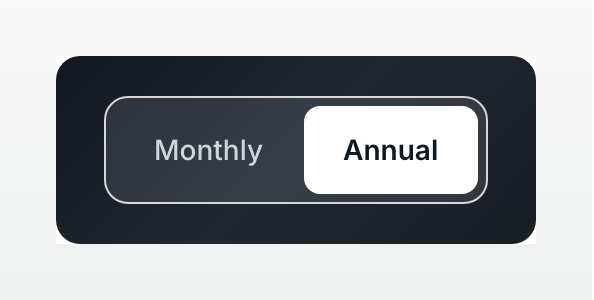
On booksgpt.ai that choice is Monthly / Annual above the plan cards. The big number stays $29/mo (or $39, $89). The line under it changes: Billed monthly, or Billed yearly · one invoice of $348.
Switch from monthly to yearly
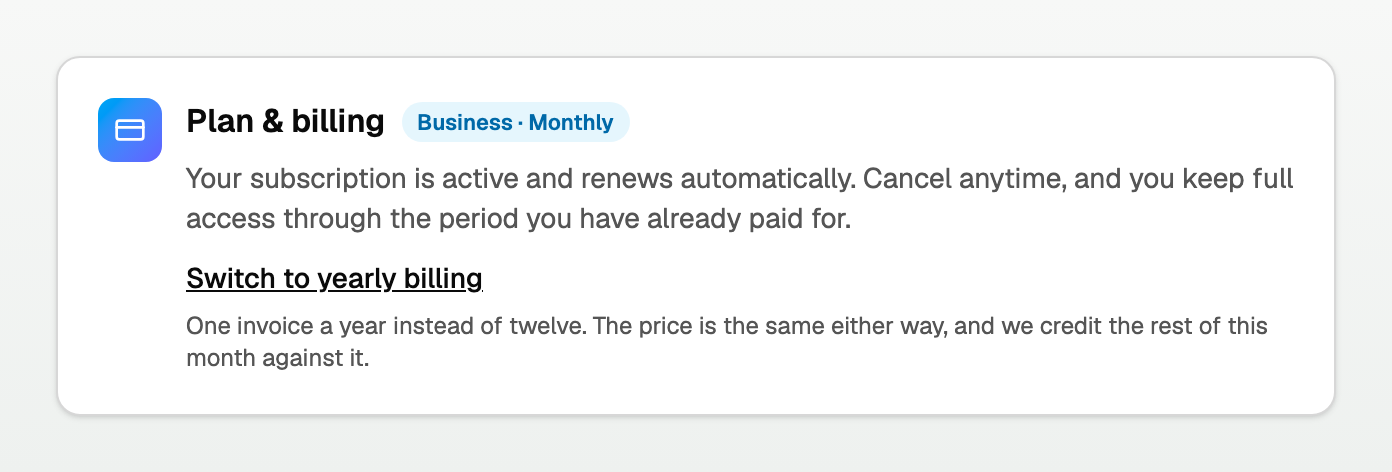
Click Settings at the bottom of the sidebar, then find Plan & billing. The badge reads Business · Monthly (or Solo, Practice, Firm).
- Click Switch to yearly billing.
- Unused days of this month are credited against the yearly invoice.
Switch from yearly to monthly
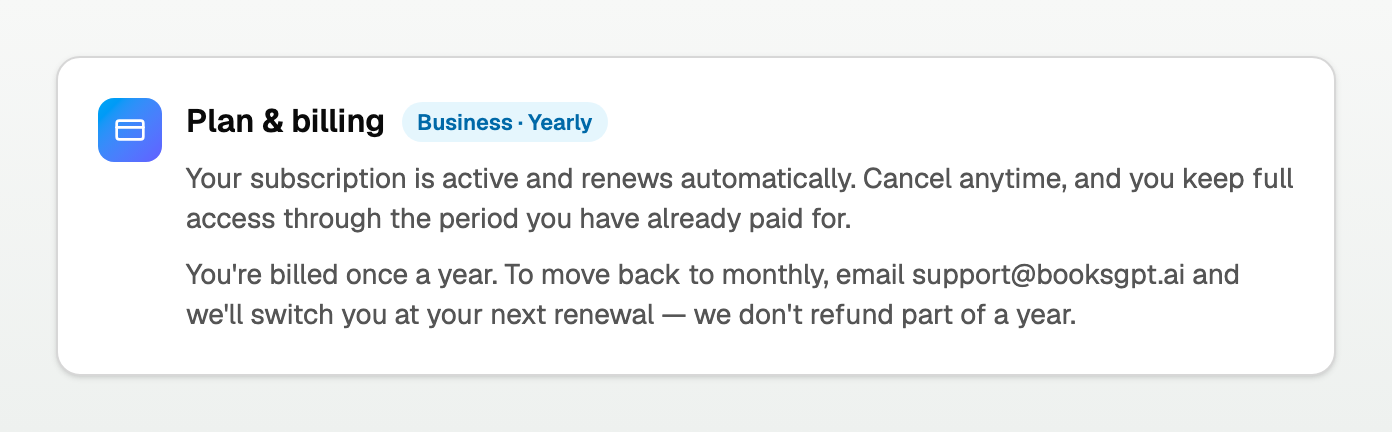
This is not a button. Settings says:
You're billed once a year. To move back to monthly, email support@booksgpt.ai and we'll switch you at your next renewal. We don't refund part of a year.
Extra client seats
A seat's cadence does not have to match the plan.
- Lifetime or Firm: $5/mo or $60/yr per extra business.
- Solo, Business, or Practice: $10/mo or $120/yr.
Click Settings, then Plan & billing.
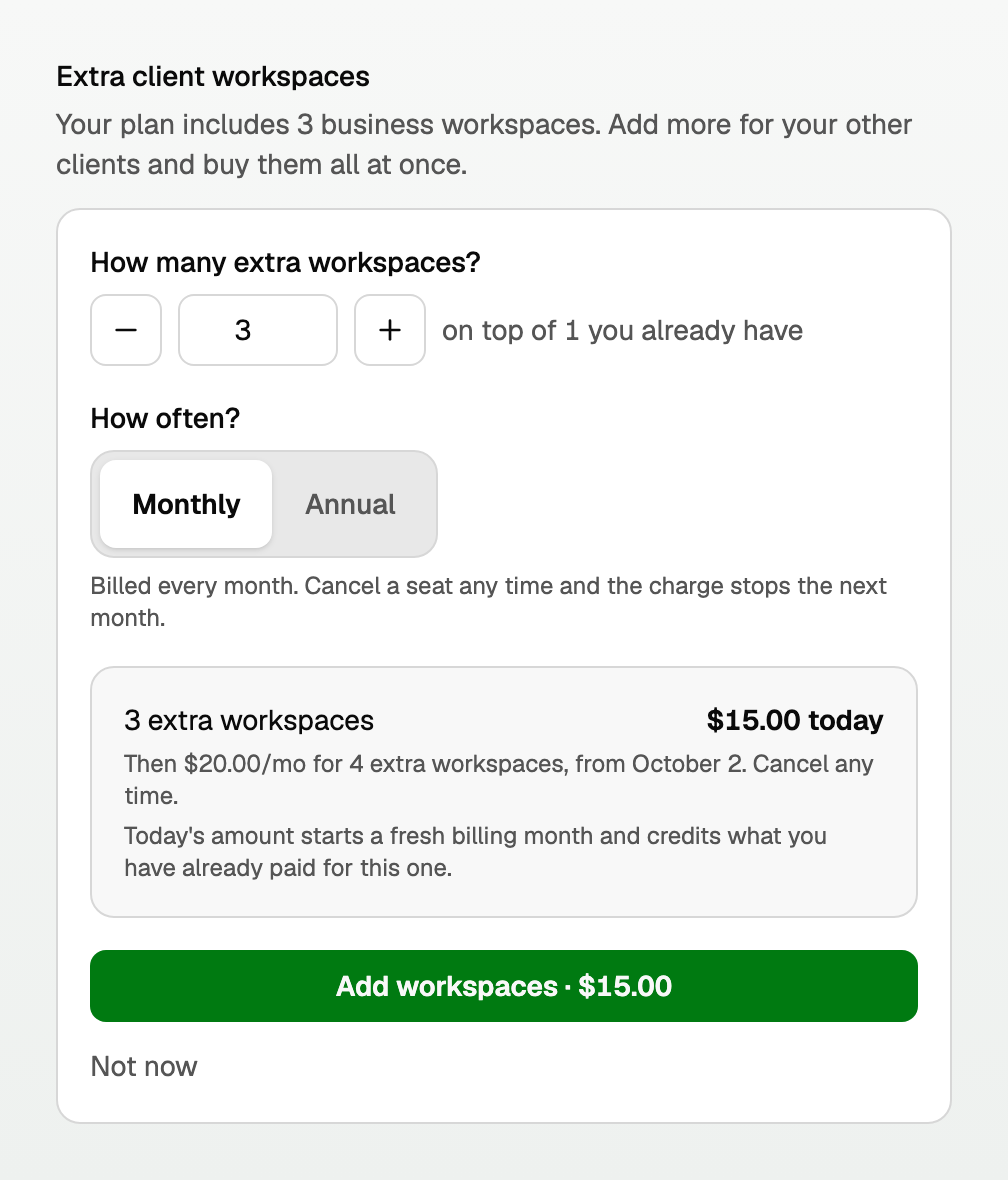
- Click Add workspaces.
- Set How many extra workspaces?
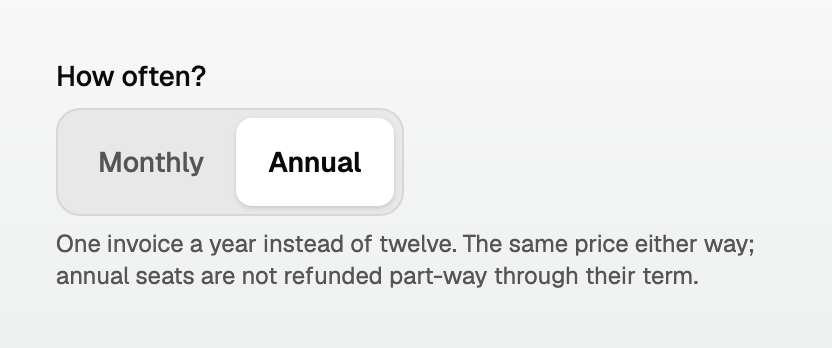
- If yearly seats are available, pick How often?
- Check today's charge, then click Add workspaces.
No card: Add a payment method, then Add workspaces. Extra client workspaces may ask for a card and say your current plan doesn't change. See "Add or change your payment method".
A free-forever founding account has no Payment method block. Extra client workspaces still asks for a card. That does not change the free plan.
The picker has a How often? row when yearly seats are available.
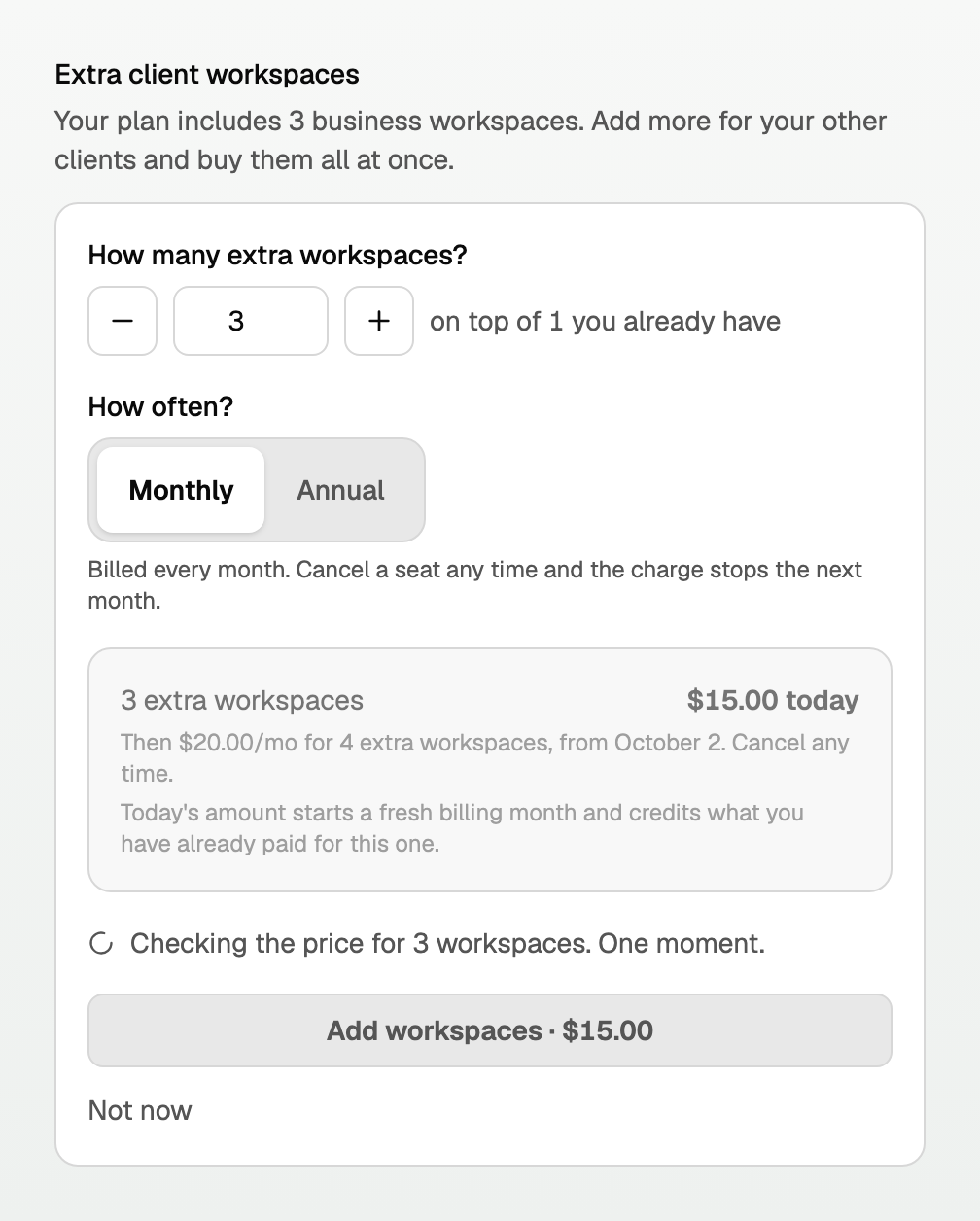
If you change the number, the old price dims. The panel says Checking the price for 3 workspaces. One moment. The button stays grey until the new price is ready. That is on purpose: it only charges an amount you have seen.
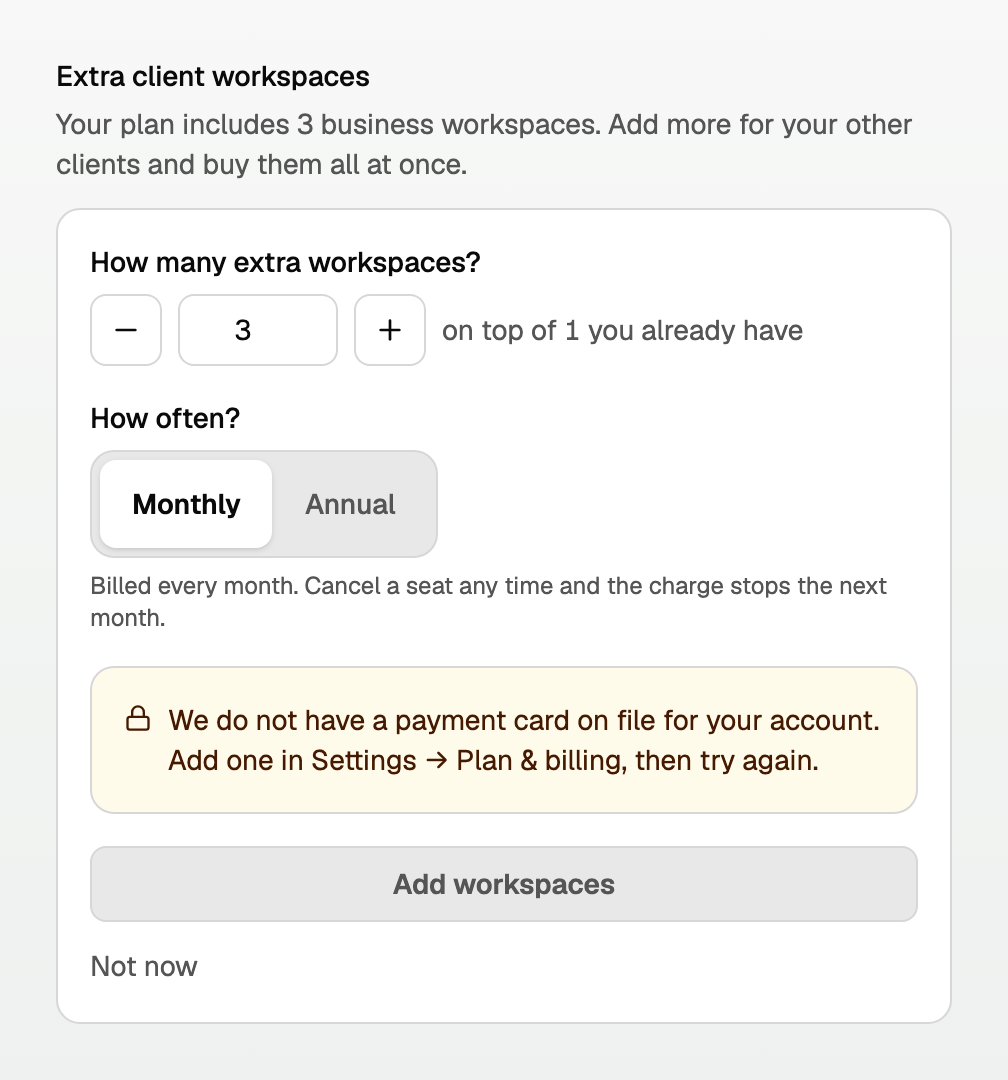
If Add workspaces is unavailable
The button stays grey when it cannot charge. The panel says why.
- No card on file. On the same Settings page, under Payment method, click Add a payment method. Then try again. Hitting the workspace cap first can show the same ask in amber on the picker.
- An add-on is already cancelling. The panel says, in amber: Resume your current workspace add-on before buying another. Click Resume add-on first.
- Something broke. That message is red. Try again in a moment.
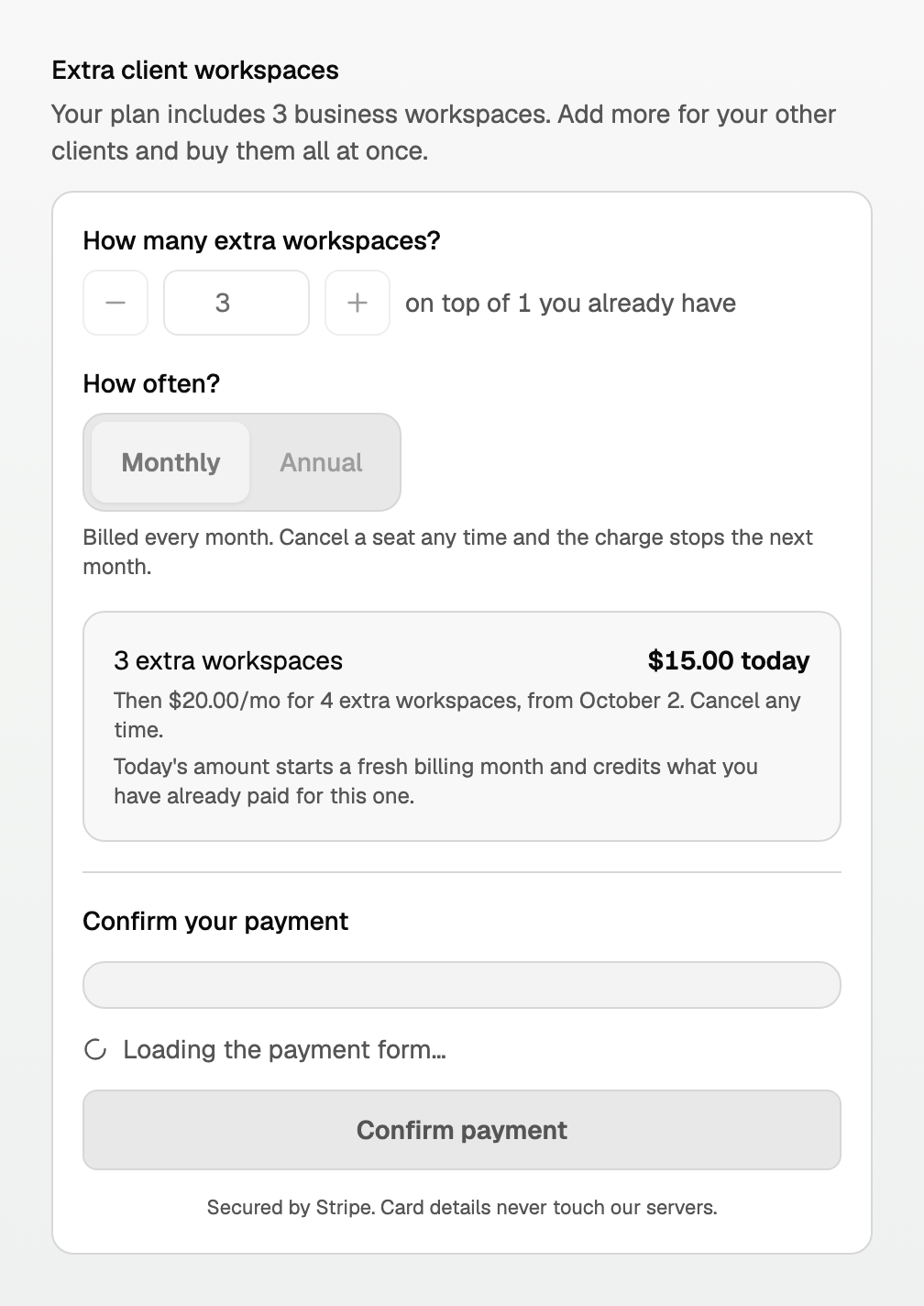
After you click Add workspaces, Confirm payment may say Loading the payment form… while the form appears. The button stays grey until the form is ready.
Release a yearly seat
- Under Extra client workspaces, click Release a seat.
- Settings says: "You'll still be billed for this year. This charge stops on your next billing date, [date]. Releasing a seat does not refund the current year."
- Click Release the seat, or Keep it.
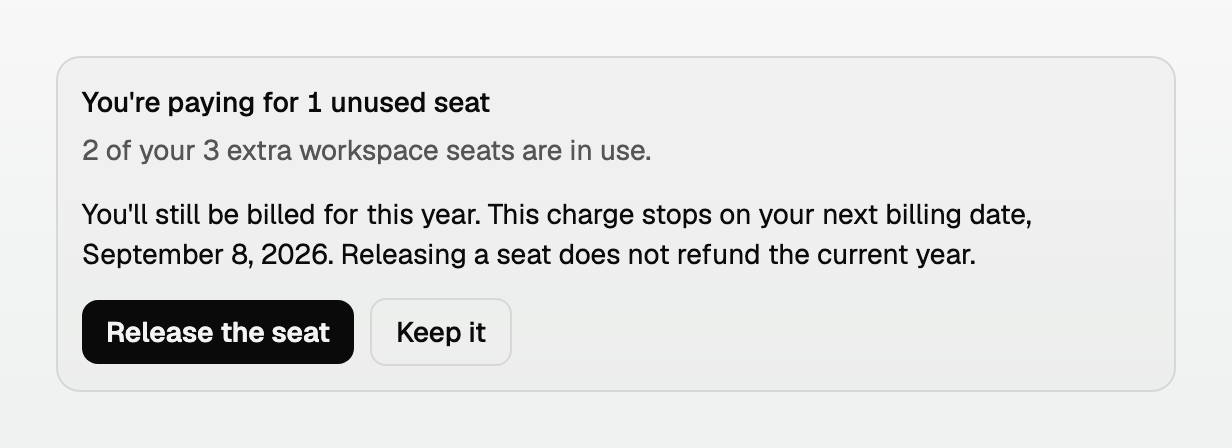
Archiving a client uses the same rule, with Archiving in place of Releasing a seat.
Billing day
Change is disabled for yearly seats. The reason sits next to it:
Your extra client seats are billed once a year, so there is no monthly withdrawal to move. The billing day applies to monthly seats only.

Good to know
- Lifetime has no monthly or yearly cycle to switch.
- Cancel starts with Cancel subscription, then a required reason and an optional note under Anything else?. On a monthly Solo, Business, or Practice plan you may see a yearly price first; No thanks, cancel my subscription finishes cancelling. Choosing Just testing, a yearly plan, or Firm skips that screen, and the button is Confirm cancellation. See "Cancel a trial or monthly plan".
- What each plan includes is in "What counts as a bank connection, and what each plan includes".
Updated on: 16/10/2026
Thank you!