
Read your Panel dashboard
Panel is the one-page summary of how the business is doing. It answers four questions a bookkeeper asks first: how much did we earn, how much did we spend, how much cash do we have, and how much are customers still owing us. Every number links to the full report behind it.
Open Panel
Home opens on Chat. Click Panel beside it, or open All pages in the left sidebar, then click Daily work and Panel.
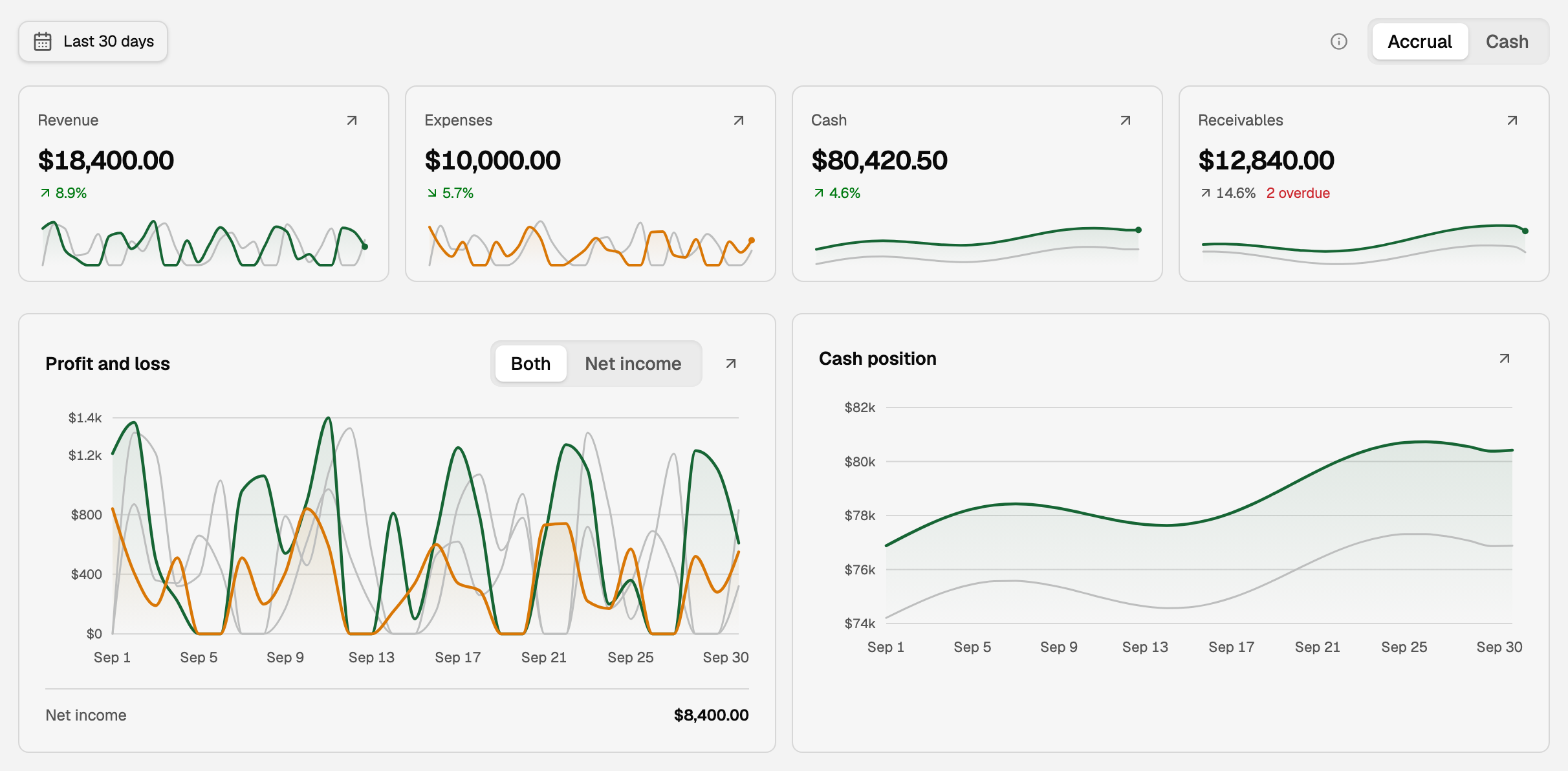
The four numbers
- Revenue is what you earned in the dates you picked.
- Expenses are what the business spent in those same dates.
- Cash is the money in your bank accounts on the last day of the range. On today, it uses the latest balances from your bank connections.
- Receivables is what customers still owed you on the last day of the range. A count such as 2 overdue says how many of those invoices are past their due date.
The small percentage under each number compares it with the period just before yours. Click the arrow on a tile to open the report behind it with the same dates. The Cash arrow opens Banking.
Accrual or Cash
The switch at the top right changes when income and expenses count:
- Accrual counts an invoice or bill on the day you issue it, whether or not it has been paid.
- Cash counts it on the day the money moves.
Most businesses watch Accrual to see what they earned, and Cash to see what came in. Moving money between your own accounts is never income or an expense on either.
Choose the dates
Panel opens on Last 30 days: today and the 29 days before it.
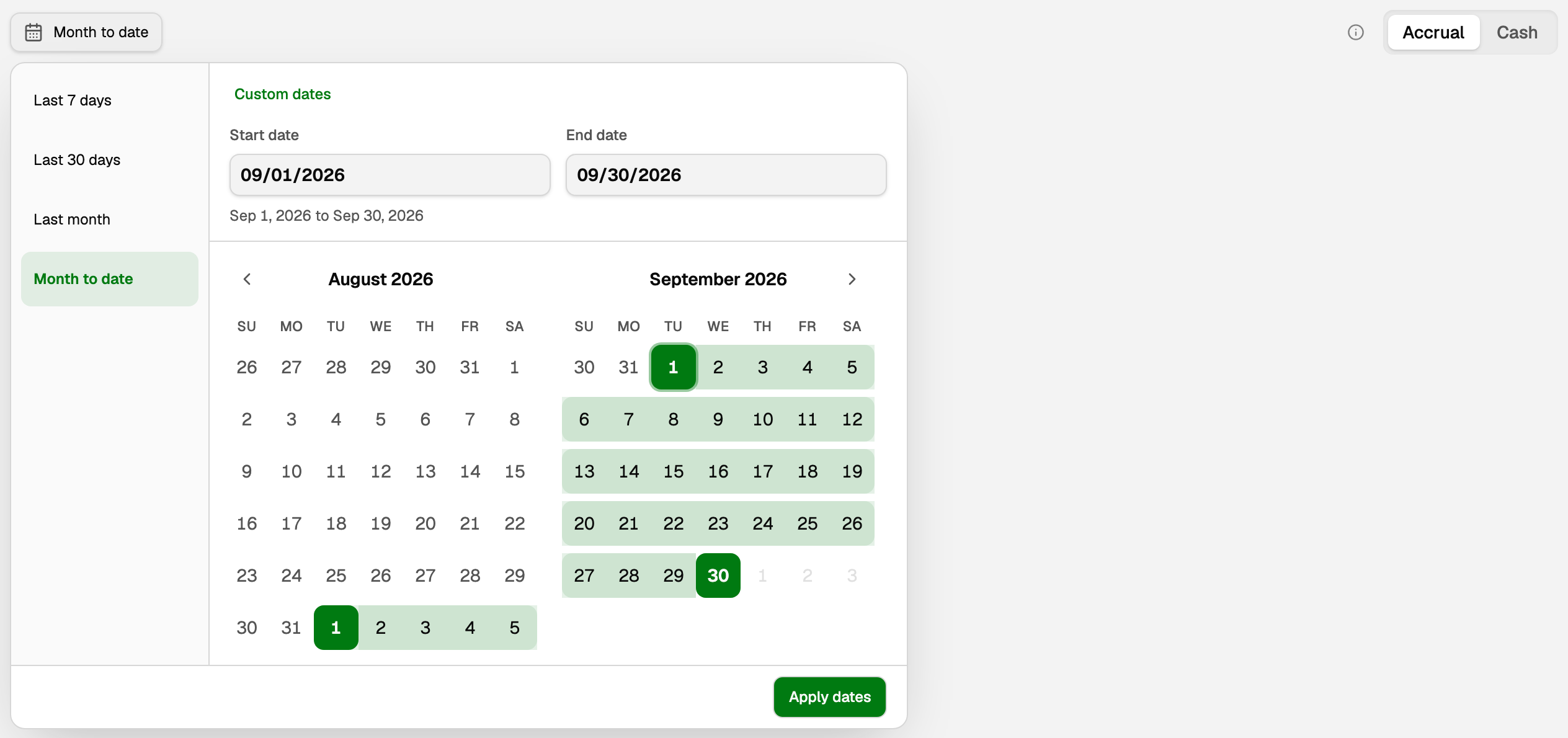
- Click the date button at the top left.
- Pick Last 7 days, Last 30 days, Last month, or Month to date. Panel updates at once.
- For any other stretch, such as a pay cycle or a tax quarter, click Custom dates, set Start date and End date by typing or on the calendar, then click Apply dates.
The date range sets every report card on Panel:
- Revenue, Expenses, Profit and loss and Expenses breakdown add up everything between the start and end dates.
- Cash, Receivables and Payable and owing are a snapshot on the end date.
A link to Panel keeps the dates you chose, so a bookmark to Last month always shows the most recent full month.
The charts
Every line chart, the small ones under the four numbers too, draws the period before yours as a gray line under your own. Point at a day to compare the two.
- Profit and loss draws revenue and expenses across your dates. Net income shows what is left after expenses.
- Cash position draws your bank balance day by day.
- Expenses breakdown shows which categories took the most money. Click a category to see the transactions behind it.
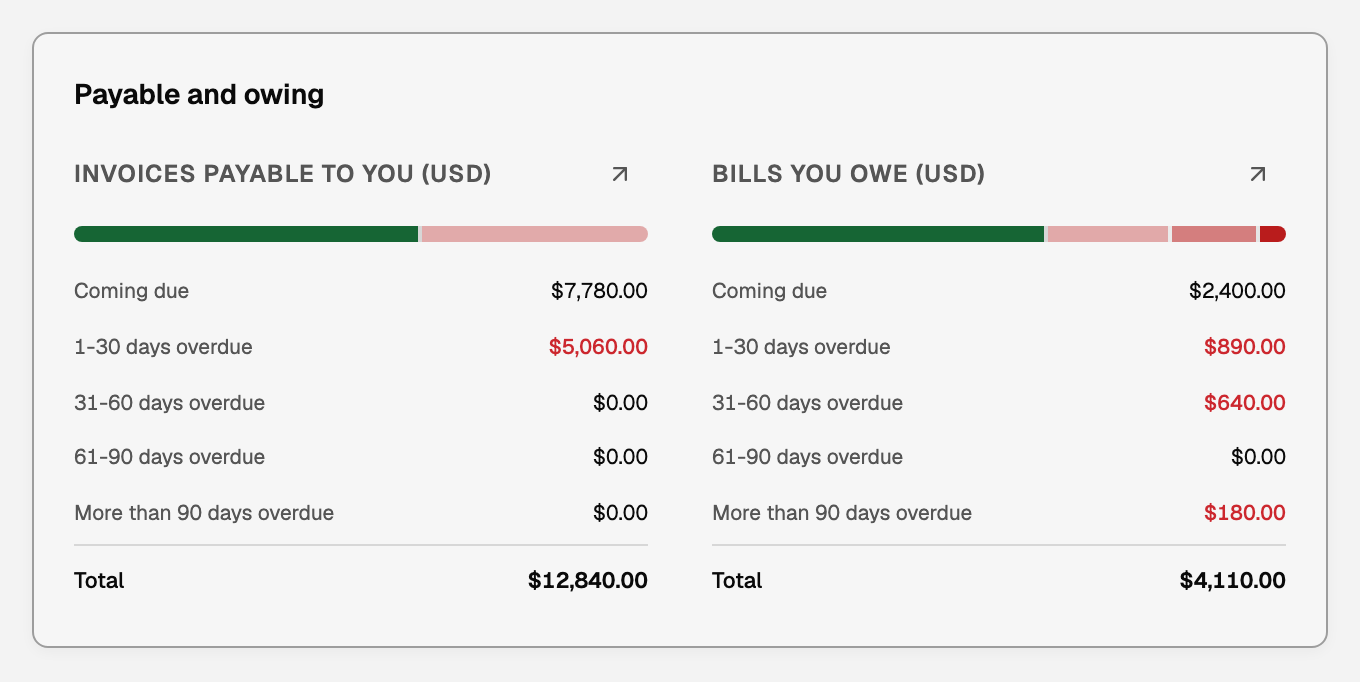
Who owes you, and who you owe
Payable and owing splits unpaid invoices and bills by how late they are on the end date. Click a row to open the list of those invoices or bills.
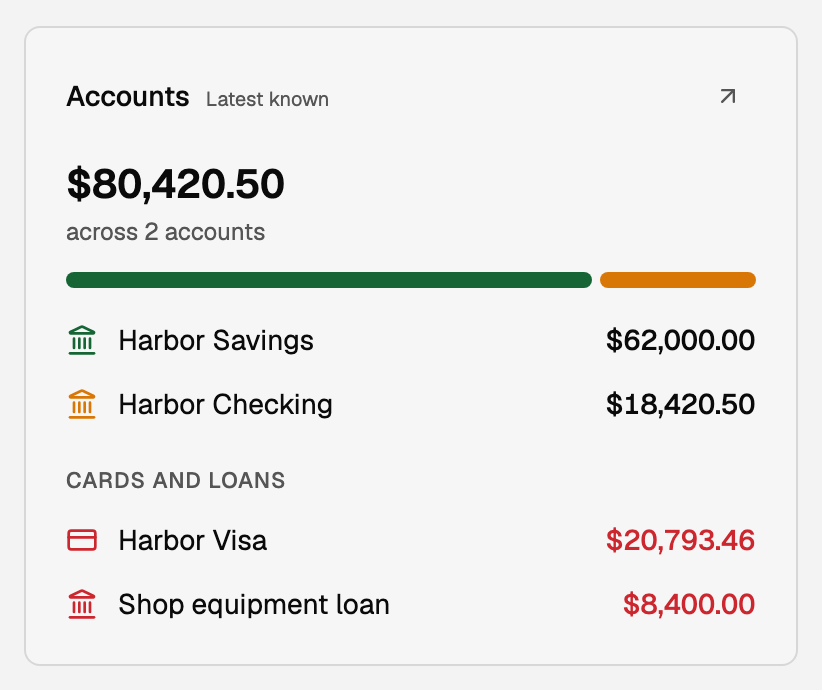
Accounts and Recent invoices
These two cards ignore the date range and always show today, so you can check what you can spend or who to chase while you look back at an older month.
- Accounts lists the latest balance for up to six bank accounts, then up to four credit cards and loans. Its arrow opens Banking with every account. A balance with a dashed underline is older than usual. Point at it to see when it was last read, and click it to open that account in Banking, where you can update it.
- Recent invoices lists up to six of your newest invoices and their status today.
If something goes wrong
- The numbers say Sample data. A new workspace shows example figures until your own books arrive. Connect a bank or import your books, and they are replaced.
- Cash dropped, but nothing happened. A bank account that was replaced or merged is left out of Cash and Accounts. Your books did not change. Open Banking to check the account that replaced it.
- Cash says Needs refresh, or a number says Unavailable. BooksGPT does not have a recent enough bank balance, or imported history cannot prove the figure for that date. Refresh the account in Banking, or pick an end date your books cover.
For the full reports behind these numbers, see Run your financial reports.
Updated on: 18/10/2026
Thank you!