
Get started with BooksGPT
Your books are a record of every dollar that comes into or goes out of your business, each one filed under a category such as Sales, Rent or Office Supplies. Kept up to date, they tell you whether you are making money, and they give your accountant what they need at tax time.
BooksGPT does most of the typing and makes the first guess at every category. Your part is to check its work. Getting started takes four steps.
1. Set up your workspace
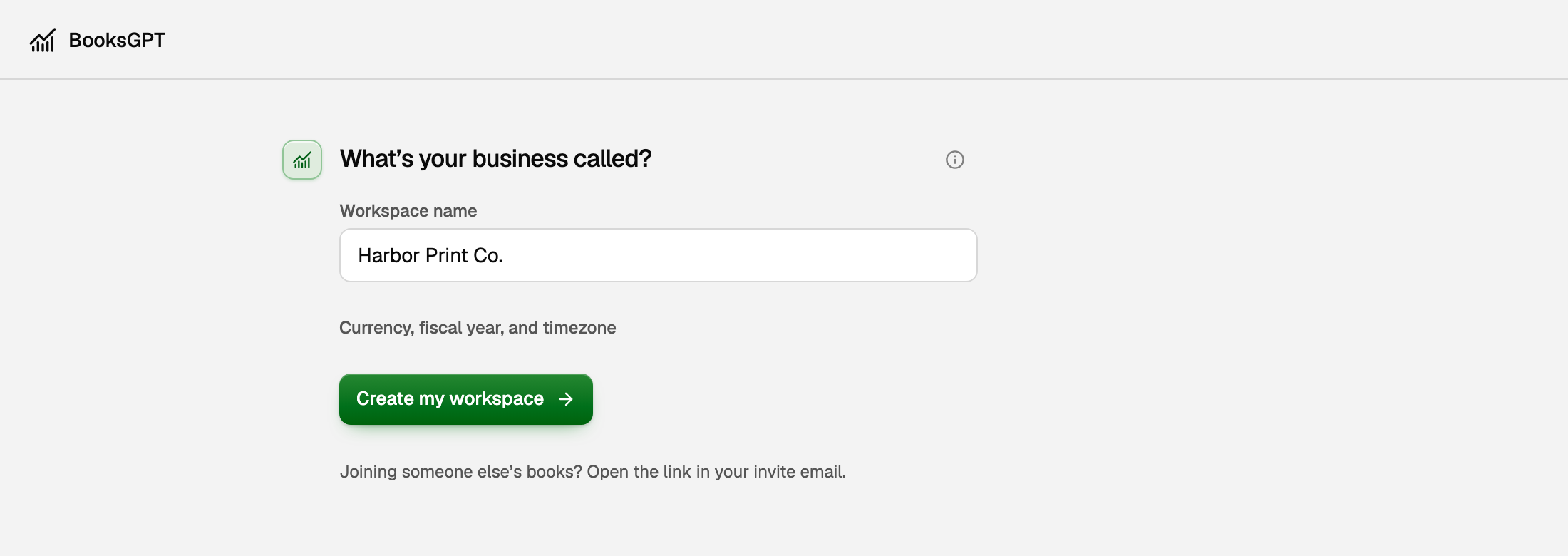
A workspace holds one business's books. After you start your trial or buy BooksGPT, it asks what your business is called.
- Type your business name in Workspace name. You can change it later.
- To check your currency, fiscal year or timezone, click Currency, fiscal year, and timezone.
- Click Create my workspace. Home opens with a short setup chat.
- Answer the questions, one at a time. Choose My business for your own books, or Client books if you keep books for clients. Every answer saves as you go.
- Read the short profile of your business and click Looks right, or Edit answers to change something.
What your business does and how you get paid help BooksGPT read your transactions the right way, such as knowing which deposits are sales.
2. Bring in your transactions
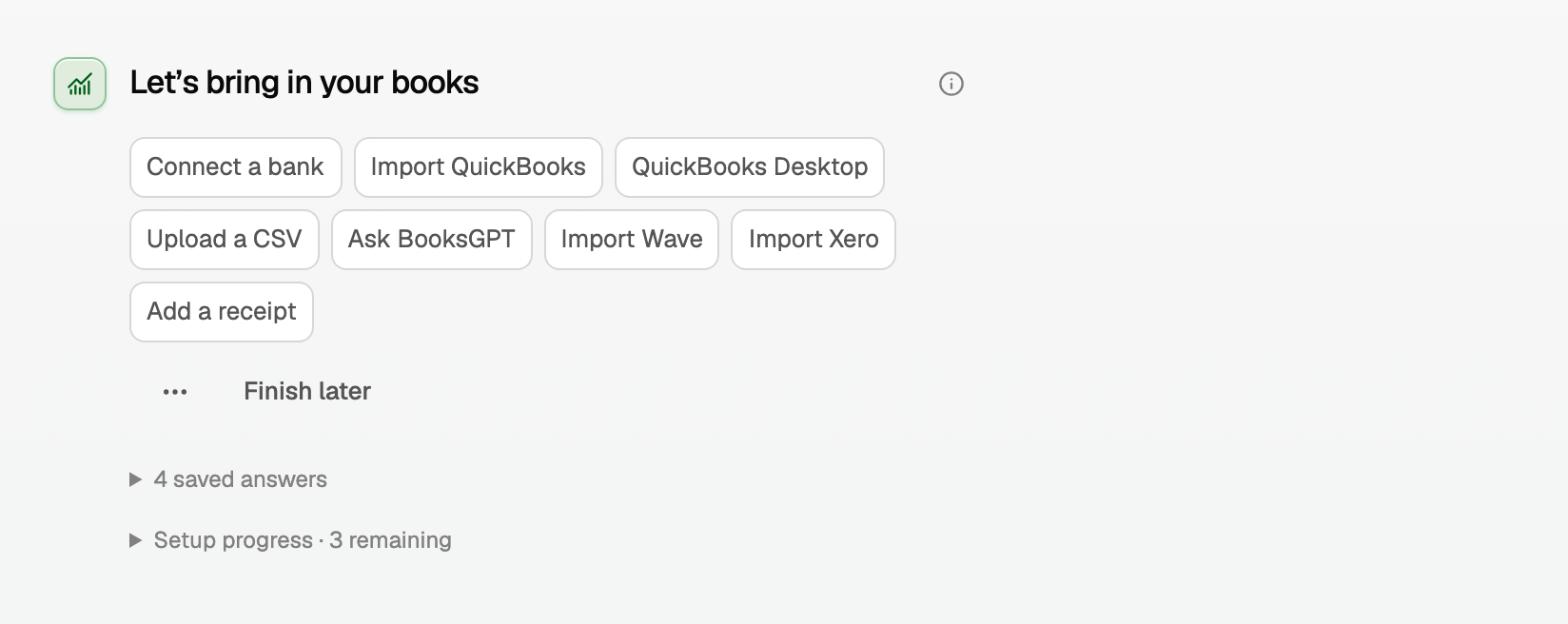
Your books start with the money that has already moved. At the end of the setup chat, pick a starting point and it opens right there in the chat:
- Connect a bank links your bank account or card. BooksGPT brings in new transactions every day, so you never type them in. This is how most businesses keep their books current. See Connect your bank account.
- Import QuickBooks, QuickBooks Desktop, Import Wave or Import Xero brings your history over from your old software, so your reports match what you had before. See How to import your data from Wave or QuickBooks.
- Upload a CSV is for an account that will not connect. You can also upload a bank statement.
- Add a receipt files a photo or PDF of a receipt.
- Ask BooksGPT answers a question in plain words.
Doing both? The easiest order is to import your old books first, then connect your bank, so the same payment is not counted twice. The import article linked above explains how BooksGPT keeps the two apart.
3. Review your transactions
Every transaction needs a category: the account that says what the money was for. When you bring in bank transactions with Import + AI categorize, BooksGPT suggests one for each, and you approve it. Until a transaction is approved, its money waits in Uncategorized.
- Open All pages in the left sidebar, then click Daily work and Review inbox.
- Check the category on each transaction. To change it, click it and pick another account.
- Click the green circle at the end of the row to approve it, or Approve & post all to approve the whole list.

A few minutes a week keeps your books current. The details, including how to teach BooksGPT a rule, are in Review the inbox and file Uncategorized transactions.
4. Read your first report
The profit and loss report answers the first question every owner asks: did we make money? It adds up what you earned over a period and subtracts what it cost.
- Open All pages in the left sidebar, then click Reports and Profit & loss.
- Pick the dates under Report period, such as Year to date.
- Click any account to see the transactions behind its number.
How to read it, and the Balance sheet and Cash flow, are in Run your financial reports.
What your books say now
Your transactions are in, each filed under a category you approved. Your Profit & loss shows your income at the top, your expenses below, and the difference at the bottom: what the business earned. You can also ask BooksGPT about your books on Home in plain words, such as how much you spent on fuel last month.
If something goes wrong
- You closed the setup chat before the end. Open Home and click Continue setup under the ask box. It picks up where you left off, with your answers kept.
- You picked a wrong answer. On the setup card, click the ... button and choose Change earlier answers, or Edit business profile once you have confirmed it.
- You were invited to someone else's books. Do not create a workspace. Open the link in your invite email instead.
- Your Profit & loss shows $0, or a large Uncategorized line. See Why your dashboard or P&L shows $0.
Updated on: 16/10/2026
Thank you!