
Ask your client about selected transactions
Use Email a question when you need context before categorizing one or more transactions. You write a question beside each transaction, then BooksGPT sends all of them in one email. Your client answers without creating an account.
1. Choose the transactions
- Open All pages in the left sidebar, then under Daily work click Transactions.
- Tick up to 50 rows. A row of icons appears above the list, after N selected. Hover an icon to see its name.
- Click the envelope icon, Email a question. The dialog that opens is titled Ask your client.
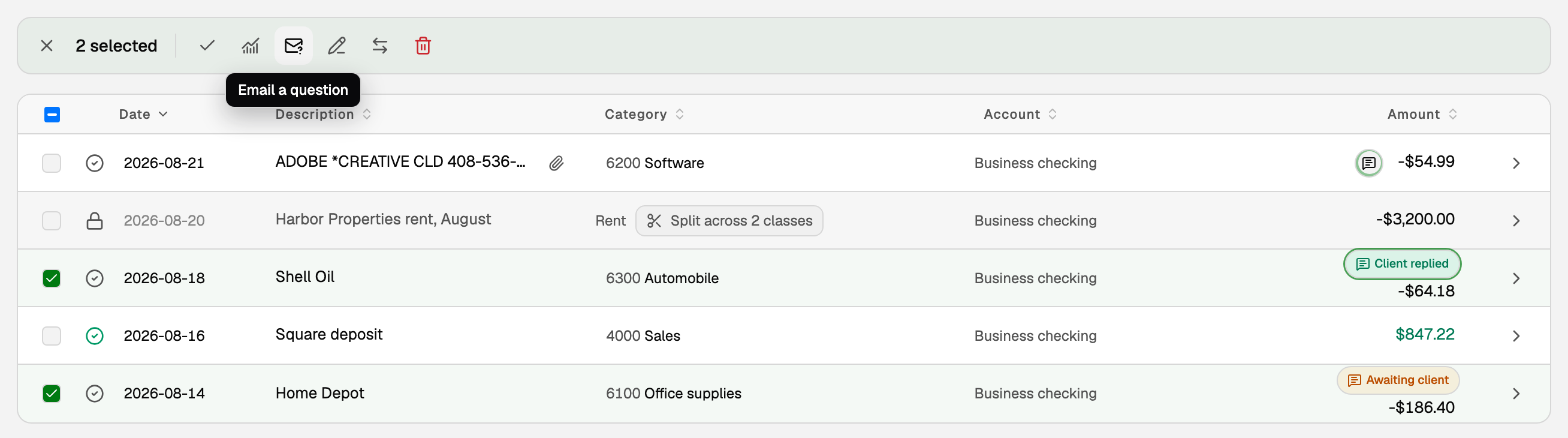
- With more than 50 rows ticked, the icon is dimmed. Pointing at it or clicking it says Select 50 or fewer to ask in one email.
- The BooksGPT mark beside it is Chat about this. It opens the BooksGPT chat about the rows you ticked (the first 20 when you ticked more), so you can ask BooksGPT about them. Email a question is the one that emails your client.
What you see on the register
Most rows show nothing next to the amount. A chip appears only when a conversation has started.
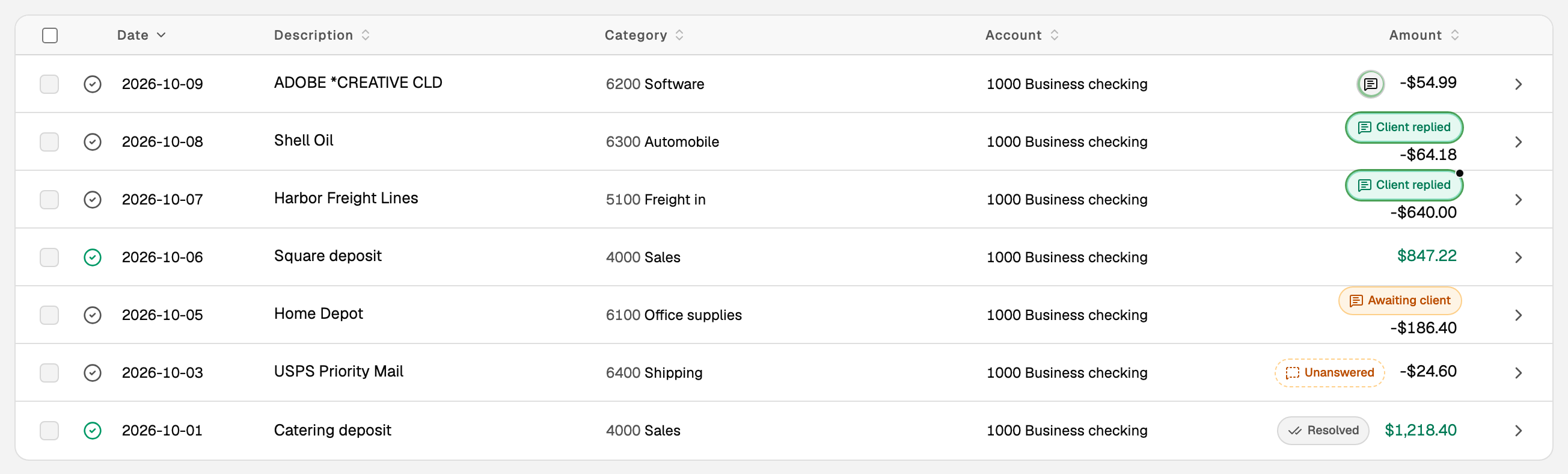
- Awaiting client (amber): you emailed a question and they have not answered yet.
- Client replied (emerald, with a bold green edge): they answered. A small dot on the chip means a workspace note is there too.
- A small circle with an emerald ring: Internal note. Someone in your workspace wrote in Chat, and no client email is in play. The words are for a screen reader; the row itself shows the circle.
- Unanswered (amber, dashed border): the client's link expired without an answer.
- Resolved (muted, double tick): you closed the chat.
Amber means the client owes you something. Emerald means they answered. Neutral means this is your own workspace talking. A dashed border means the link is dead.
The chips stay still. When a client's reply or a teammate's note shows up on a row while you have the register open, that chip rings once to catch your eye:
- Only Client replied and Internal note ring.
- Opening the register, or going back to it from another page, rings nothing.
- A note you wrote yourself rings nothing.
- If your device is set to reduce motion, nothing rings.
To find them, click Filter, then Chat. The list is Any, Awaiting client, Client replied, Internal note, Unanswered, and Resolved.
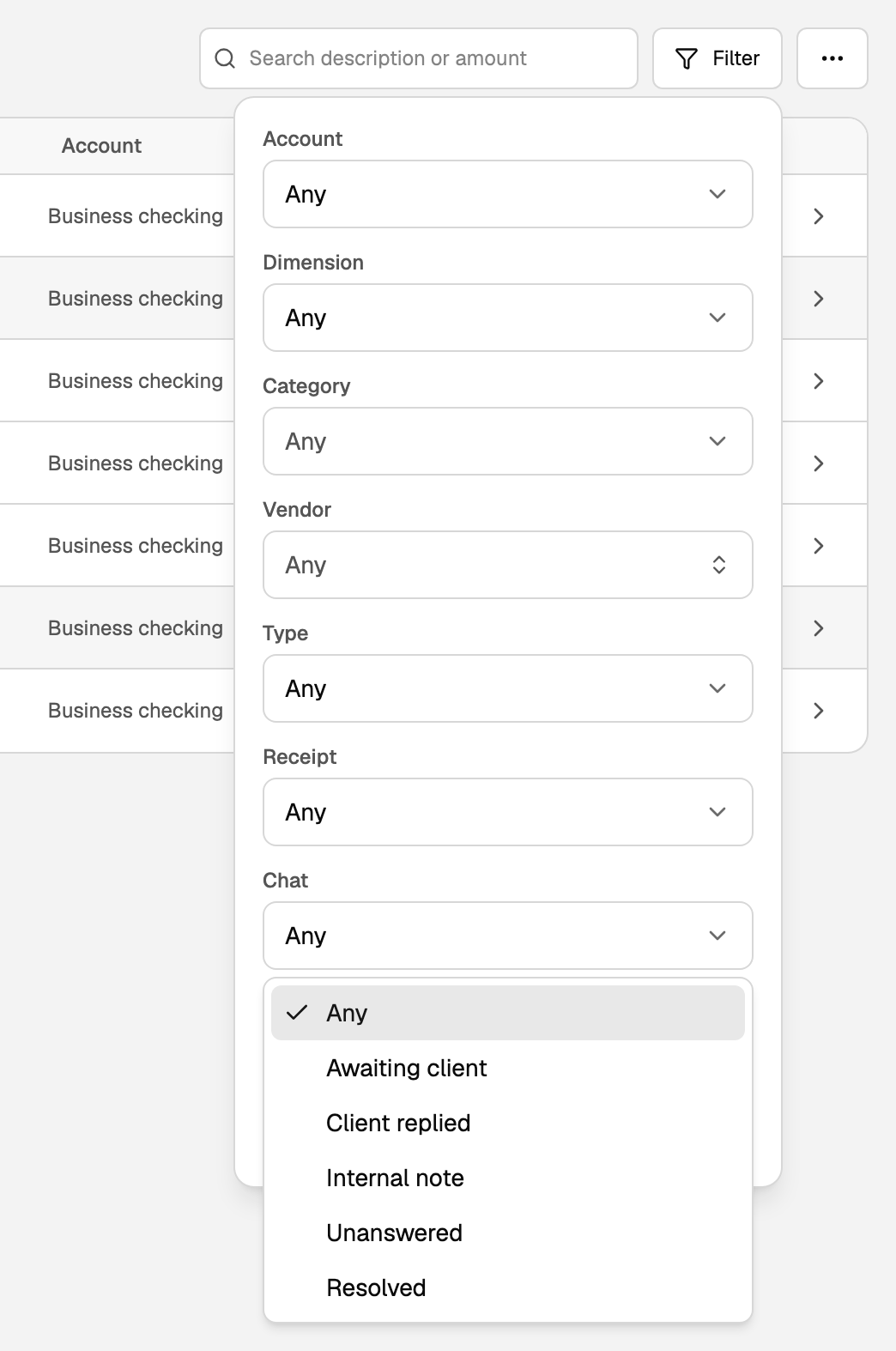
The filter matches what is actually in the thread. Internal note finds every row with a workspace note, even when the chip says Client replied. Resolved is a finished chat; its old notes and dead asks stay out of the other filters.
A row with no conversation has no chip. Open the transaction and use Chat under Notes to start one.
Text that is too long for its cell, such as a payee or an account name, is shortened so it cannot run under the next column. Point at it to see the full text.
If you write a new note into a resolved chat, it reopens.
2. Choose your client contact
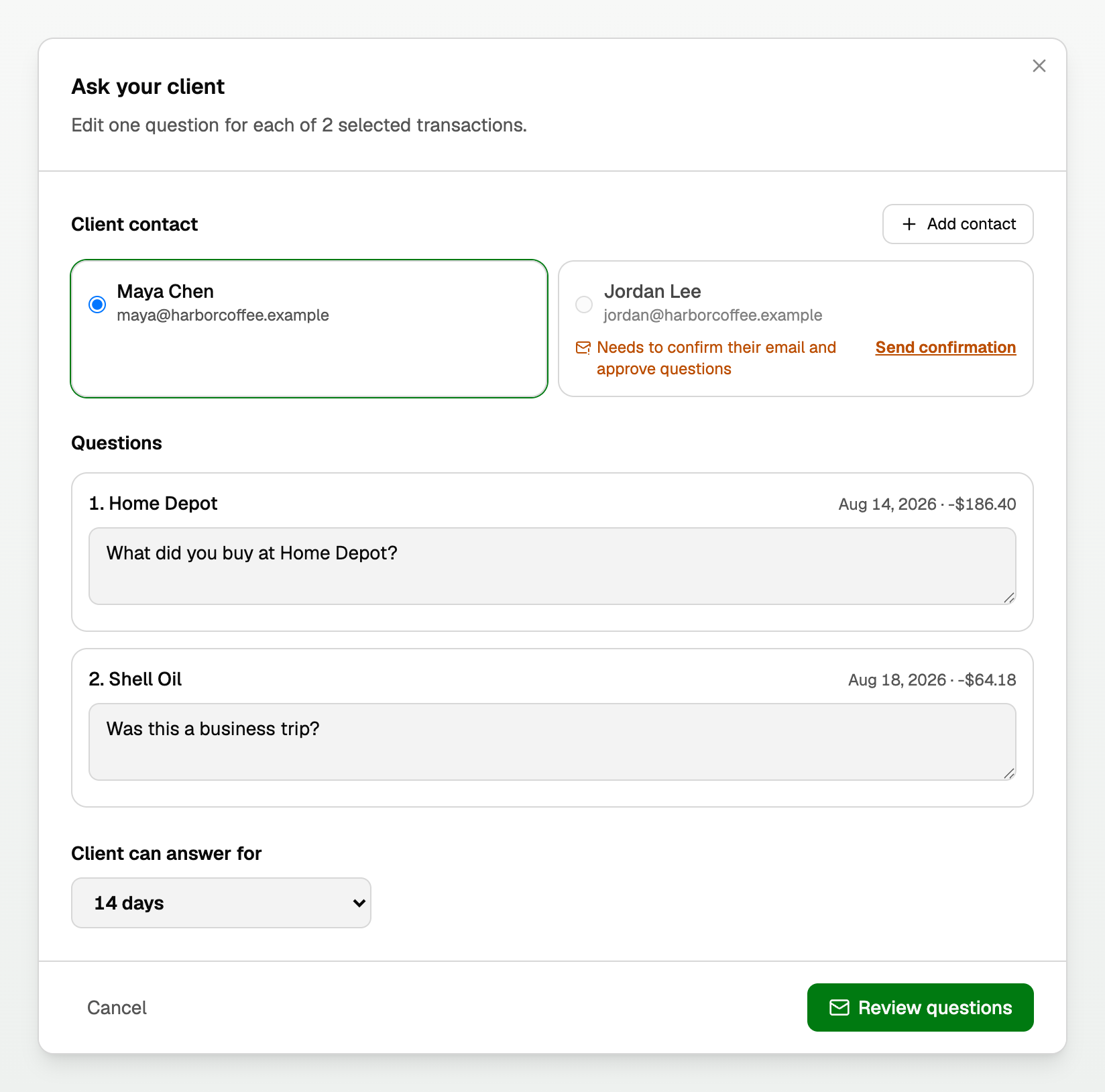
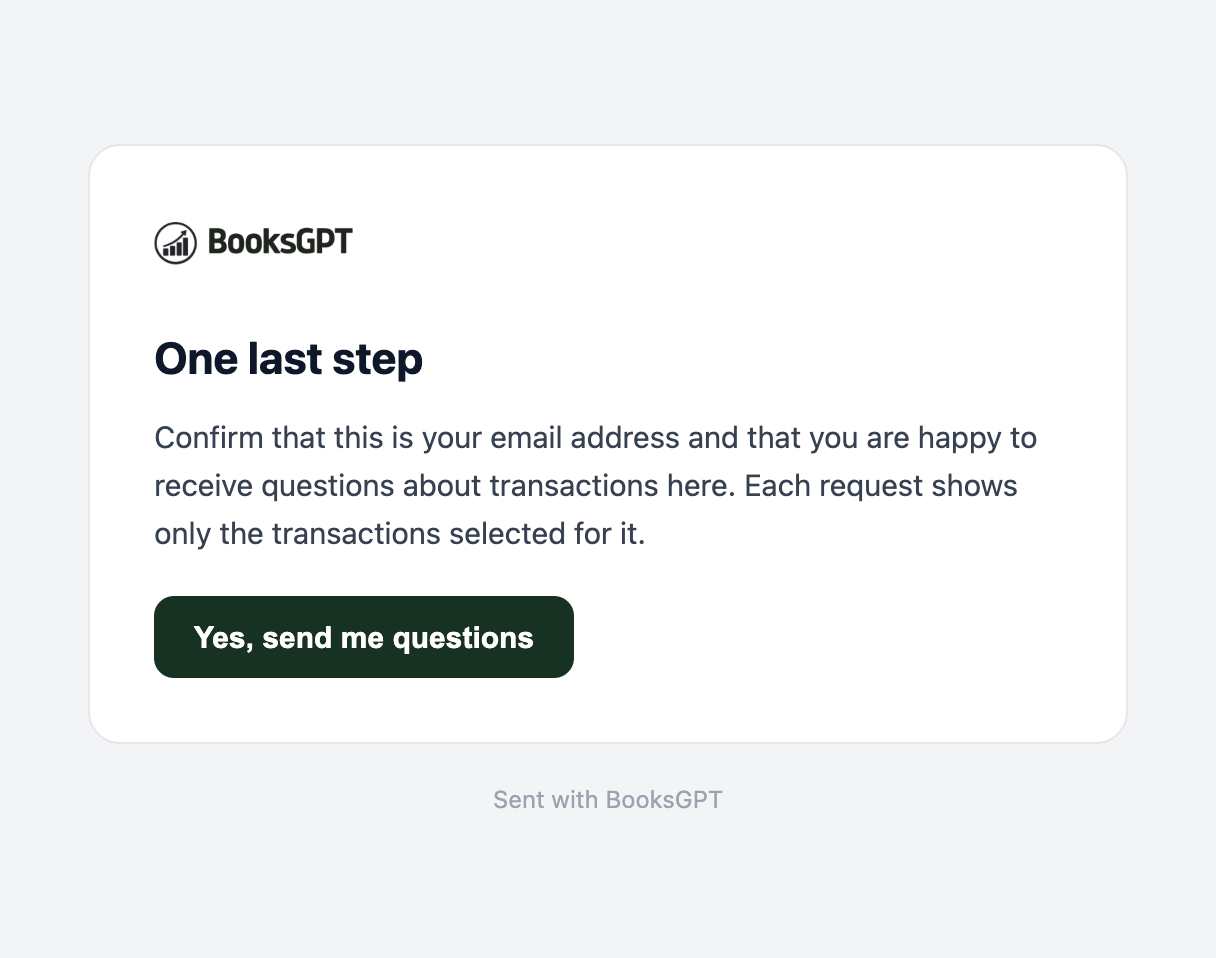
Pick a contact who is ready for transaction questions. If the person is not in the list, click Add contact, enter their name and email, and send a confirmation. This confirmation email does not include your transaction questions. You can send the questions after the person approves.
You can manage the same people under Settings → Client contacts. Client contacts are separate from customers and workspace members.
3. Write and review the questions
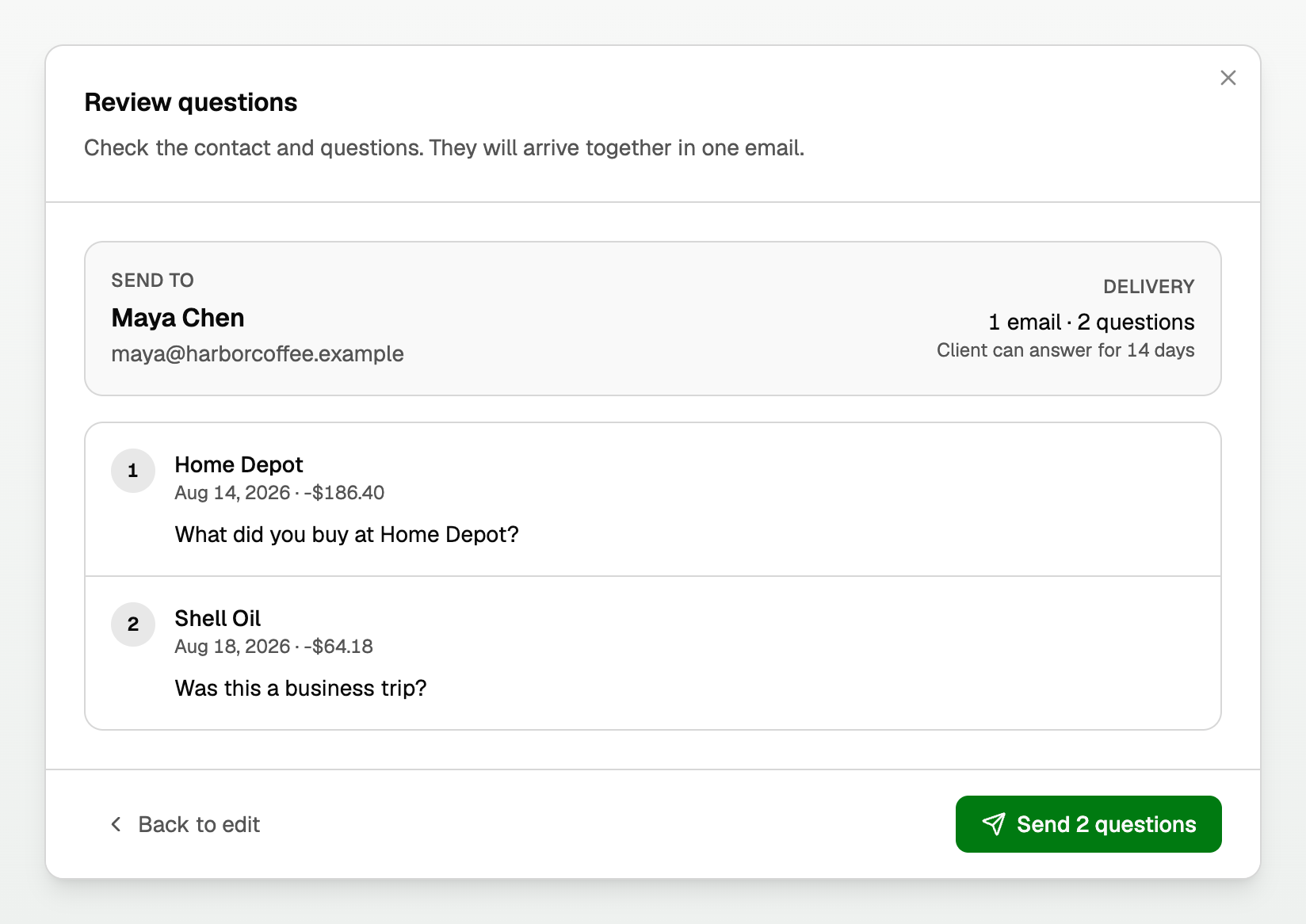
Edit the question beside each transaction. The default is What was this transaction for? Choose how long the client can answer, then click Review questions.
The review screen shows the contact, every question, and a clear summary such as 1 email · 3 questions. Go back if anything needs changing.
4. Send one email
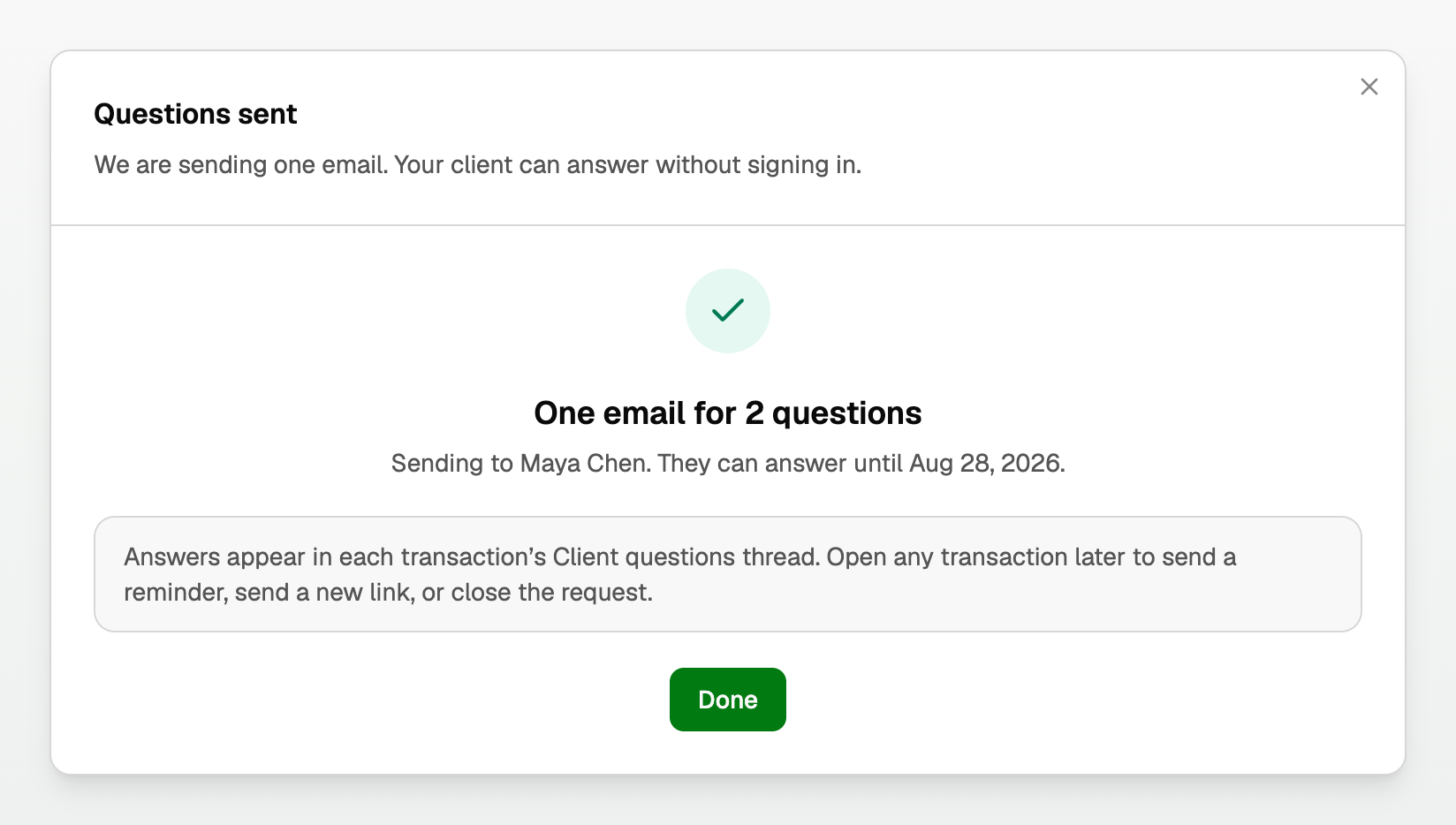
Click the green button with the question count, such as Send 3 questions. BooksGPT sends one email for the whole selection, not one email per transaction. The confirmation screen tells you who it is going to and when they can no longer answer.
5. Follow the replies
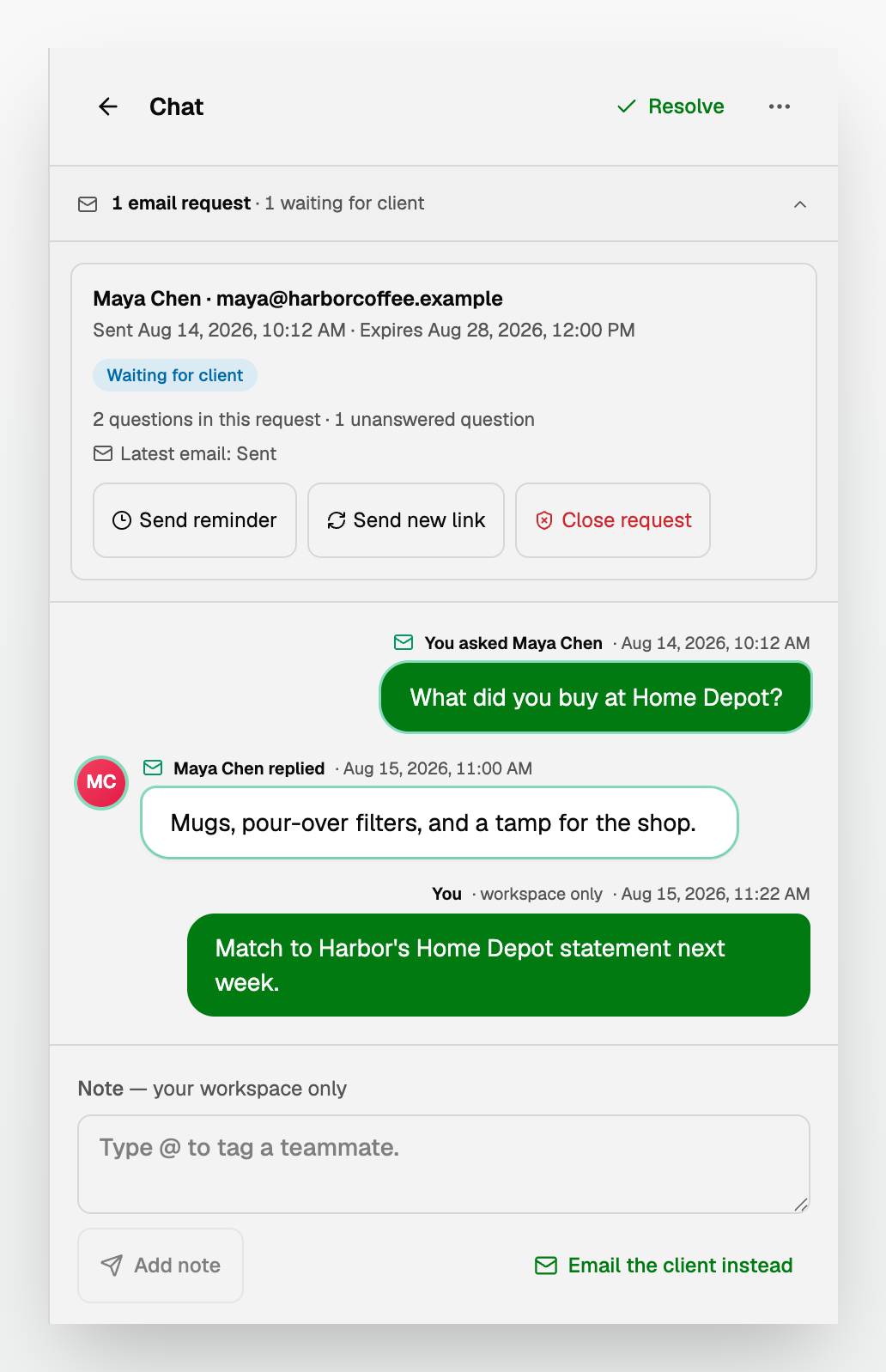
Open the transaction. Chat sits under Notes. Click it and the conversation slides in; the arrow at the top left takes you back, and so does Escape.
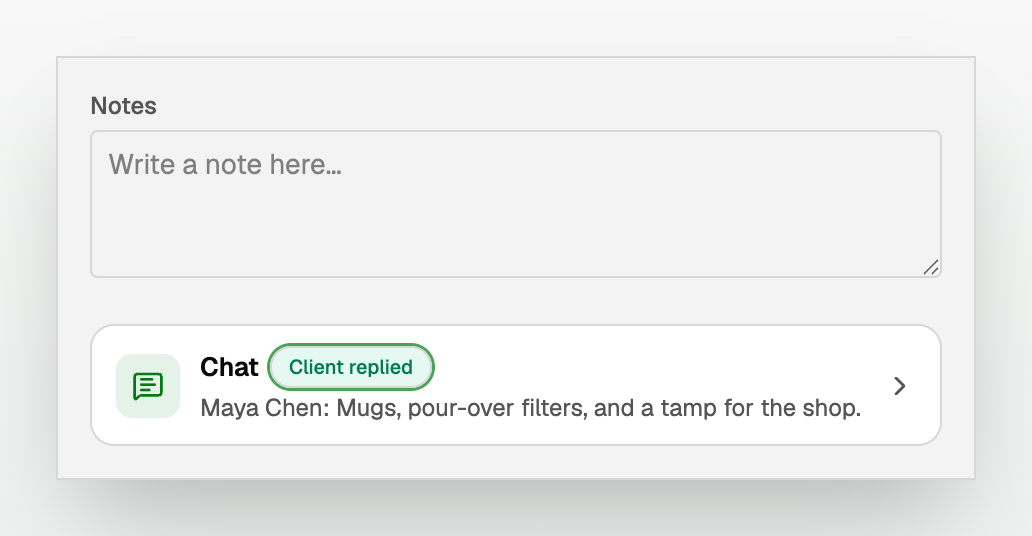
Each answer returns to the matching transaction with the client's name and time, on the left. Your side of the conversation is on the right. A message that went to the client, and the answer that came back, both carry an envelope; an internal note says workspace only and is never emailed to the client.
What the client sees
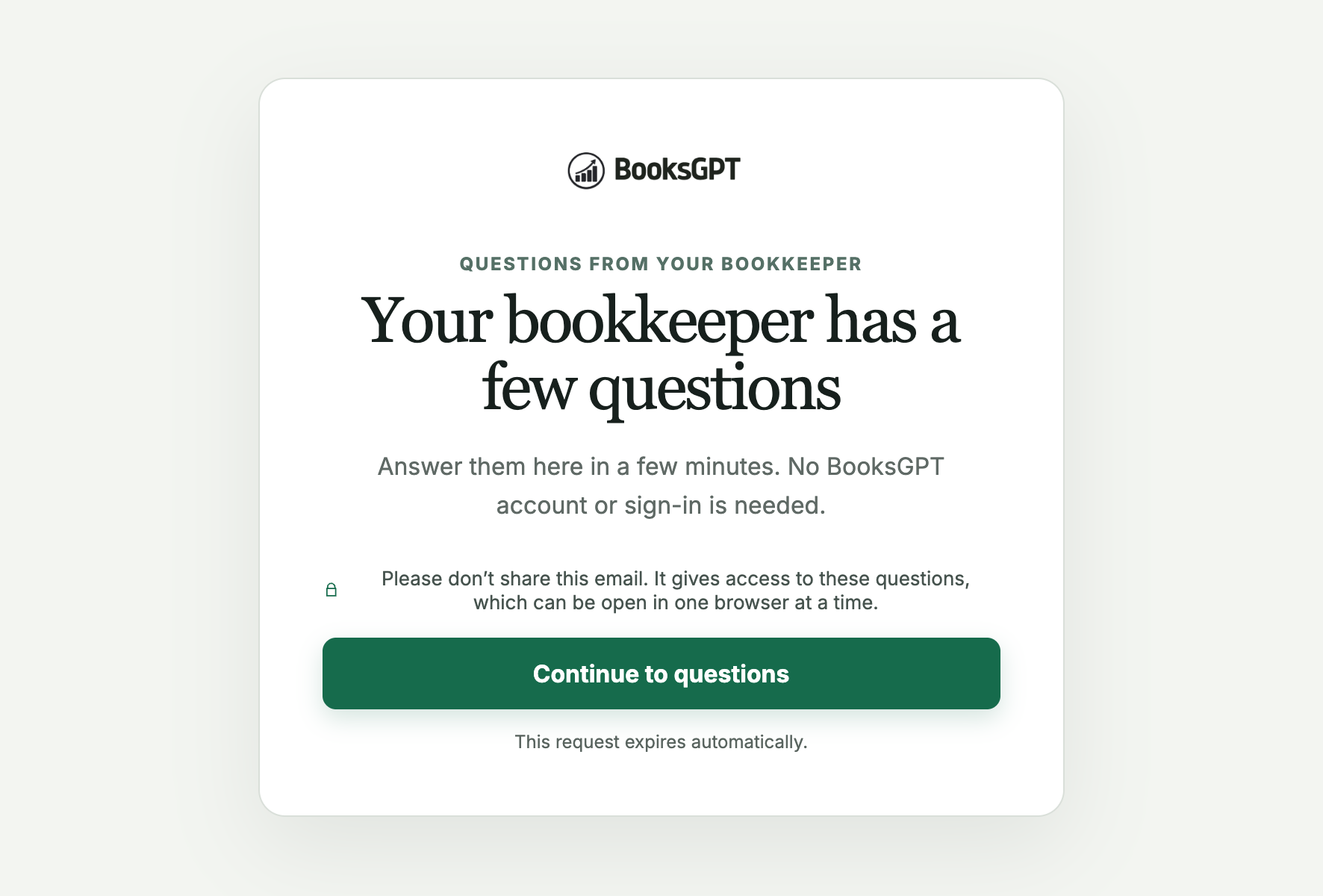
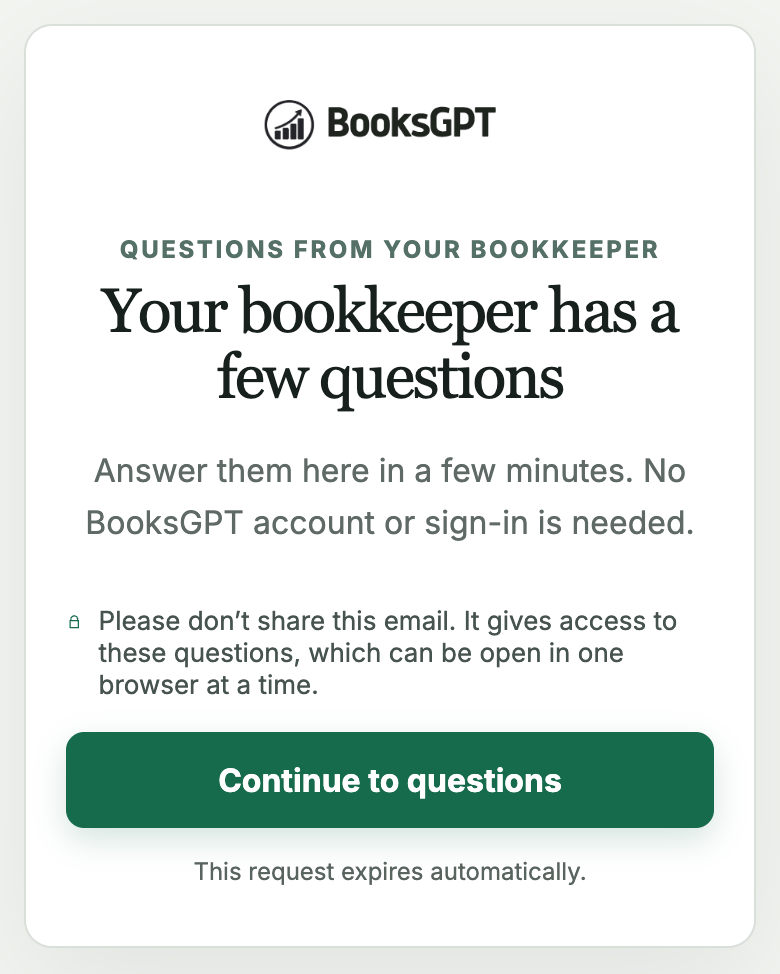
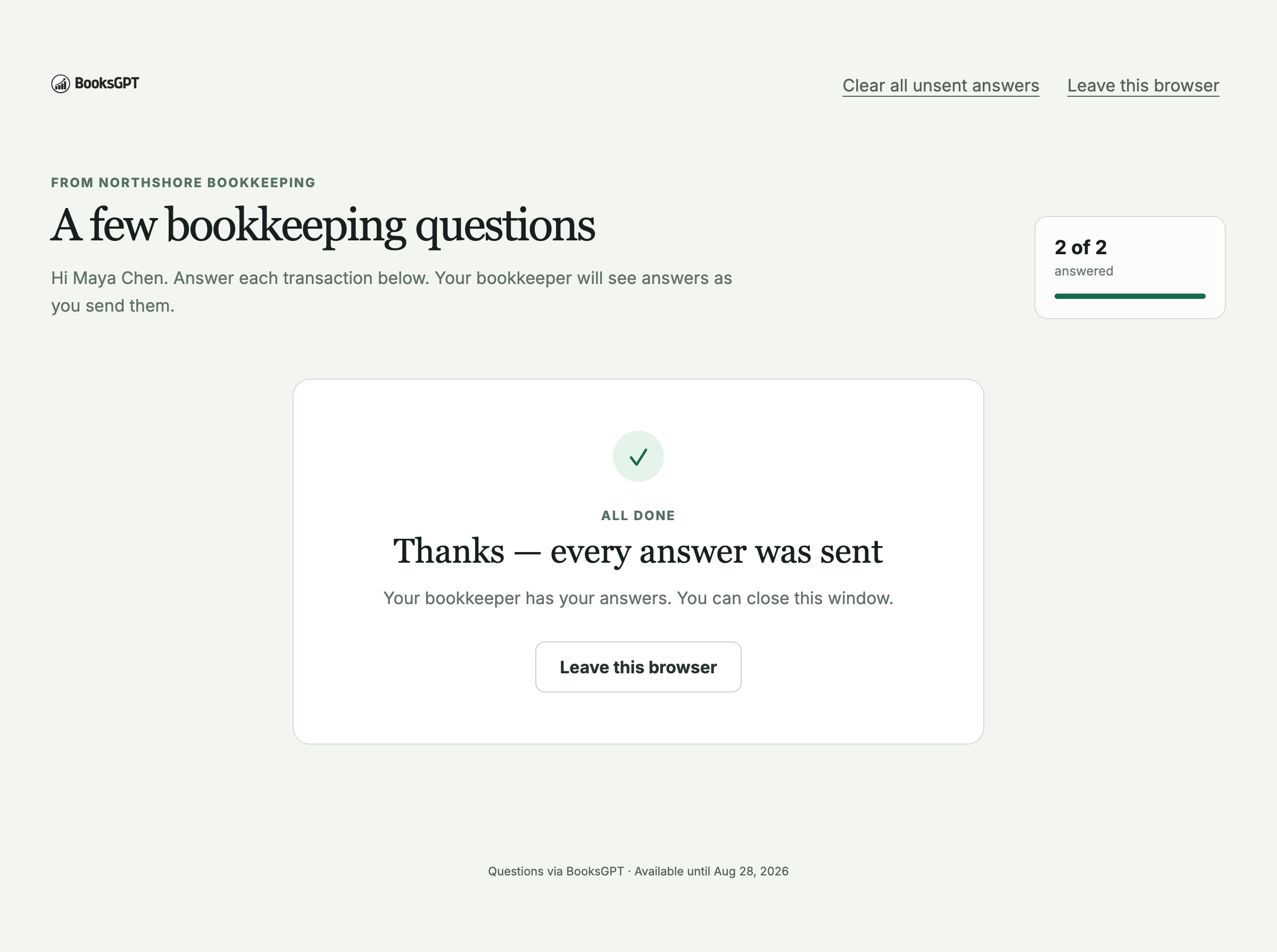
The client receives one email and clicks Open questions. A privacy page asks them to continue before showing anything. They do not need a BooksGPT account or sign-in, and they see only the transactions you selected.
For privacy, the questions can be open in one browser at a time. The client should not forward the email.
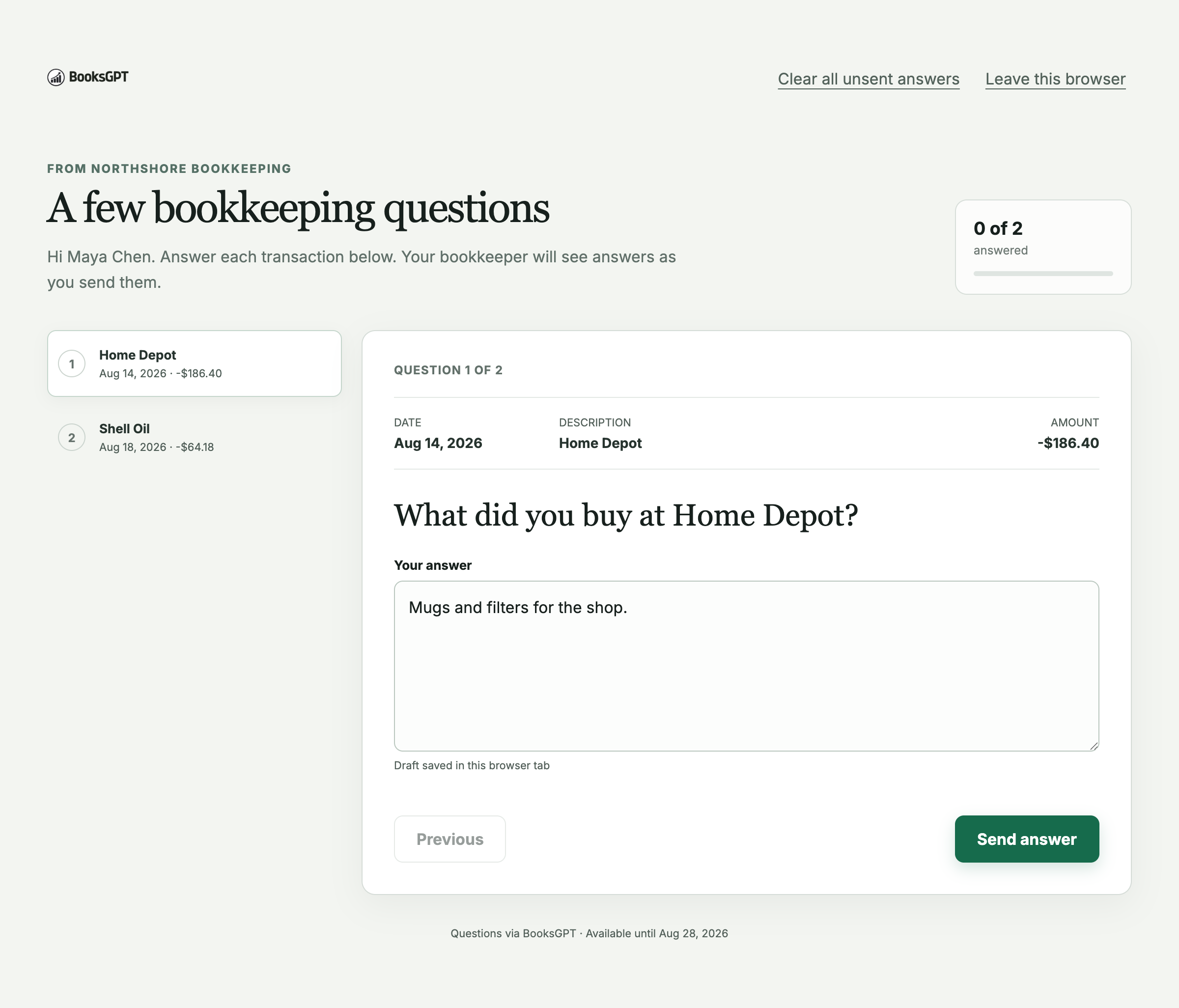
They answer one transaction at a time. Unsent typing is kept only in the current browser tab and may be lost if they close it. After they click Send answer, that answer is final and appears in BooksGPT.
Send a reminder, replace the link, or close the request
Open Chat on the transaction. While a client still owes you an answer the email request is already showing, with its controls:
- Send reminder sends another email with a new link.
- Send new link replaces the current link without calling it a reminder.
- Close request stops any remaining answers.
BooksGPT always shows this consequence before sending.
When every answer arrives, the request says All answered and the transaction shows Client replied. This does not resolve the bookkeeping chat for you; click Resolve, at the top of the Chat pane, after you have handled the answers.
Nothing changes in the books automatically
Client answers provide context only.
Updated on: 14/10/2026
Thank you!