
Customer credits: what customers have overpaid
When a customer pays more than an invoice's balance, the extra does not belong to revenue yet. It sits as a customer credit they can spend on a future invoice. The Customer Credits report is where you see what is still unspent.
Record an overpayment
- Open the invoice and click Record payment.
- Enter what you received.
- In Amount to apply, cover the invoice. The rest appears in Amount to credit.
- Save. The extra now shows on the Customer Credits report.
Read the report
- Open All pages in the left sidebar, then under Reports click Customer credits.
- Leave the toggle on Unspent, or switch to All to include credits that are fully used or reversed.
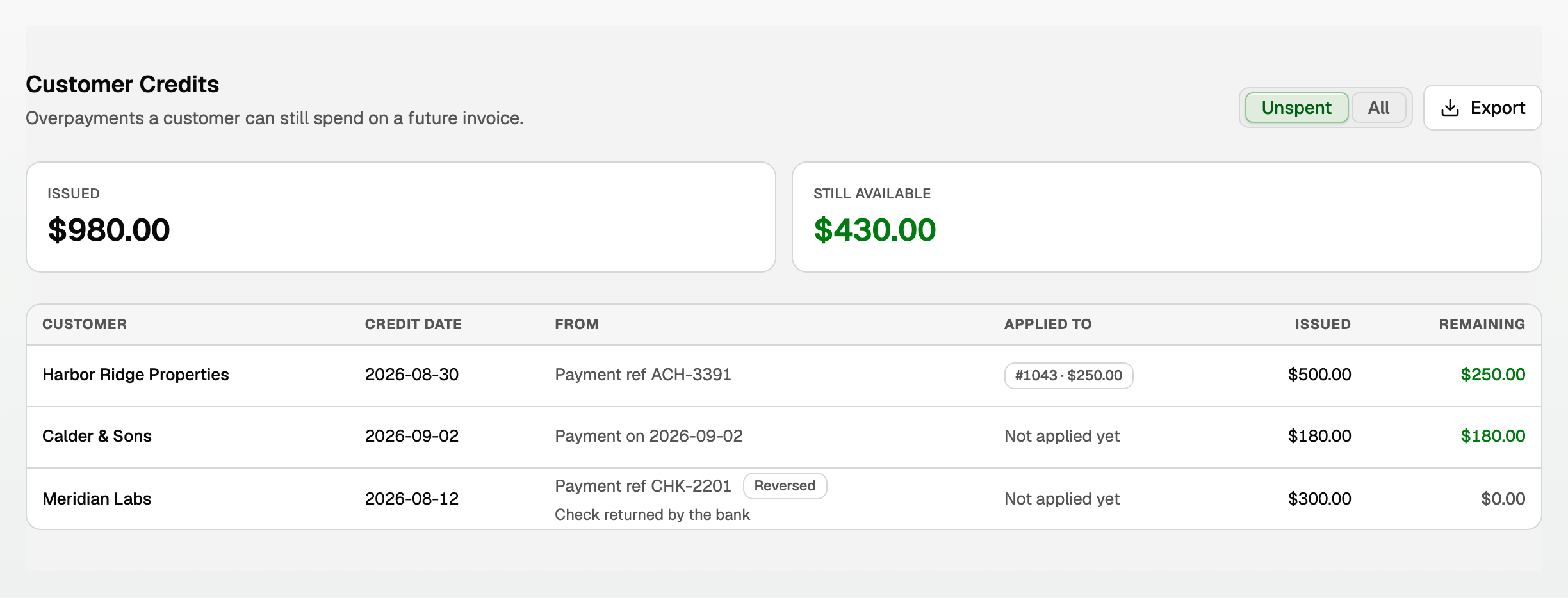
The columns mean
- Issued is how much the credit was for.
- Remaining is what the customer can still spend on it.
- From names the source: the payment reference, the payment date, or Manual credit.
- Applied to lists the invoices it has already covered, or says Not applied yet.
The two cards at the top total everything Issued and everything Still available.
Spend a credit
Good to know
- A credit appears only when you put the extra in Amount to credit. An overpayment left on one invoice does not create one.
- To undo an overpayment, an owner or bookkeeper can open the row's menu and choose Reverse source payment. The original and the reversal stay in the books.
- The report reads the Unapplied Customer Credits account on the balance sheet, not A/R, so an unspent credit never distorts your aging. See "Read the A/R and A/P aging reports".
- Export downloads the table as CSV or Excel. See "Create, send, and get paid on an invoice" for recording the payment itself.
Updated on: 12/09/2026
Thank you!