
Import from Quicken
One QIF file brings every Quicken account over at once. Each bank, card, or cash account becomes its own import. Rows land in To review with the Quicken category suggested. Nothing posts until you approve it.
Open Import from Quicken
- Open All pages in the left sidebar, then click Setup and Import from Quicken.
- Or open Import, then under Other ways in choose the Quicken file card. The button is Import from Quicken.
Export one QIF from Quicken for Windows
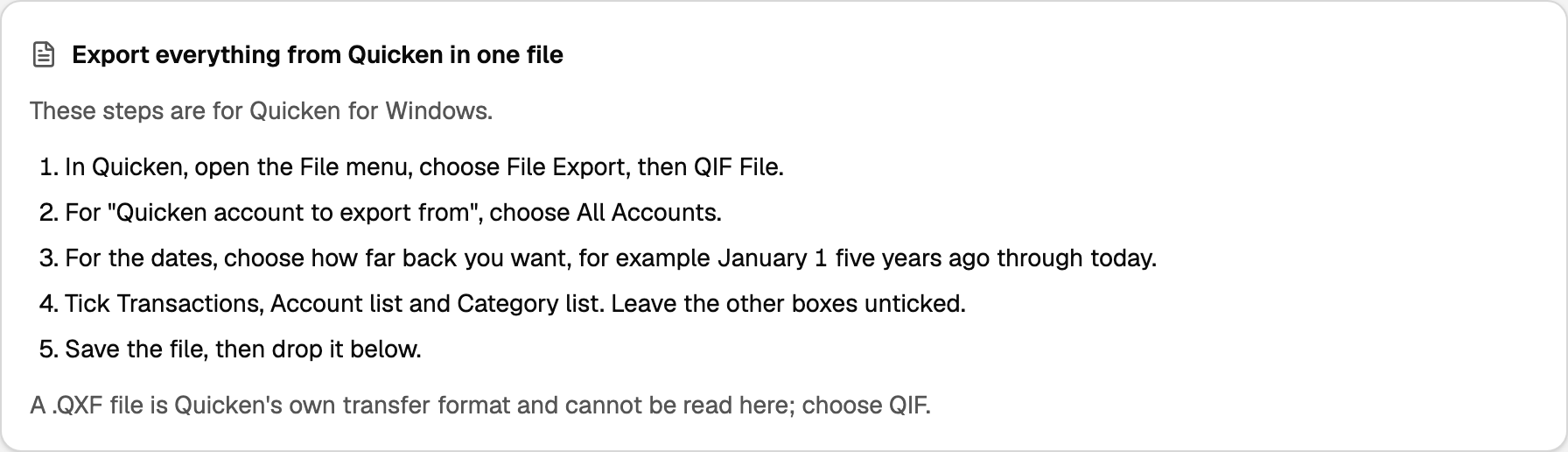
- In Quicken, open the File menu, choose File Export, then QIF File.
- For "Quicken account to export from", choose All Accounts.
- For the dates, choose how far back you want, for example January 1 five years ago through today.
- Tick Transactions, Account list and Category list. Leave the other boxes unticked.
- Save the file, then drop it below.
A .QXF file is Quicken's own transfer format and cannot be read here; choose QIF.
Drop the file
- Drop the file on Drop a file here, or click to browse, or click the box and choose it.
- The line under the box reads QIF · 200 MB max.
If the file cannot be read, the heading is This file could not be read. Click Choose another file.

Check what comes over
Bring in history from is the first day to import.
- Leave it empty and everything in the file comes over. Pick a date to bring over less.
- Pick a date and transactions before that date stay in Quicken. Accounts with nothing since then are set to Don't import.

Bank, card and cash accounts
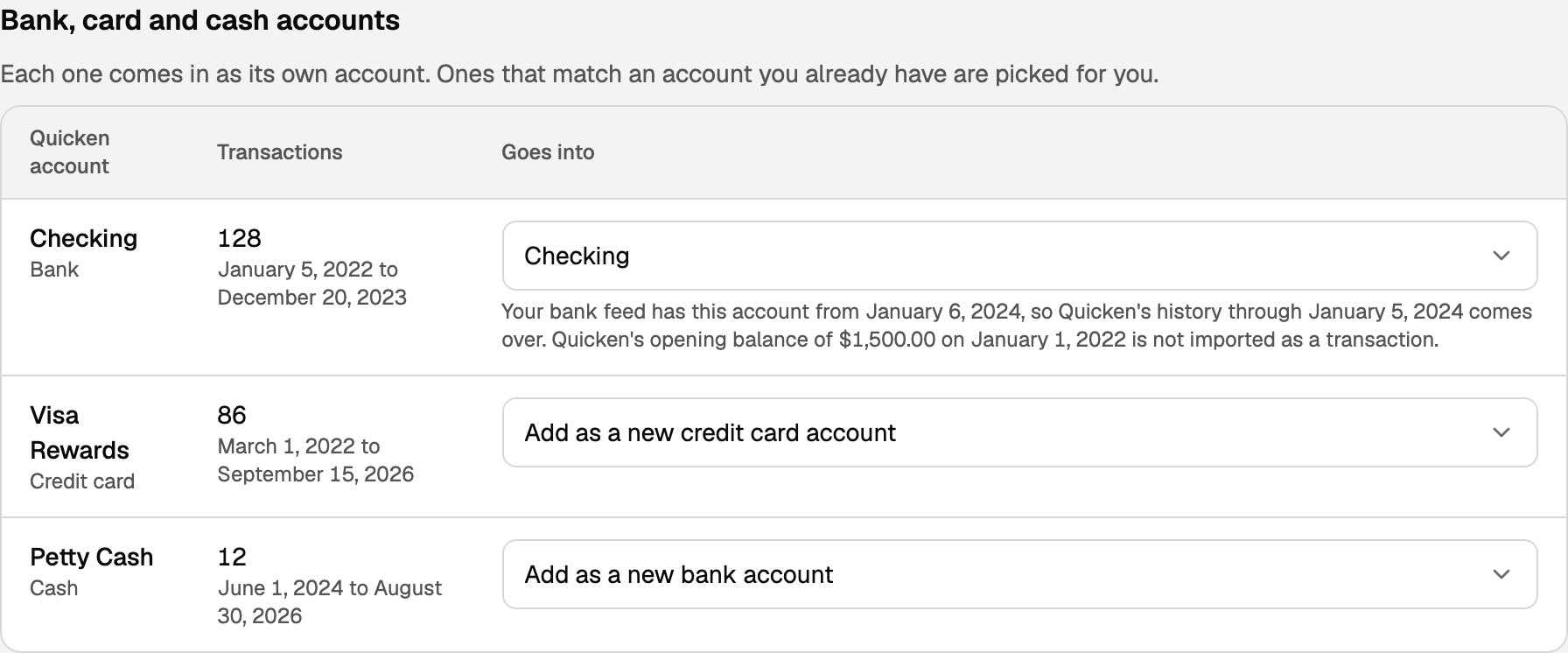
Each one comes in as its own account. Ones that match an account you already have are picked for you.
Goes into is:
- An account you already have
- Add as a new bank account, or Add as a new credit card account
- Don't import
A cash account is labeled Cash. A new one is Add as a new bank account.
When the account already has a bank feed, the row says your bank feed has this account from that date, so Quicken's history through the day before comes over. If the feed already has all of it, the row says Your bank feed already has all of this account's history. Set that account to Don't import.
Quicken's opening balance is not imported as a transaction. The row names the amount and the date.
A transfer to another bank or card is left for you to file in To review.
Loans, assets and investments
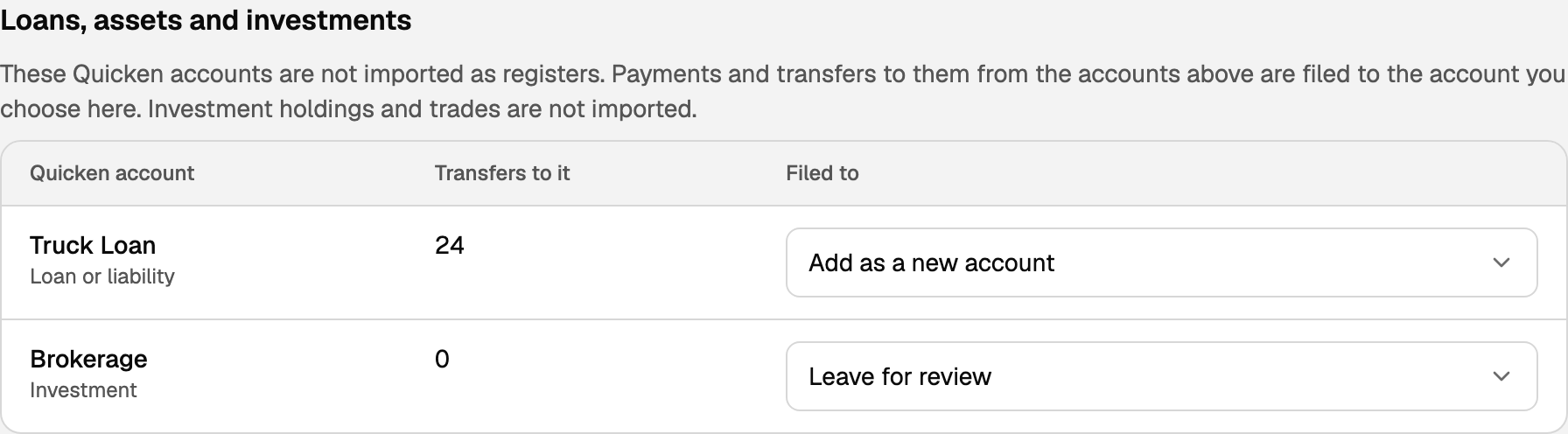
These Quicken accounts are not imported as registers. Payments and transfers to them from the accounts above are filed to the account you choose here. Investment holdings and trades are not imported.
Filed to is Add as a new account, Leave for review, or an asset or liability you already have.
Categories
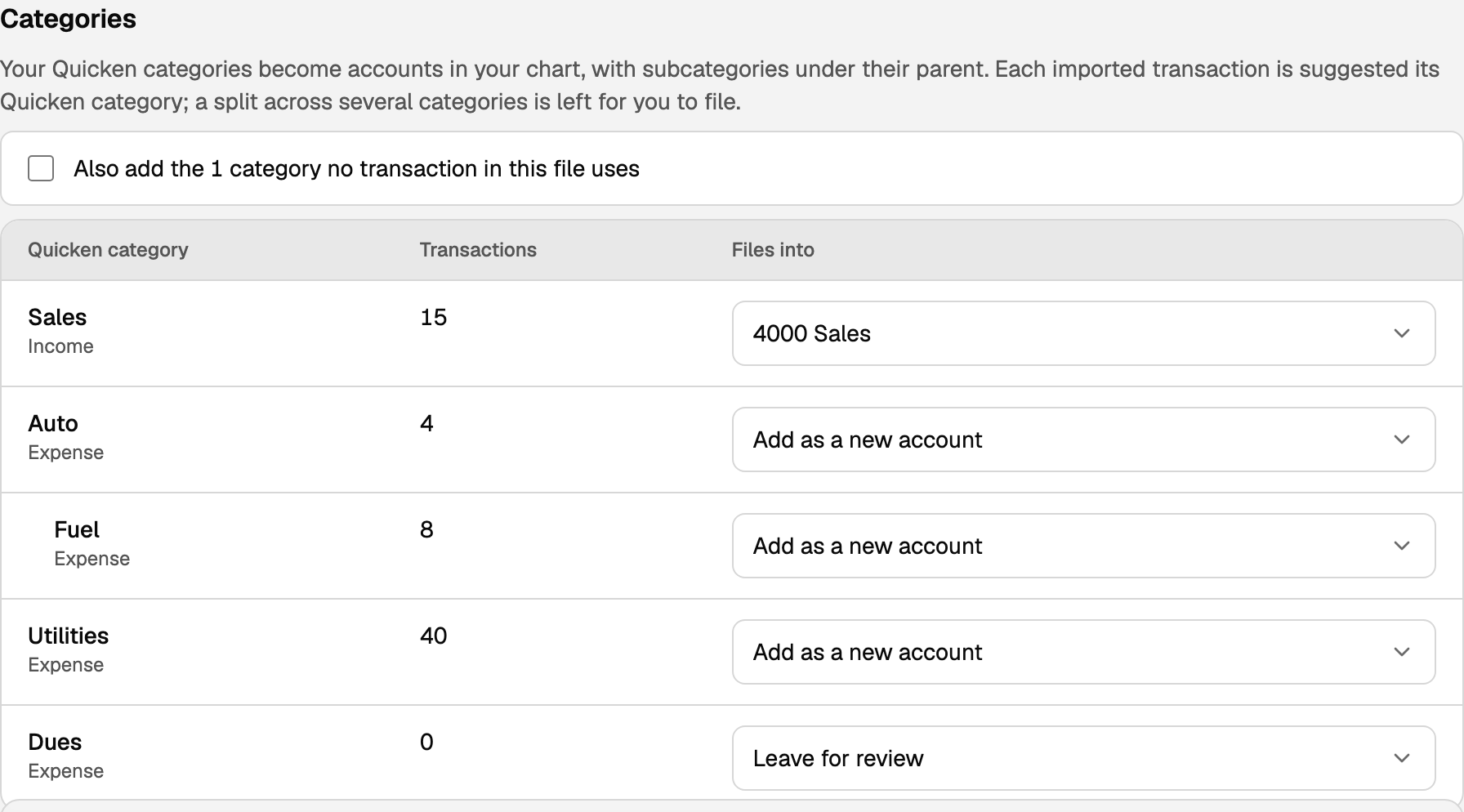
Your Quicken categories become accounts in your chart, with subcategories under their parent. Each imported transaction is suggested its Quicken category; a split across several categories is left for you to file.
Files into is Add as a new account, Leave for review, or an account you already have.
Tick Also add the N categories no transaction in this file uses to add categories this file never uses. One category says category. Adding a subcategory adds its parent too.
Import the accounts
The bar reads Imports N accounts and adds M new accounts to your chart. Rows land in To review; nothing posts until you approve it.
- Click Import N accounts.
- With no account chosen, the click says Choose at least one account to import: set it to a new or existing account in the first table.
An account already imported says Already imported from this file.

When the import finishes
The heading is Your Quicken accounts are in. The rows are in To review, with Quicken's categories already suggested. Approve them there, a page at a time or all at once.
- Click Review imported transactions. That opens Transactions on To review. Or open All pages in the left sidebar, then click Daily work and Transactions.
- Mark reviewed files one row. With rows selected, Verify files that selection.
If some accounts fail, the heading is Import finished with accounts left to fix. Import the rest brings in only those.

The opening balance
Quicken's opening balance was not imported as a transaction. If this account's history starts there, add it as the account's opening balance on Chart of accounts.
- Open All pages in the left sidebar, then click Accounting and Chart of accounts.
- Follow Set an account's opening balance.
Updated on: 08/10/2026
Thank you!