
Import your point of sale's sales history (Clover and other files)
Your point of sale already knows what left the till. Your books know what you invoiced and deposited. Those are two different stories. Importing a sales history file keeps the till's story beside the books so you can compare them. It never posts income, never moves stock, and never changes a product.
A period has to be whole. Only a file whose first and last day both sit inside the report's dates is counted. A file that only touches those dates is named and left out. That is why you enter the days when you exported, and why a longer file from the same point of sale replaces the shorter ones it covers.
Import a file
- Open All pages in the left sidebar, then click Inventory and Products & stock.
- Click Import sales history. (You need a role that can change the books.)
- Name the Point of sale. The field starts with the last name you used. Empty on a first file; the placeholder is Clover. Use the same name every time so matches are remembered.
- Enter First day the file covers and Last day the file covers. The file does not say which days you exported.
- Choose an Item sales file (CSV or XLSX, up to 5 MB).
- Clover's item sales export is recognised by its headings; its columns are matched for you. Any other file is matched column by column. Item name is required, and Quantity sold, Net sales, or Gross sales.
- Click Preview sales history.
Optional column labels you may see when matching by hand: Category, Gross sales, Discounts, Refunds, Net sales, and Cost, as the point of sale reported it.
Match each item
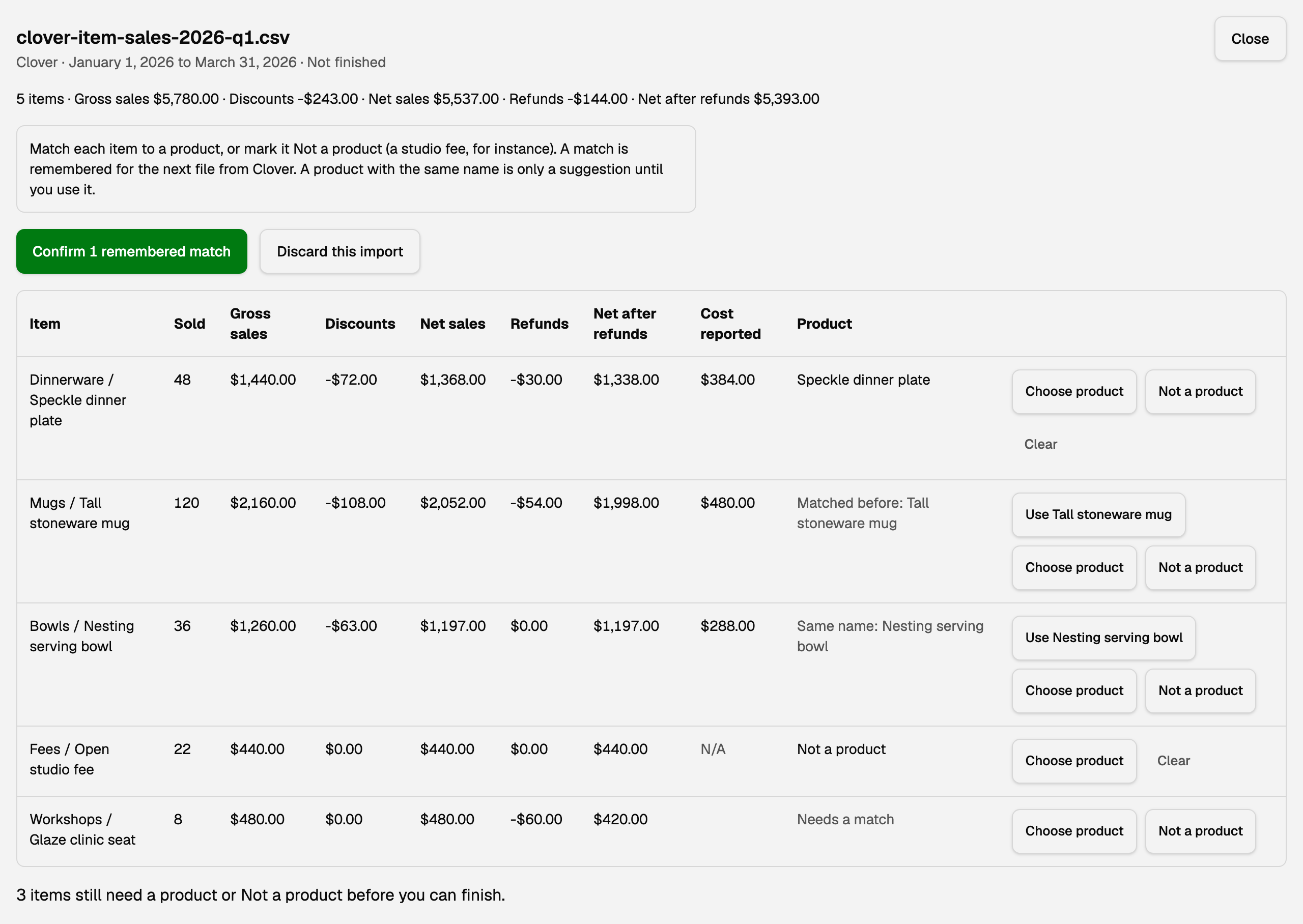
Review shows one line per item (category and item name). Money columns appear only when the file has them: Gross sales, Discounts, Net sales, Refunds, and Net after refunds.
- Match the item to a product, or mark it Not a product (a studio fee, for example).
- Matched before means an earlier file from the same point of sale used that product. Confirm those together with Confirm N remembered matches.
- Same name is only a suggestion. Confirm one at a time with Use ....
- Changing a remembered match asks why. Earlier imports keep the product they were imported with.
- Finish import appears only when every item is decided.
Periods, replacements, and Undo
- A file for a longer period replaces the files of the same point of sale it covers. Those files are kept. Undo this import brings them back.
- A file that only partly overlaps another is refused, and the refusal names that file's dates.
- The same file, dates, and matches imported again changes nothing.
See it on Sales by product/service
- Open All pages in the left sidebar, then click Reports and Sales by product.
- Set Report period so it includes every day of the file you want counted.
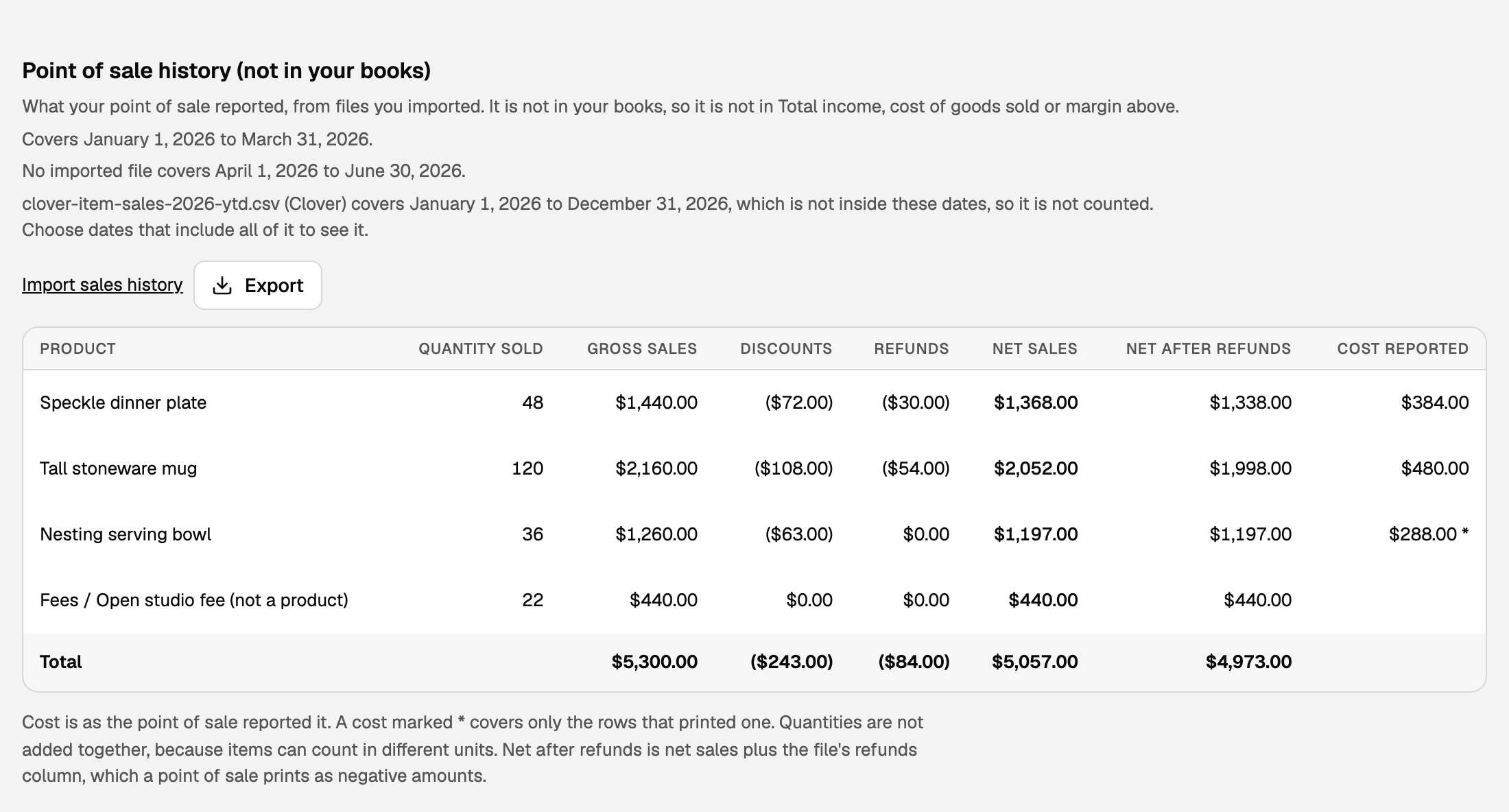
- Scroll below the report to Point of sale history (not in your books).
- The section names the days it covers and any gap.
- A file that only touches the report dates is named and not counted.
- It has its own Export. That export is never mixed into the report above.
- An item marked Not a product is listed under its own name with (not a product).
- A cost that covers only some rows is marked with
*. A cost the point of sale printed as text (such as N/A) stays blank, never zero. - Clover's Net sales does not take refunds out, so the section shows Refunds and Net after refunds separately when the file has a refunds column.
A quarterly routine
Export each quarter from the first of the year, then import that file with those dates.
- In your point of sale, export item sales from 1 January through the last day of the quarter you just finished.
- In BooksGPT, open Import sales history, keep the same Point of sale name, enter those two dates, and choose the file.
- Confirm remembered matches, decide any new items, then Finish import.
- On Sales by product, set the report to the same year-to-date range and read Point of sale history (not in your books) beside the books.
Updated on: 11/10/2026
Thank you!