
Read the A/R and A/P aging reports
Aging answers two questions: who owes you, and how late. A/R aging buckets open invoices by customer. A/P aging does the same for open Bills by vendor.
Open an aging report
- Open All pages in the left sidebar, then under Reports click A/R aging or A/P aging.
- Set the end date of the range. Every open document is aged as of that date.
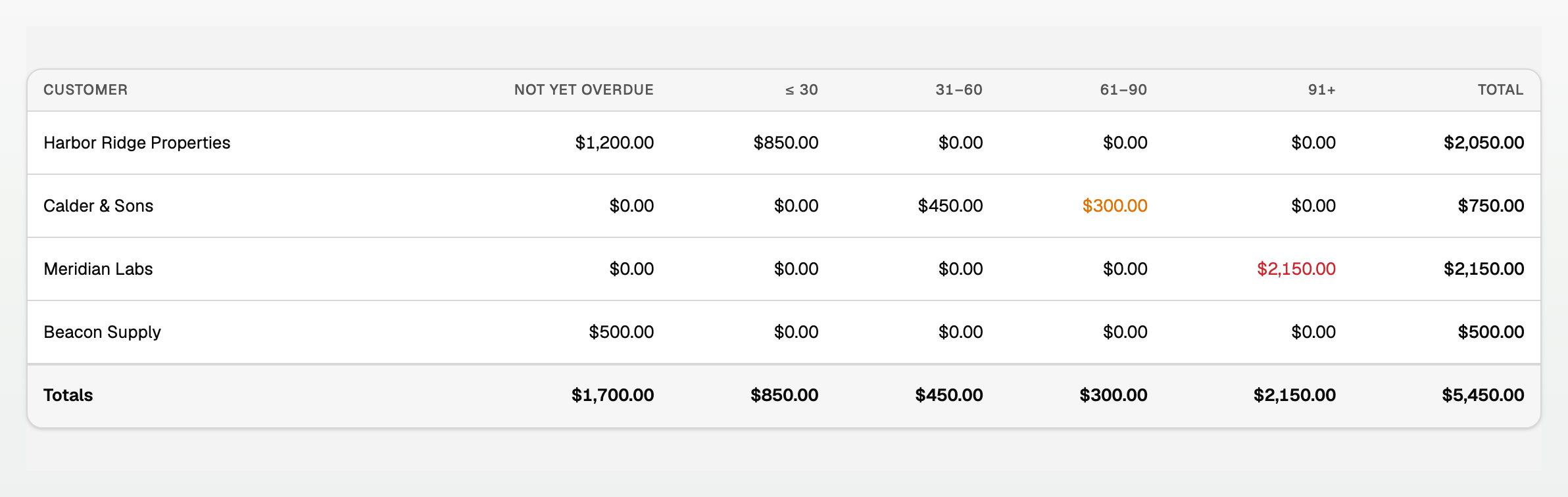
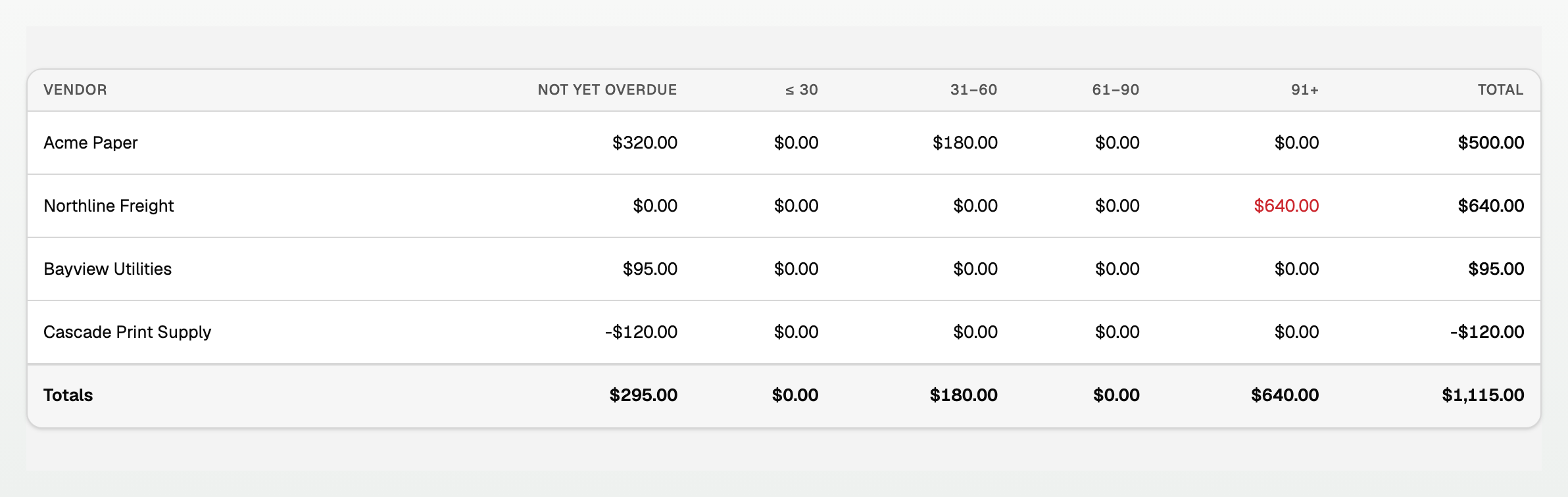
- Read across the buckets.
The columns
- Not Yet Overdue is due on the as-of date or later.
- ≤ 30 is one to 30 days past due, then the 31 to 60 and 61 to 90 columns follow.
- 91+ is more than 90 days past due.
- Total is that customer or vendor across every bucket.
- An amount in the 61 to 90 column shows amber, and one in the 91+ column shows red.
The name on each row links to the customer or vendor page. The Totals row at the bottom adds every row.
The report is built from the past, not from today
- A payment made after the date you picked does not reduce the buckets, so an older report still matches what the books said then.
- A payment or credit application dated on or before that date does count.
- An unapplied credit memo you create in BooksGPT shows as a negative Not Yet Overdue amount, so the total keeps tying to A/R or A/P.
- For books imported from QuickBooks Online, unapplied payments, credits or journal entries that QuickBooks listed on Accounts Receivable or Accounts Payable are not invoices or bills, so they stay in the General Ledger. Under the table the report shows one sentence that starts Not in this report: with the amount, for example: "Not in this report: $250.00 of unapplied payments, credits or journal entries that QuickBooks listed on Accounts Receivable on March 31, 2026. They are not invoices, so they stay in the General Ledger, where Accounts Receivable is lower than this total by that amount."
- An invoice or Bill keeps aging until it is paid, credited, or voided.
What to do with it
- Work the amber and red columns first.
- On A/R, send a statement or a reminder. See "Send a customer statement" and "Recurring invoices and payment reminders".
- On A/P, apply an available credit or schedule the payment. See "Vendor credits: record and apply a supplier credit" and "Scheduled transactions: plan what is coming".
Good to know
- Export offers Excel (.xlsx) and CSV (.csv), and Print gives you a copy for a client.
- Headings stay put as you scroll. A narrow table scrolls sideways, and Customer or Vendor stays on the left.
- These are accounting reports, so they live in business workspaces.
- For books imported from QuickBooks Online, A/R and A/P aging are available on the imported books date and every later date. On a date before that, the page says: "Some source payments do not have verified dates for this reporting date, so these balances are unavailable. Review the dated control account in the General Ledger." For books imported before 7 October 2026, the reports are available from the day after the import (or from the last date the imported books hold, if that is later), and the message shows only for dates before that.
- For Desktop bills recovered by support, A/P aging starts on the verified source date. Earlier dates show an explanation instead of a report. A normal Desktop General Ledger import does not recover bills.
- If the source changes or a bill is missing, contact support. Source payments are already reflected. Later payments and reversals follow the end date you picked.
Updated on: 15/10/2026
Thank you!