
Why a line on my P&L says "not reviewed"
A large Uncategorized line on Profit & loss is usually money that has not been reviewed yet. It is already in your books. It is not a wrong category.
The chip N not reviewed sits next to that line. Click the chip.
Open Profit & loss
- Open All pages in the left sidebar, then under Reports click Profit & loss.
- The page title is Profit & Loss.
- Set Report period as usual. The chip, the chart, and the tiles all follow that period.
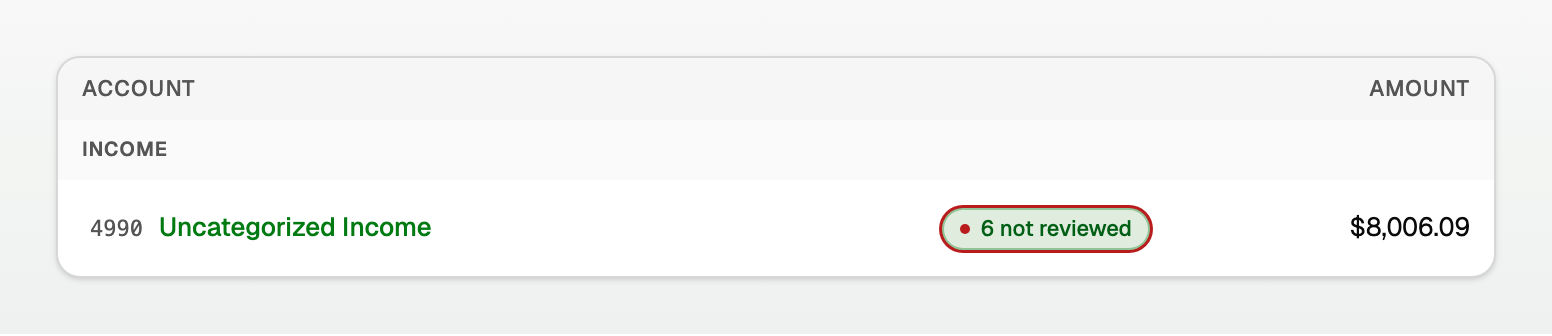
What the chip means
- The money posted to Uncategorized Income or Uncategorized Expense the moment the bank row arrived.
- Nobody has chosen a category yet. That is what not reviewed means.
- Reviewing moves the posting. It does not add a second one.
- The tooltip says: These transactions are in your books but nobody has chosen a category for them yet.
Clicking the coloured account name opens every line behind that figure for the period, on Cash or Accrual. Clicking the chip opens only the rows still waiting.
What opens
The dialog lists that account's still-unreviewed rows for the report period.
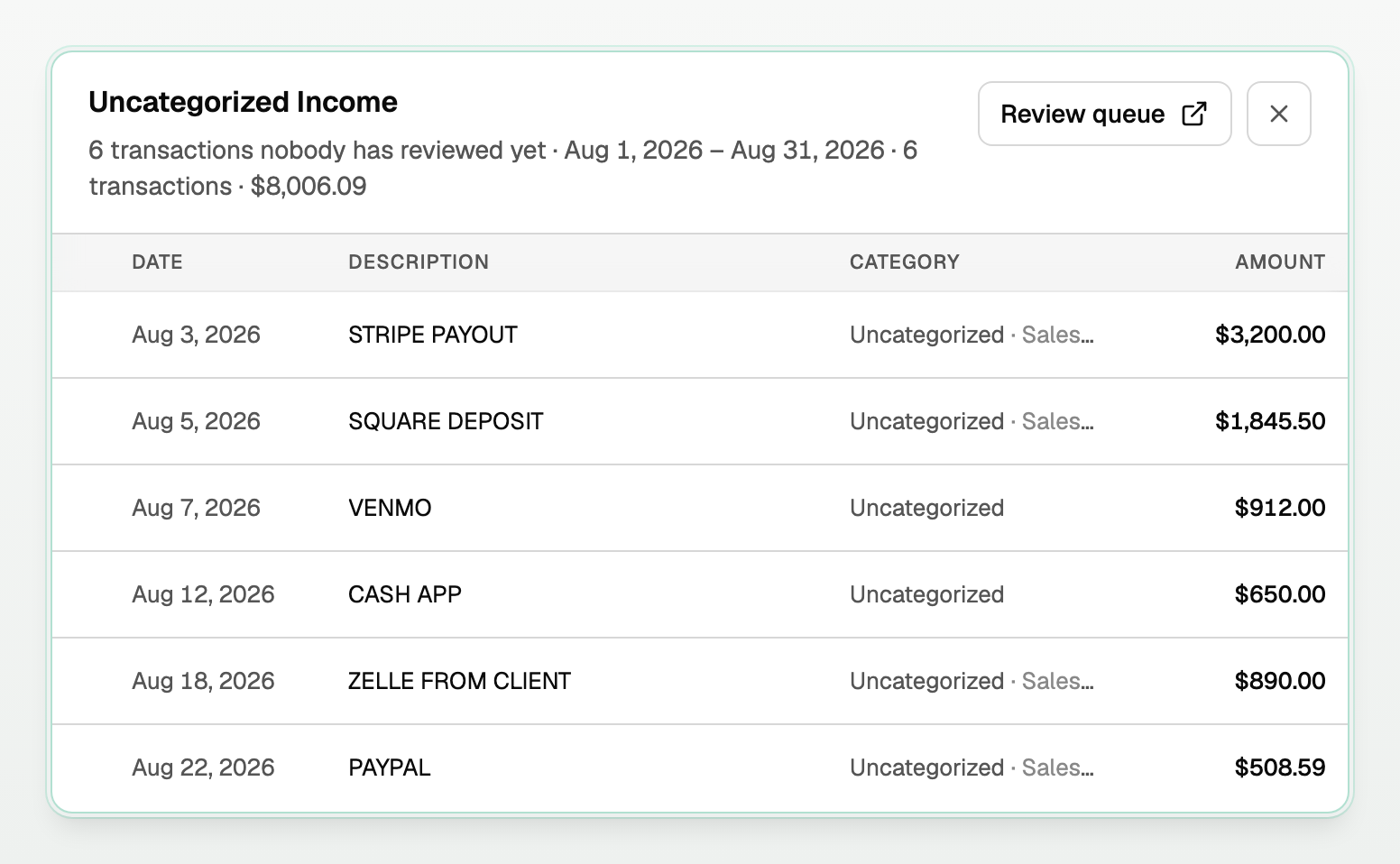
- The title is the account name.
- The subtitle starts N transactions nobody has reviewed yet.
- Review queue opens the full To review list. Close and the X share one header row.
- Category says Uncategorized. If BooksGPT has a guess, it adds Sales suggested (or whichever account) on the same line.
- A check in the first column means reviewed. These rows are blank because they are not reviewed yet.
Review queue is how you see the rest.

To file them, see "Review the inbox and file Uncategorized transactions".
Figures on By month and By dimension
Every figure opens that cell. Empty months show a dash. A dash is not clickable. On By {dimension}, the Unassigned column is not clickable.
The chip sits beside the account name in those views too. When there is not room beside it, it drops onto its own line under the name.

See "How sub-accounts show on Profit & loss and the Balance sheet" for how nested names and the Full ledger hatch work.
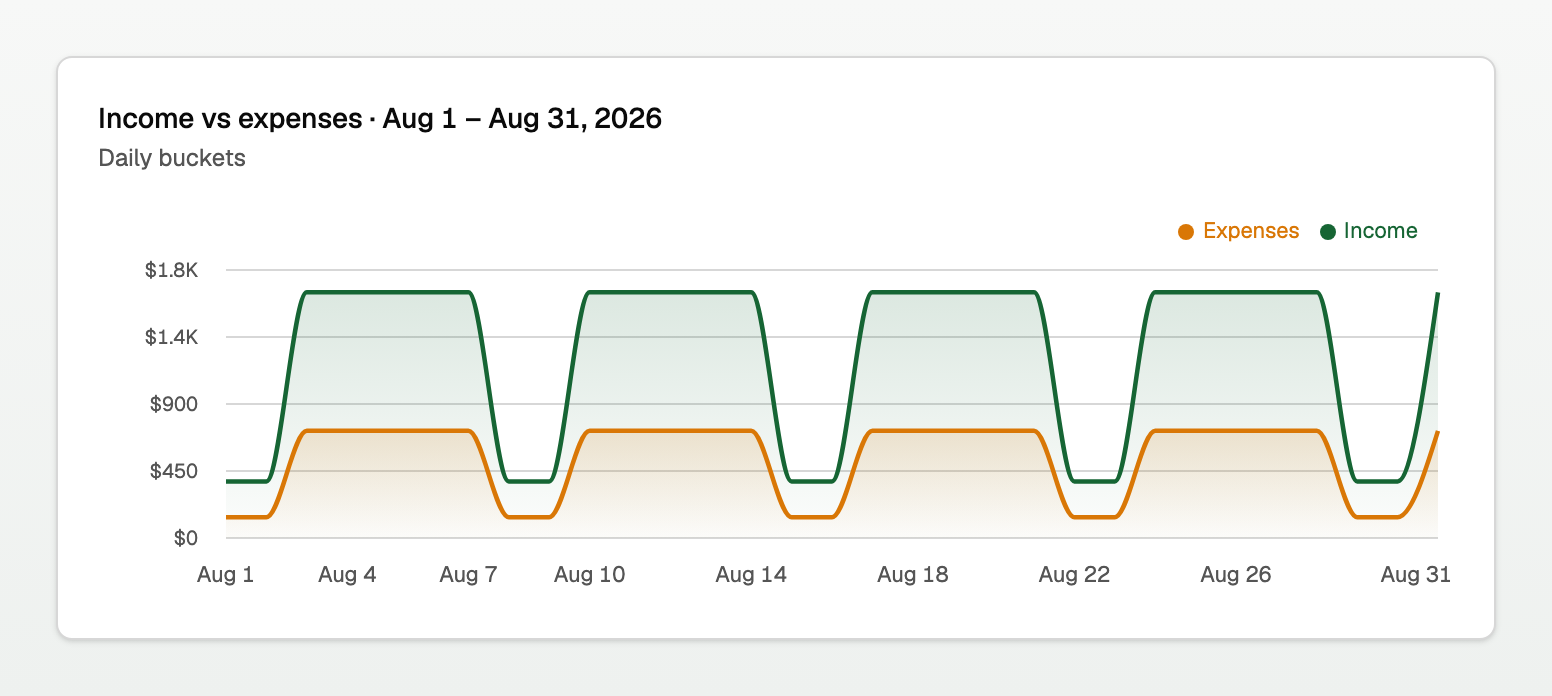
The chart follows the period
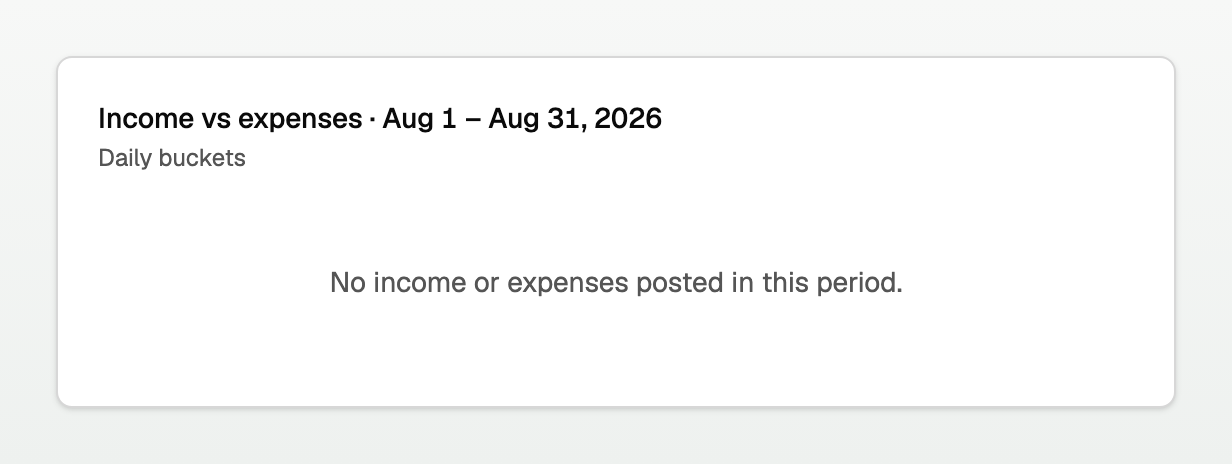
The card above the statement is titled Income vs expenses, then the dates you picked. For August it reads Aug 1 to Aug 31, 2026.
The second line names the bucket size: Daily buckets, Weekly buckets, Monthly buckets, or Quarterly buckets. A month uses days. A quarter uses weeks. Longer ranges use months. Very long ranges use quarters, named by months, never Q3.
The four tiles match the statement
Under the chart: Income, Cost of goods sold, Operating expenses, Net income. Click a tile to jump to that section.

- Income is the statement's Total Income. On books with Other Income, that is still Total Income, not the operating-income subtotal.
- Operating expenses is operating only. Other Expenses stay in their own section.
- If this workspace has no Other Income or Other Expenses accounts, the tiles match the sections you already had.
- By month and By year use the same sections as the Total view. The tiles stay.
To put last period next to this one, see "Compare periods and save a report".
Good to know
- Uncategorized is not $0. If Revenue and Expenses really are $0, see "Why your dashboard or P&L shows $0".
- Two unreviewed transfer legs double-count until they are paired. See "Transfers, credit-card payments, and owner draws".
- The full register is under Daily work > Transactions, with the To review filter.
Updated on: 15/10/2026
Thank you!