
Budget a job: contracts, change orders and committed costs
Before a job starts, two numbers matter: the contract, what the customer agreed to pay, and the budget, what you expect the work to cost you. The gap between them is the profit you planned.
When the work changes, a change order is the customer's signed agreement to a new price, and it moves the budget with it. As the job runs, cost moves through three stages: committed (ordered from a vendor or sub on a purchase order or subcontract), actual (billed to you), and projected (where the job will land). Watching projected cost against the budget tells you a job is running over while there's still time to act.
Add the contract
Go to the job: open All pages in the left sidebar, then click Sales and Projects, and click the job.
- Under the job's figures, click Add a contract.
- Choose how:
- From an estimate: pick an accepted estimate for the project's customer. The contract is the estimate's amount before tax, and the budget is built from each line's cost.
- Type it: enter the Contract amount and Contract date, and add the budget afterwards.
- Click Make it the contract (or Save contract).
You can also click Make it the contract on an accepted estimate itself.
Making an estimate the contract locks it, so the price you agreed can't drift, and that contract changes only through change orders. To bill it, click Invoice the contract: BooksGPT drafts one invoice for the original contract.
Set or change the budget
Open the job's Budget tab. If there's no budget yet, pick one of three ways in:
- From an estimate: makes the contract and the budget in one step.
- Import a file: a spreadsheet from any estimating app. Check the columns BooksGPT matched (line, cost type, amount), pick the date it starts, and import.
- Type it: one line per cost type, each with an amount.
Every change saves a new version with the date it starts. Earlier versions stay, so a report for an earlier date shows the budget you had then. To change it later, click New version or Import budget. To look back, pick a version from the Version list.
With cost codes, each budget line can carry one too. Set up your list in Settings under Sales & projects, then Cost codes, starting from a ready-made list such as Residential or your own file.
Change orders: a signed change to the contract
- On the job's Change orders tab, click New change order.
- Fill in What changes, the Date and the Contract change before tax. For a credit to the customer, enter a negative amount.
- Under Budget lines, add what the change does to your budget, by cost type.
- Click Send to sign, then send the email. Or click Copy link instead and send the link yourself.
The customer opens the link, types their full name, ticks the box and taps Approve, or declines.
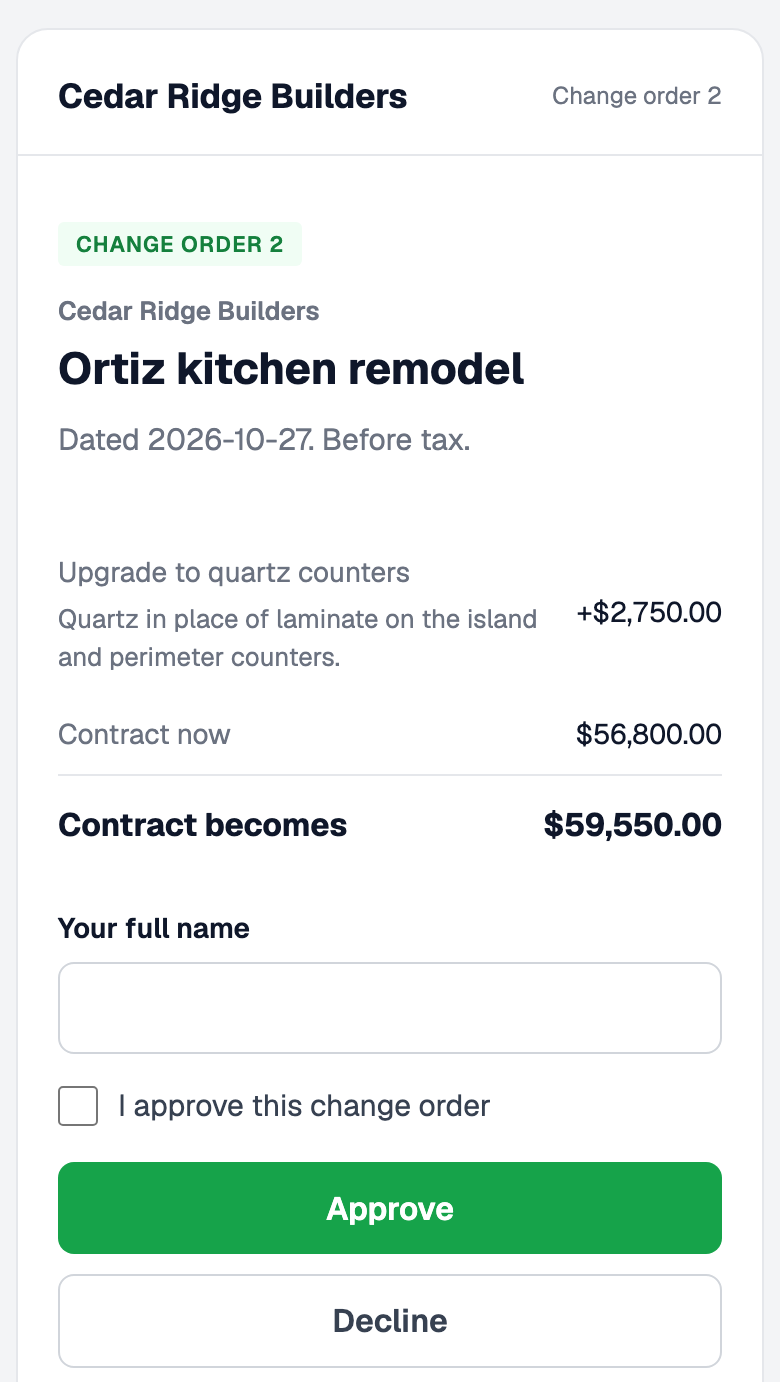
Only an approved change order changes anything. From the day the customer approves it:
- The contract goes up (or down) by the change.
- The budget gets a new version with the change order's lines added.
A draft, one waiting for a signature, a declined one and a void one change nothing.
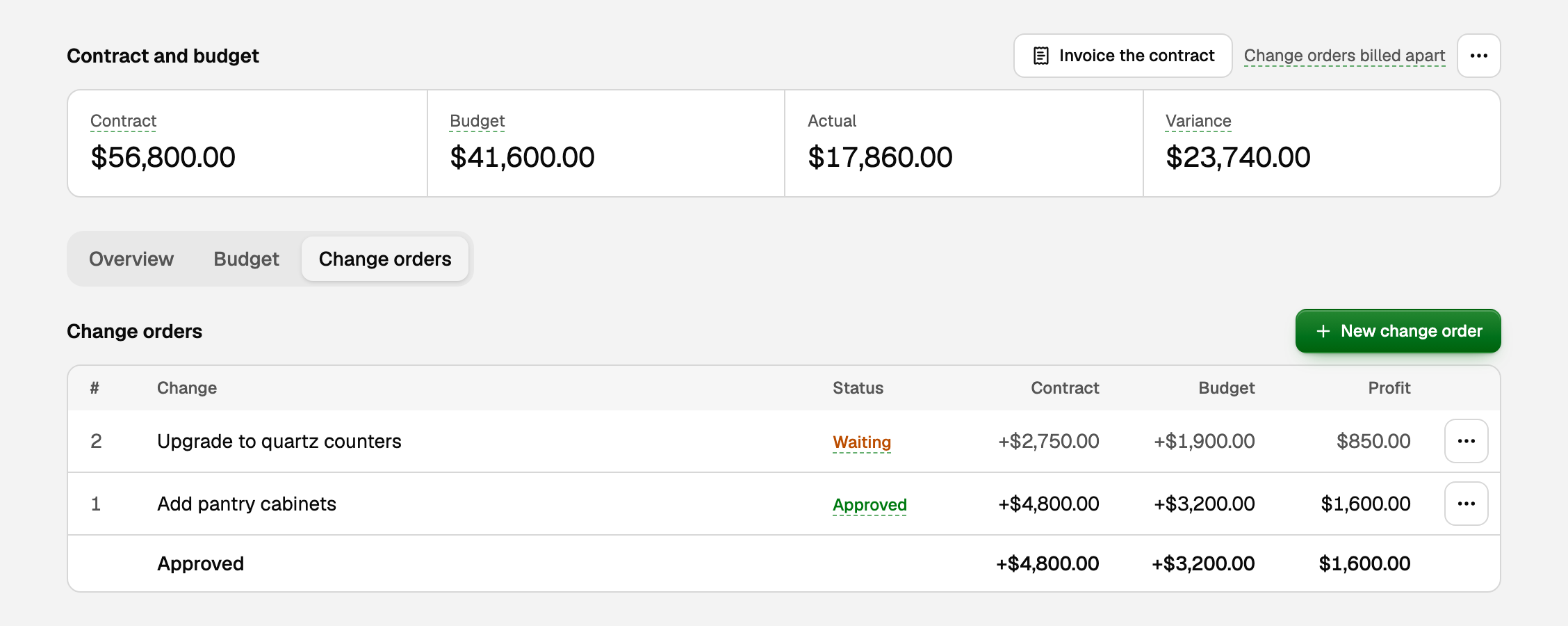
- Changed the budget first? If you saved budget versions after the contract, the Change orders tab offers Make a change order, which turns those edits into one for the customer to sign.
- Edited one after sending it? Send it again. The customer signs the new version, not the old one.
- Billing. Invoice the contract covers the original contract only. Bill each approved change order on its own invoice.
- An approved change order stands. To reverse it, make a new change order with a negative amount.
Track committed and projected cost
The Budget tab lists each cost type with its budget lines under it:
- Original: the budget in effect, approved change orders included.
- Committed: what you've ordered for that line on purchase orders and subcontracts. Hover it to see each order and how much is still open, not billed yet.
- Actual: the cost billed or paid so far.
- Projected: where the cost will land. Normally the larger of the budget, or the cost so far plus what's still open on order.
- To complete: projected minus the cost so far.
- Variance: budget minus actual. Below zero means over budget.
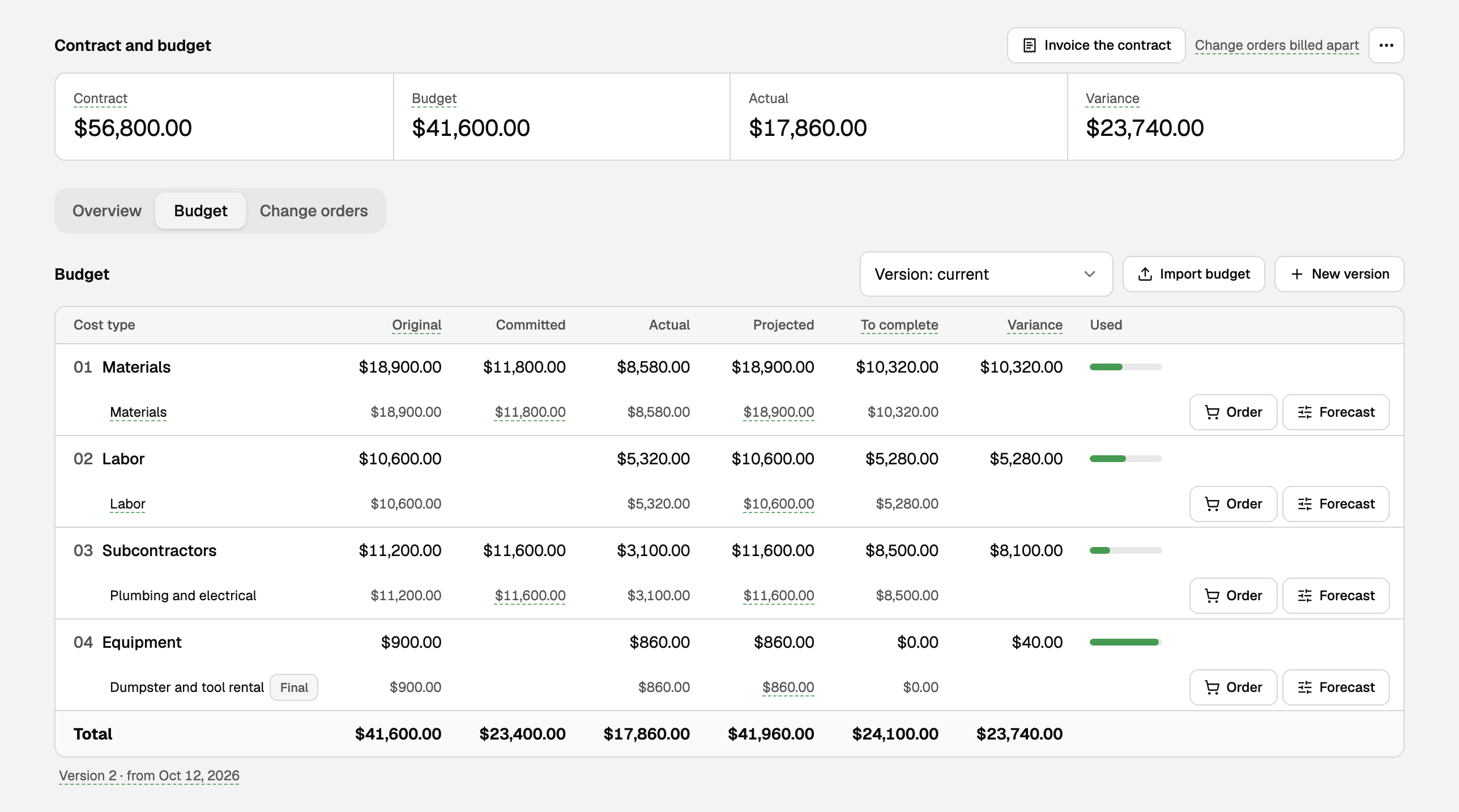
To commit cost straight from the budget:
- On a budget line, click Order.
- A new purchase order opens with the job, the cost type and what's left on the line filled in. A Subcontractors line opens a Subcontract, which is measured in dollars instead of quantities.
- Pick the vendor and save.
When the vendor's bill for that order is posted with Save & post, its amount stops being open and counts as actual cost. A draft bill doesn't count yet.
To tell BooksGPT more about a line, click Forecast and pick one:
- Final: no more cost is coming, so projected is the cost so far.
- Estimate at completion: your own figure for the line's whole cost.
- Open: back to the normal rule.
Projected and To complete always count from the job's start on the accrual basis, whatever the page shows.
See every job at once
Open All pages, then click Reports and Job cost. All jobs shows each job's contract, budget, committed, cost, projected cost, variance, income and profit. Pick one job to see it by cost type. Export saves it as Excel or CSV.
If something goes wrong
The budget from an estimate is too low. Some estimate lines had no cost. Add the costs and save a new budget version, by typing it or importing a file.
A change order didn't change the contract. The customer hasn't approved it yet. On the Change orders tab, open its ⋯ menu and use Send to sign or Copy link to send it again.
Committed looks too high. An order is still open for work that's finished or called off. Bill what's due, then click Close on the order, or Cancel order if nothing was billed.
There's no Add a contract button. You need the owner or bookkeeper role, and the workspace needs Business Max.
Updated on: 30/10/2026
Thank you!