
Track job costs with Projects
Job costing means giving every sale and every cost the job it belongs to. Each job then has its own small profit and loss, so you can see which jobs made money and which cost more than you charged, while there's still time to act.
In BooksGPT a job is a project. You put the project on its invoices, bills and bank transactions, and its page adds them up: income, cost, profit and margin, with the cost split by type.
Add Business Max
Projects are part of Business Max:
- $30 a month, added to a Solo or Business plan. The first week is free the first time you add it.
- Included with the Practice and Firm plans, so there's nothing to buy.
- Only the workspace owner can add it. Everyone else is told who to ask.
To add it:
- Open All pages in the left sidebar, then click Sales and Projects.
- Click Add Business Max and finish the checkout.
You come back to Projects, ready for your first project. You can also add it from Settings under Plan & billing.
Create a project
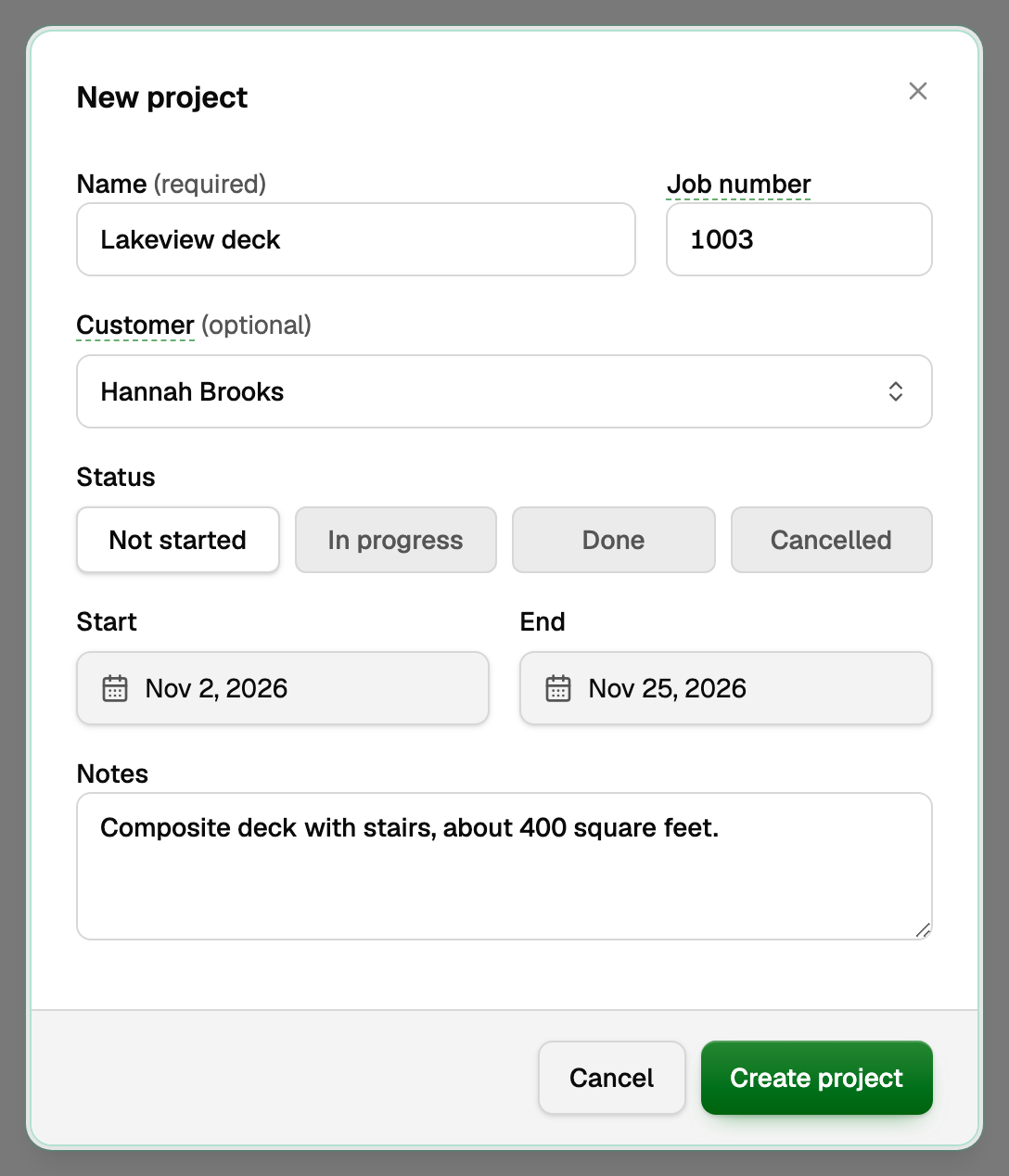
- On Projects, click New project.
- Type a Name, such as Lakeview deck. It's the only field you must fill in.
- Keep the Job number BooksGPT offers, or type your own. Each number is used once per workspace.
- Pick the Customer if there is one. A spec home or an overhead job can have none.
- Choose the Status, and add the Start and End dates and Notes if you like.
- Click Create project.
Creating and editing projects takes the owner or bookkeeper role.
Put the project on its costs and income
Give the project to every piece of money that belongs to the job:
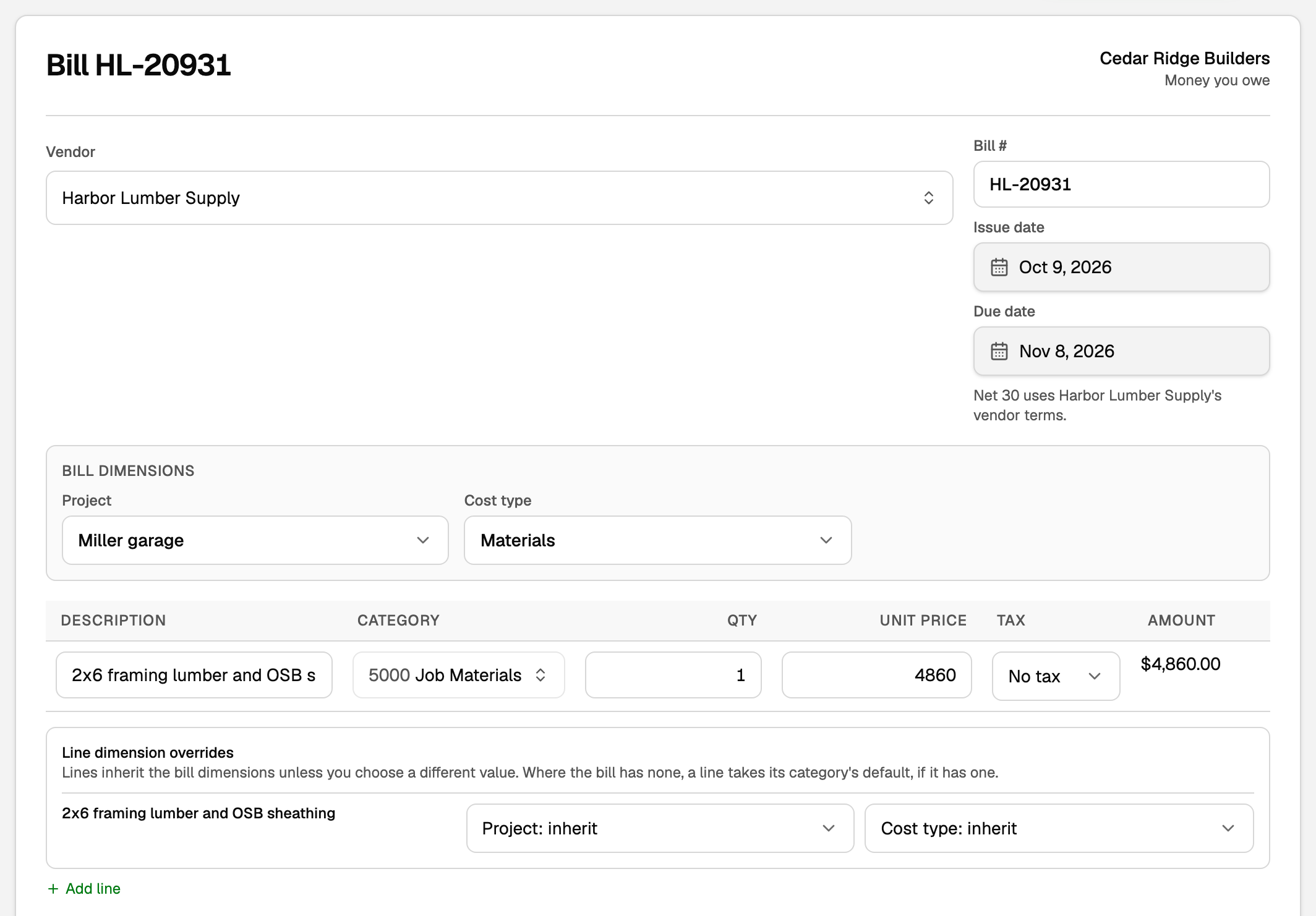
- Bills: in the bill editor, pick the project under Bill dimensions for the whole bill, or give one line its own under Line dimension overrides.
- Bank transactions: open a transaction's details and pick the project. For many at once, tick them on Transactions, click the pencil icon (Bulk edit) and use Set project.
- Journal entries: each line can carry a project.
- Checks: a check takes the project when your workspace has no other tag, such as Class.
- Invoices: pick one Project for the invoice, and every line goes on it.
Credit memos, voids and corrections take the income back off the same project by themselves.
Beside the project, pick a Cost type: Materials, Labor, Subcontractors, Equipment or Other. Payroll reaches jobs as Labor through a payroll split. A cost with no type still counts, under No cost type.
Read the job cost report
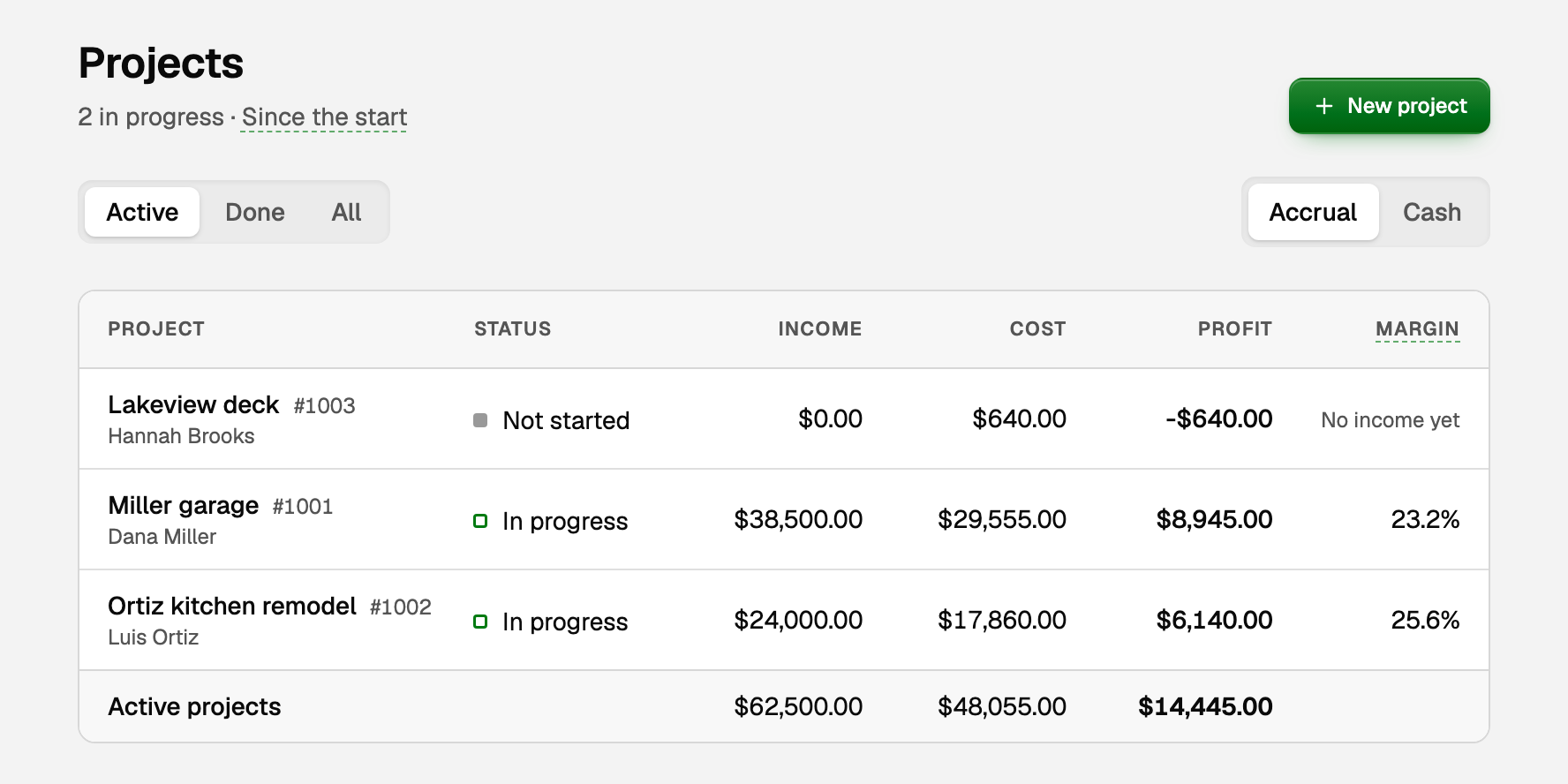
Projects lists each project with its Income, Cost, Profit and Margin since it started, and a total underneath.
- Active, Done and All choose which projects show. Cancelled projects are under All.
- Accrual and Cash switch the basis, as on your other reports. Accrual counts income when you invoice and costs when you're billed.
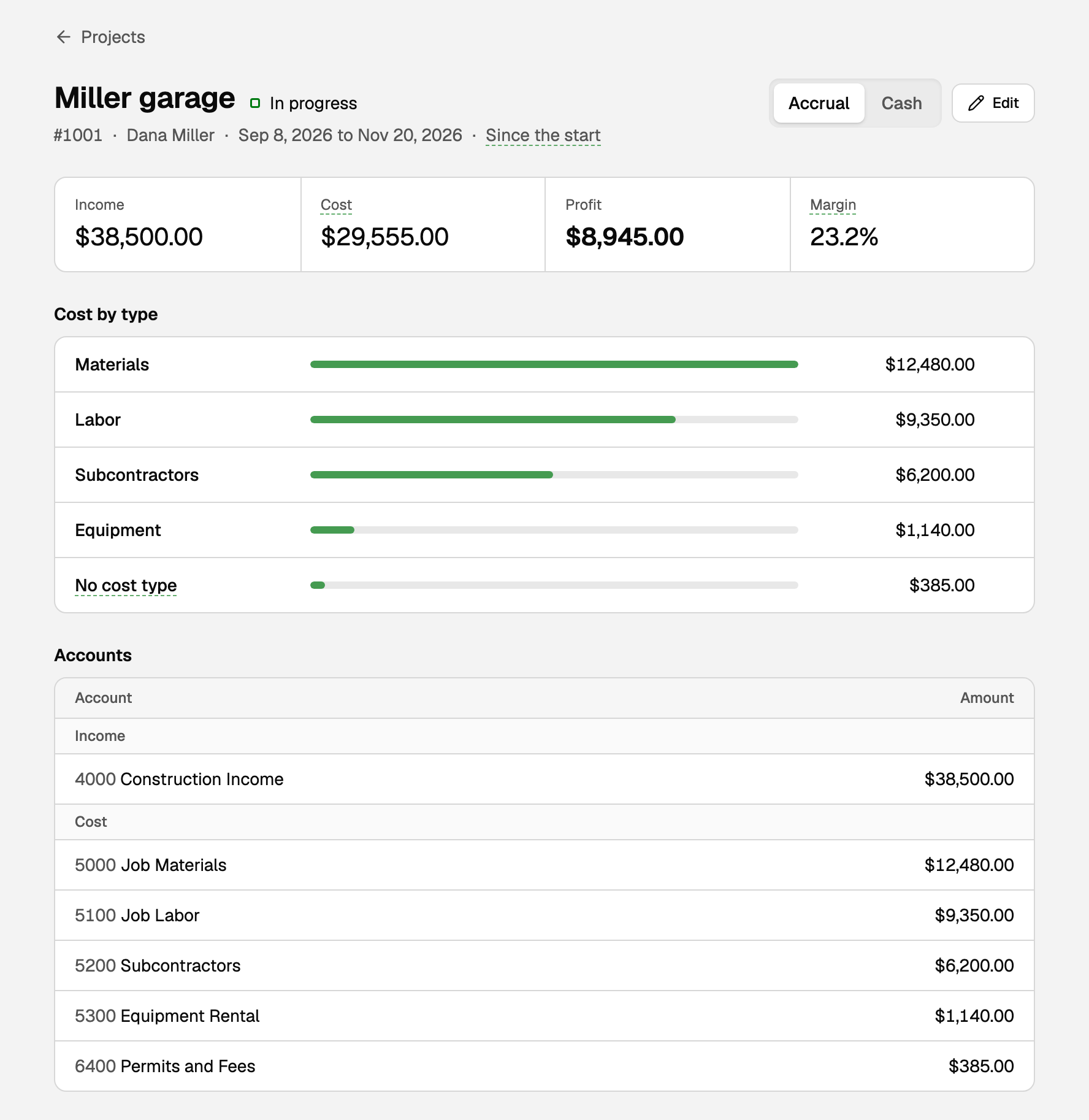
Click a project to open its job cost report:
- The top row shows its income, cost, profit and margin.
- Cost by type splits the cost into Materials, Labor and the rest.
- Accounts lists the income and cost accounts behind those figures.
- Click Income, Cost or a cost type to see every line behind it, then click a line to open its bill, invoice or entry.
The figures match Profit & loss with its columns set to By Project. A project's costs that sit in an asset account, such as materials still in stock, aren't a cost yet, so they show beside the figures as On the balance sheet.
Finish a project
When the job is over, open it, click Edit, set Status to Done (or Cancelled if it never went ahead) and click Save project.
- A finished project leaves the project pickers, so nobody puts new costs on it by mistake.
- It stays in every report, with all its figures.
- To reopen it, set its status back to In progress.
Turn an existing Job tag into Projects
If you already track jobs with a dimension named Job or Project, the Projects page offers to use it:
- On Projects, click Use as Projects on the card that names your tag, then confirm.
- Each value of the tag becomes a project, with everything already tagged to it. Values you had archived become Done projects.
Clicking New project on that card instead keeps your tag a regular dimension, and it can't become Projects later. For dimensions in general, see Track income and expenses by class, location, or property.
Cancel or lose Business Max
Business Max is its own monthly charge, apart from your plan. To stop it, open Settings, go to Plan & billing and click Cancel Business Max.
- It keeps working until the end of the month you've paid for.
- If your plan ends, Business Max ends with it.
- If a payment fails, projects turn read-only. Update your card under Payment method, which pays Business Max too, or cancel Business Max to end it now.
When it ends, nothing is deleted. Your projects, the tags on your transactions and every report stay. Only choosing a project for something new, and creating or editing projects, need Business Max again.
If something goes wrong
A project isn't in the picker. It's Done or Cancelled. Open it on Projects, click Edit and set it back to In progress.
A project's income or cost looks too low. Something for the job has no project yet. Click Income or Cost on the project's page to see what's counted, then add the project to the bill, transaction or invoice that's missing.
The project picker is locked. The workspace doesn't have Business Max. Ask the workspace owner to add it. Anything that already has a project keeps it.
Updated on: 18/10/2026
Thank you!