
Track hours on jobs and split payroll by job
Payroll usually lands in your books as one lump on a wages account. Your profit and loss shows what you paid, but no job carries its share of it, so every job looks more profitable than it really was.
The hours worked on each job are the fair way to share that cost out. BooksGPT keeps a weekly timesheet of who worked on which project and, when you ask, moves each job's share of a payroll onto that project as Labor.
To get there, open All pages in the left sidebar, then click Sales and Time. You can also click Time at the top of the Projects page. Time has three tabs: Timesheet, People and Payroll split.
Add the people who work on jobs
People are the names you enter hours for. They don't sign in to BooksGPT.
- On Time, open People and click Add person.
- Type the Name.
- Choose Employee for someone you pay through payroll, or Contractor for someone who sends you bills.
- Type an Hourly cost if you know it: what an hour of this person costs the business. It's optional, but the split and the estimate use it.
- For a contractor, you can pick their Vendor.
- Click Add person.
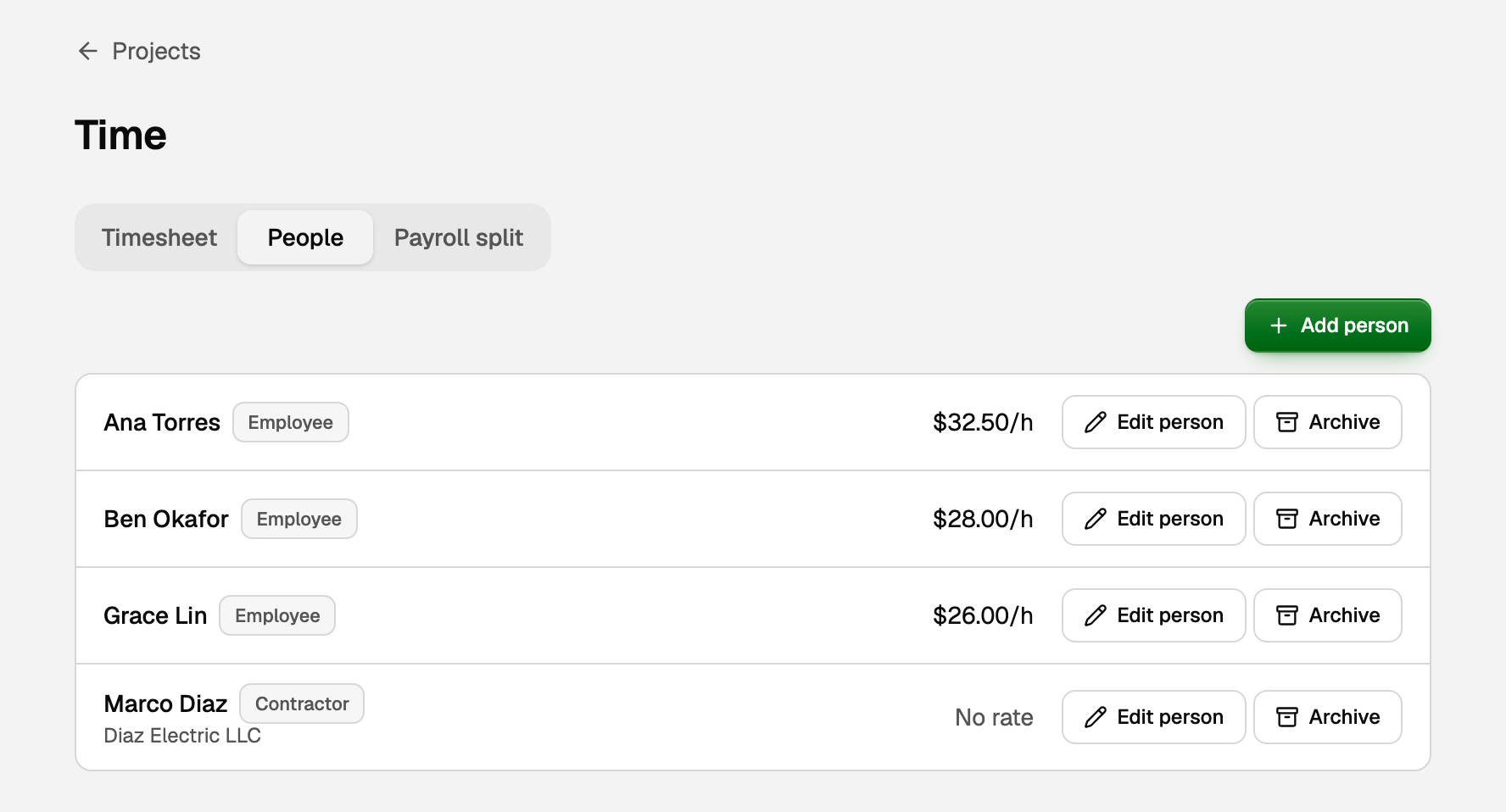
Only the owner and the bookkeeper add and edit people and see hourly costs. Everyone else sees only that a cost is set.
Enter a week of hours
- Open Timesheet and pick the person.
- Use the arrows to move to the week you want. Weeks run Monday to Sunday.
- Pick a job under Add project. Each project gets its own row.
- Type the hours worked each day, like 7.5. A day holds up to 24 hours in total.
- To leave a note on a day, such as what was done, click into the day, then the small note icon in its corner.
- Click Save week.
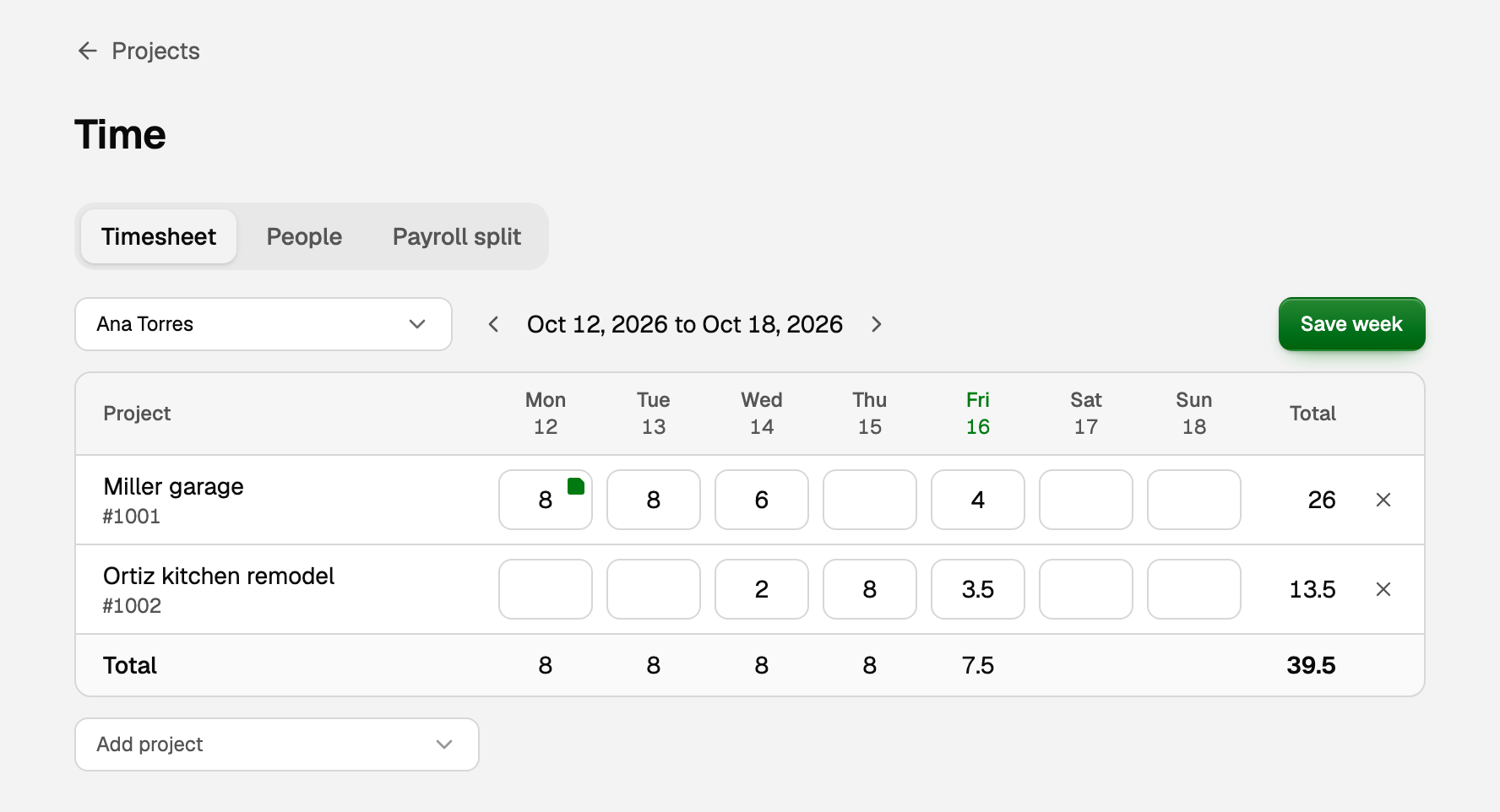
Anyone who can edit the books can enter hours. If someone else changed the same week meanwhile, BooksGPT asks you to reload it.
Hours on their own post nothing. Each project's page gets a Labor section with its Hours and its Estimated labor:
- Estimated labor is employee hours no payroll split covers yet, times each person's hourly cost today.
- It's a guide only: never part of Cost, Profit or Margin, and never posted to your books.
- Contractors add hours but no estimate, because their bills carry their cost. Someone with no hourly cost adds hours only, so the estimate reads low.
Split a payroll entry across jobs
Do this once each payroll is in your books, either as a bank payment you've categorized to your wages account or as a journal entry. Only the owner and the bookkeeper see the Payroll split tab.
- Open Payroll split and click the payroll entry. You can search by memo or amount.
- Under Labor lines, tick the lines to share out. Lines on accounts named payroll, wages, salary or labor are ticked for you.
- Check the Pay period. It starts as the two weeks ending on the payroll's date, and can be up to 62 days.
- Under People paid, tick everyone this payroll paid. Employees with hours on jobs are ticked for you.
- If someone was paid for more hours than they spent on jobs, type their Paid hours. Tick office staff too and type their paid hours, so their pay stays off the jobs.
- Read the preview under To projects: each project's share, and Not on a job for the rest.
- Leave Cost type on Labor and click Split payroll.
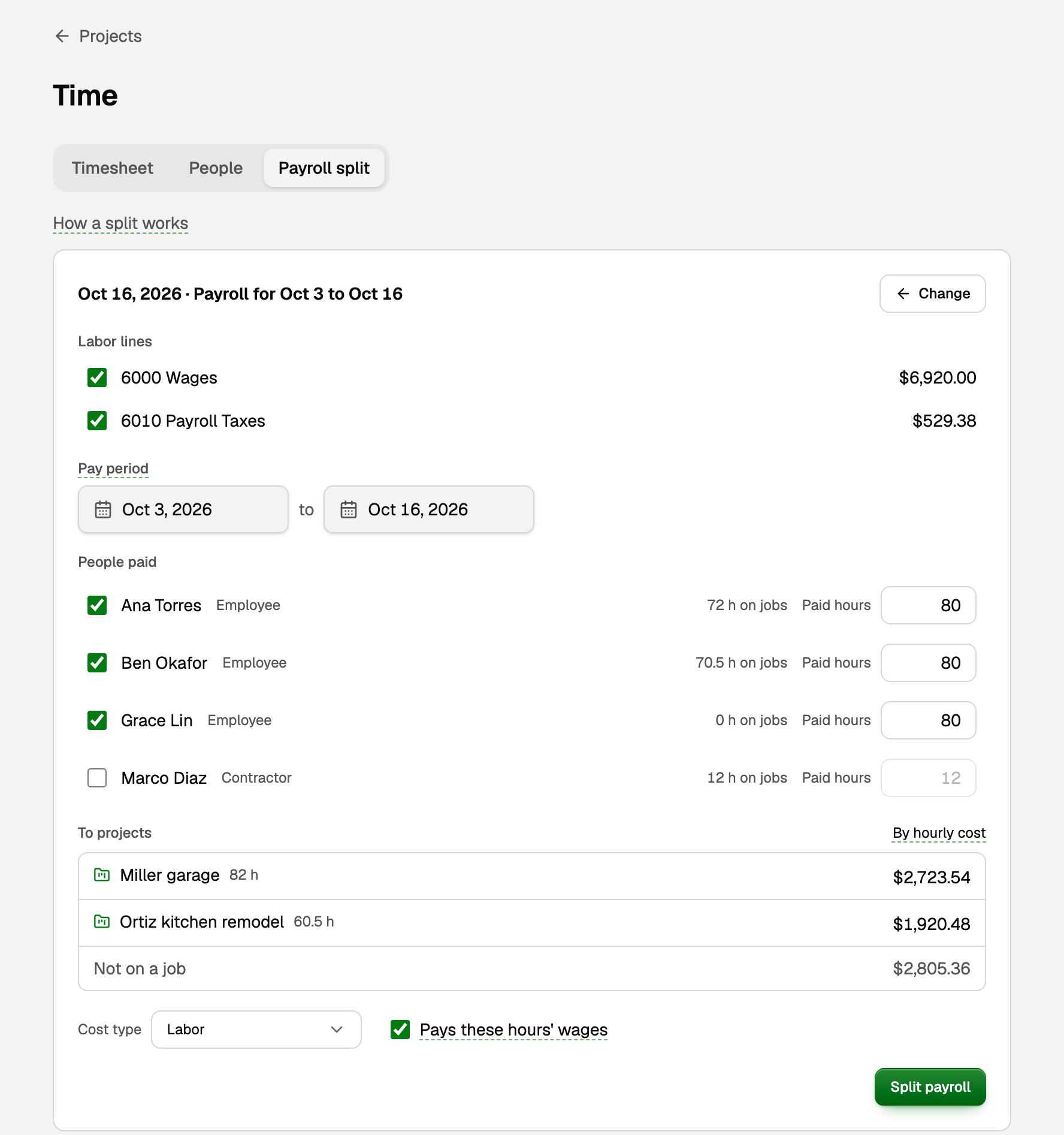
How the shares are worked out:
- Each project's share follows its hours times each person's hourly cost. If anyone ticked has no hourly cost, plain hours decide.
- Paid hours that weren't on a job stay where they are, under Not on a job.
- For example, a carpenter paid $1,000 for 20 hours, 15.5 of them on one job, puts $775 on that job. The other $225 stays on wages.
What the books show (and Undo)
Your payroll entry never changes. BooksGPT posts a separate journal entry, called Payroll split in Journal entries and reports, on the payroll's date. For each project, it takes the project's share off each labor line's account and puts it back on the same account, tagged with the project and Labor.
- Every account total stays exactly the same, so your profit and loss, balance sheet and reconciliations don't move.
- Profit & loss by Project, and each project's page, now show the labor on each job.
- The hours it paid for leave Estimated labor, because their real cost is now on the job.
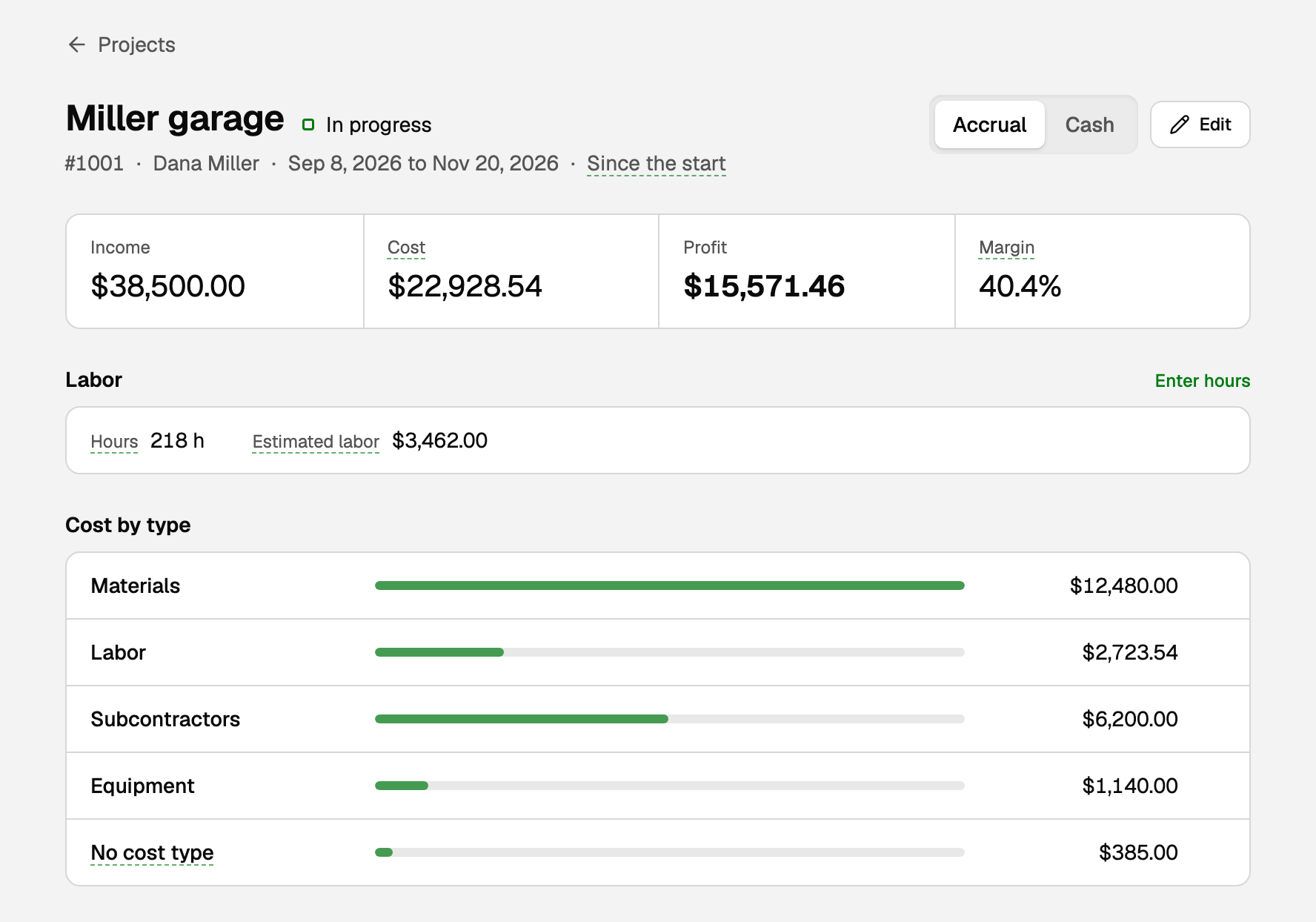
Miller garage still shows Estimated labor because some of its hours were worked before Oct 3, and the payrolls for those weeks aren't split yet.
To undo a split, click Undo beside it under Splits, at the bottom of Payroll split. BooksGPT posts the split entry's reversal on the same date, and those hours count as estimated again.
If the payroll entry is changed or reversed after you split it, its split is marked Payroll changed. Undo that split, then split the payroll again.
If something goes wrong
The payroll isn't in the list, or BooksGPT won't split it.
- Categorize a bank transaction to your wages account first. One nobody has reviewed can't be split.
- Split an entry recorded on the day it was paid, dated after any history you imported. One that counts on Cash on another day can't be split.
- A line already on a project can't be split again.
Too much payroll went to the jobs. Someone this payroll paid was left off People paid, or their paid hours weren't typed. Undo the split, then split the payroll again with everyone ticked.
You can't lower hours on a past week. A payroll split covers them. You can still add hours, and the extra counts as estimated. To lower or move them, undo that split, fix the week, then split again.
Updated on: 18/10/2026
Thank you!