
Payment terms: set them once per customer or vendor
Every customer pays on their own schedule. Set their terms once and BooksGPT fills in the due date on every new invoice you write them.
Vendors work the same way for the bills you owe.
Set a customer's terms
- Open All pages in the left sidebar, then under Sales click Customers.
- Click the customer, then click Edit.
- Choose their Payment terms.
- Click Save changes.
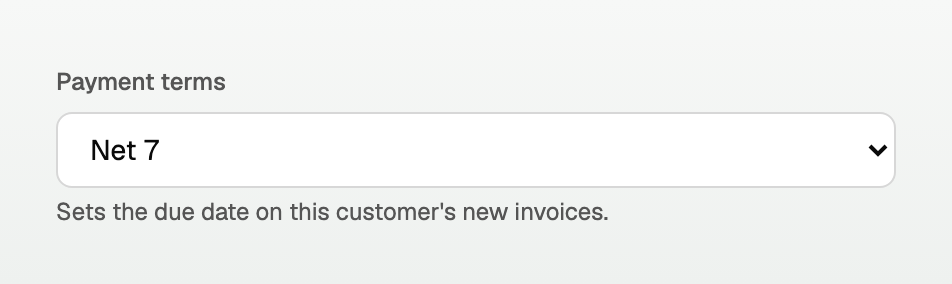
The list covers the usual terms: Due on receipt, Net 7, Net 10, Net 14, Net 15, Net 21, Net 30, Net 45, Net 60 and Net 90.
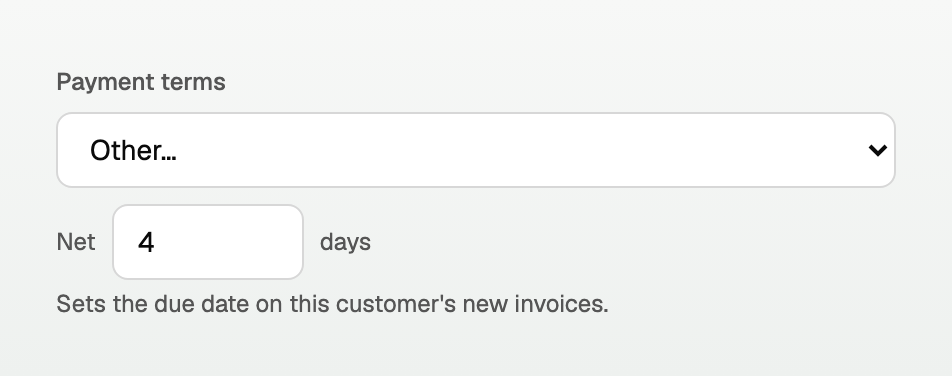
For anything else, choose Other… and type the number of days over the one it offers. Net 4 and Net 5 are real terms, and this is where they go.
Two values that look similar and are not:
- No terms set means you have not told us. New invoices fall back to Net 30.
- Due on receipt means payment is due the day you issue the invoice.
Set a vendor's terms
- Open All pages, then under Purchases click Vendors.
- Click the vendor, then click Edit.
- Open Tax, payments & accounting, if it is not already open. It opens by itself for a vendor that already has terms, a tax ID, 1099 tracking or a default category.
- Under Payments, choose their Payment terms, then click Save changes.
On the vendor's page this reads Terms rather than Payment terms. It is the same setting.
What you get on a new invoice
Pick the customer first. The Due date fills itself in from their payment terms.
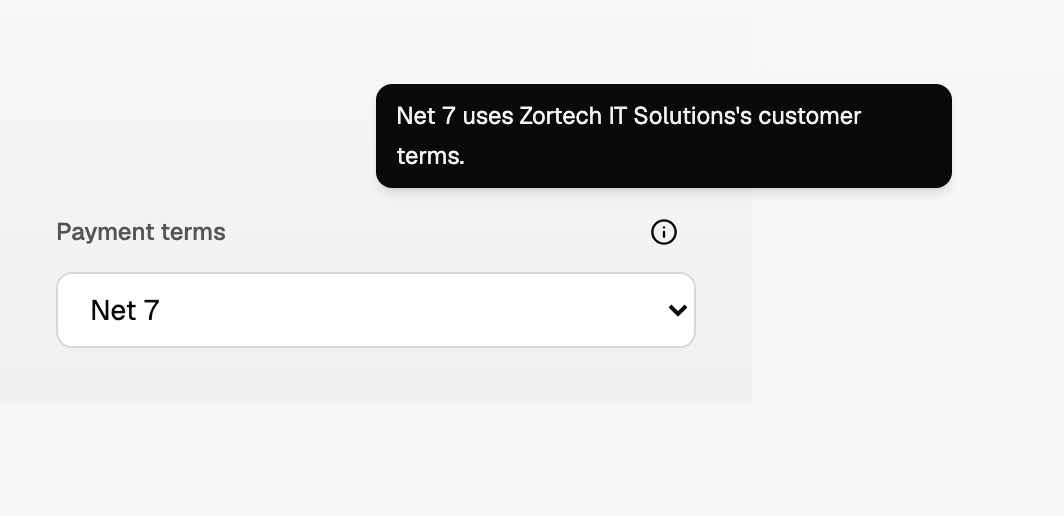
That icon tells you which of these happened:
- The customer has terms, so it names the term and the customer.
- The customer has none, so it says so and uses Net 30.
- You have not picked a customer yet, so it asks you to.
- You chose the date yourself, and it reads The due date was set manually.
You can still override any of it. Use the Payment terms dropdown, or pick a date in Due date.
That dropdown reads Custom whenever the due date is not one of the terms in its list. A Net 4 customer is a good example: the due date is right and the info icon says Net 4, while the closed dropdown says Custom.
If imported contacts have no terms yet, a Fill from QuickBooks button can appear beside Payment terms. That fill is for every imported contact in the workspace, not only this customer. See "Fill missing payment terms from QuickBooks".
What you get on a bill
The same filling-in, minus the dropdown. Choose the vendor and the due date fills in. A line under Due date names whose terms produced it:
- The vendor has terms: Net 30 uses Pacific Paper Co's vendor terms. (with their name and term).
- The vendor has none: No terms are set for {vendor}; the bill uses Net 30.
- You have not picked a vendor yet: Choose a vendor to apply their payment terms.
- You picked the date yourself: Set by hand.
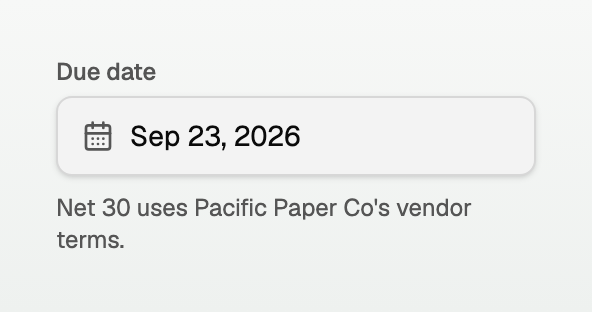
To use a different date on one bill, just pick it in Due date.
Things worth knowing
- While the app is filling the date in, changing the issue date moves the due date with it. Backdate a new invoice for a Net 7 customer and it stays seven days out from the new issue date.
- Anything you set by hand stays put. The moment you pick a due date yourself, or choose a term from Payment terms, that date stops following the issue date. On an invoice the info icon then reads The due date was set manually. On a bill the line under Due date reads Set by hand. Change the issue date after that and you will need to reset the due date too.
- Terms are on the Edit screen. The New customer and New vendor forms only ask for contact details. Save the contact first, open it, then click Edit.
- Reports and reminders follow the due date, so getting terms right is what makes your A/R aging and your payment reminders land on the right day.
Coming from QuickBooks
If you import from QuickBooks, terms come across on their own:
- Customer terms arrive from the customer record, vendor terms from the vendor.
- Importing again never overwrites a term you set by hand. It only fills in terms that are still empty.
- If a QuickBooks term cannot be read for any reason, nothing is changed.
Contacts you already imported can still have none. An owner or bookkeeper can fill those from QuickBooks without re-importing. Open All pages, then under Sales click Customers (or under Purchases, Vendors), and click Fill missing payment terms. That does not change your ledger. See "Fill missing payment terms from QuickBooks".
Terms we cannot store yet
QuickBooks lets you say "due on the 15th of the month". BooksGPT stores terms as a number of days, so it cannot express that one yet.
Those contacts keep the QuickBooks name of their term on screen, and get no automatic due date:
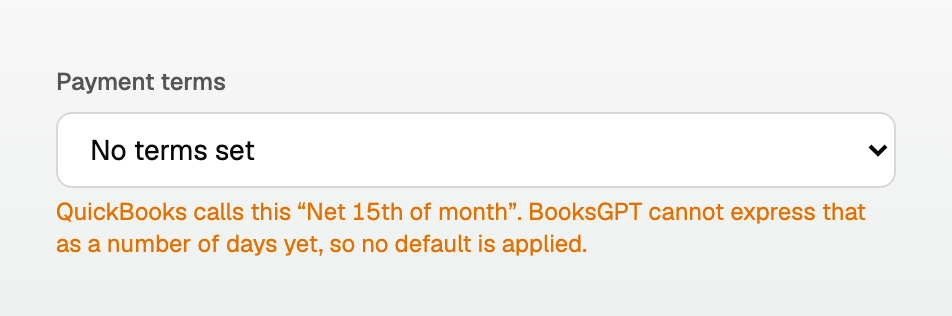
The name in that note is whatever QuickBooks calls the term, and it can be misleading through no fault of yours. Terms named "Net 11" and "Net 14" that are really "due on the 31st" are both real, and we will not read a name as a number of days when the term behind it says something else.
You can either set a day count that suits you, or keep picking the due date by hand on those invoices. We would rather show you what QuickBooks calls it than guess a number and put a wrong date on your invoice.
Updated on: 17/09/2026
Thank you!