
Recurring bills: rent, insurance, and subscriptions
A recurring bill enters the same vendor bill on a schedule. Use it for rent on the 1st, insurance each quarter, or a software subscription every month.
This is the business page. It is not the personal page called Recurring, which tracks repeating bank transactions.
Where it lives
Open All pages in the left sidebar, then click Purchases and Recurring bills.
The heading is Recurring Bills. Start a schedule in one of three ways:
- A card under Suggested from your spending
- Make recurring on a bill you already saved
- A paused QuickBooks template, after you turn that schedule off in QuickBooks
Suggested from your spending
Repeating charges appear as cards above the list. Nothing is entered unless you set one up.
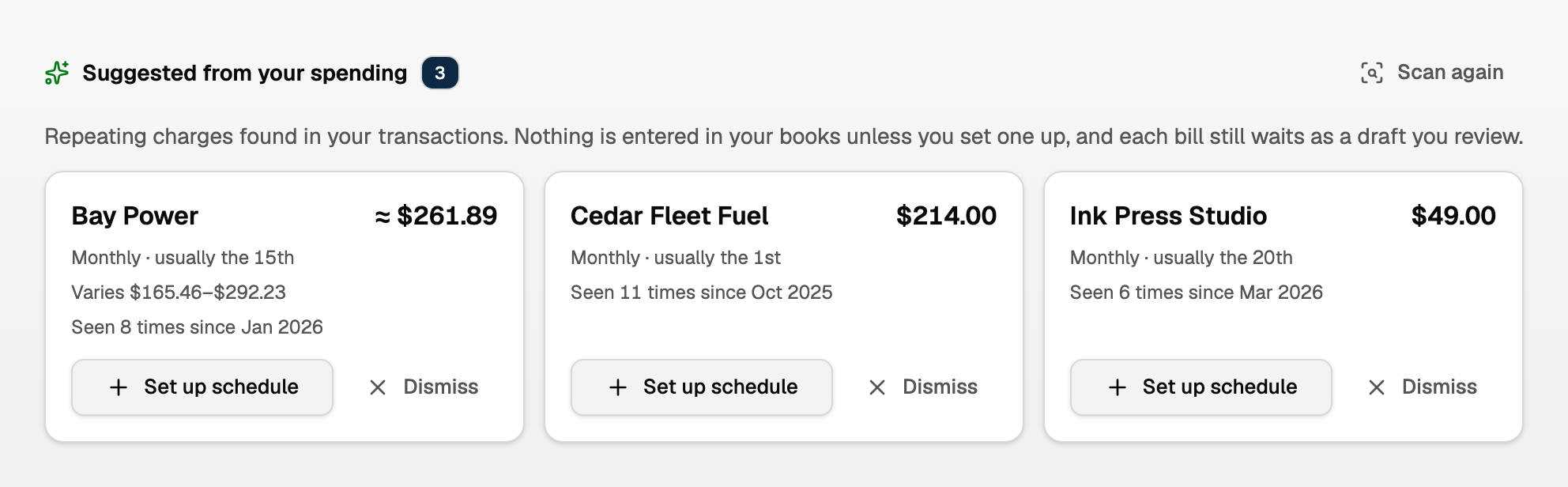
- Each card shows the merchant, amount, how often it repeats, the usual day, and Seen N times since the first month. A variable charge shows ≈ and Varies.
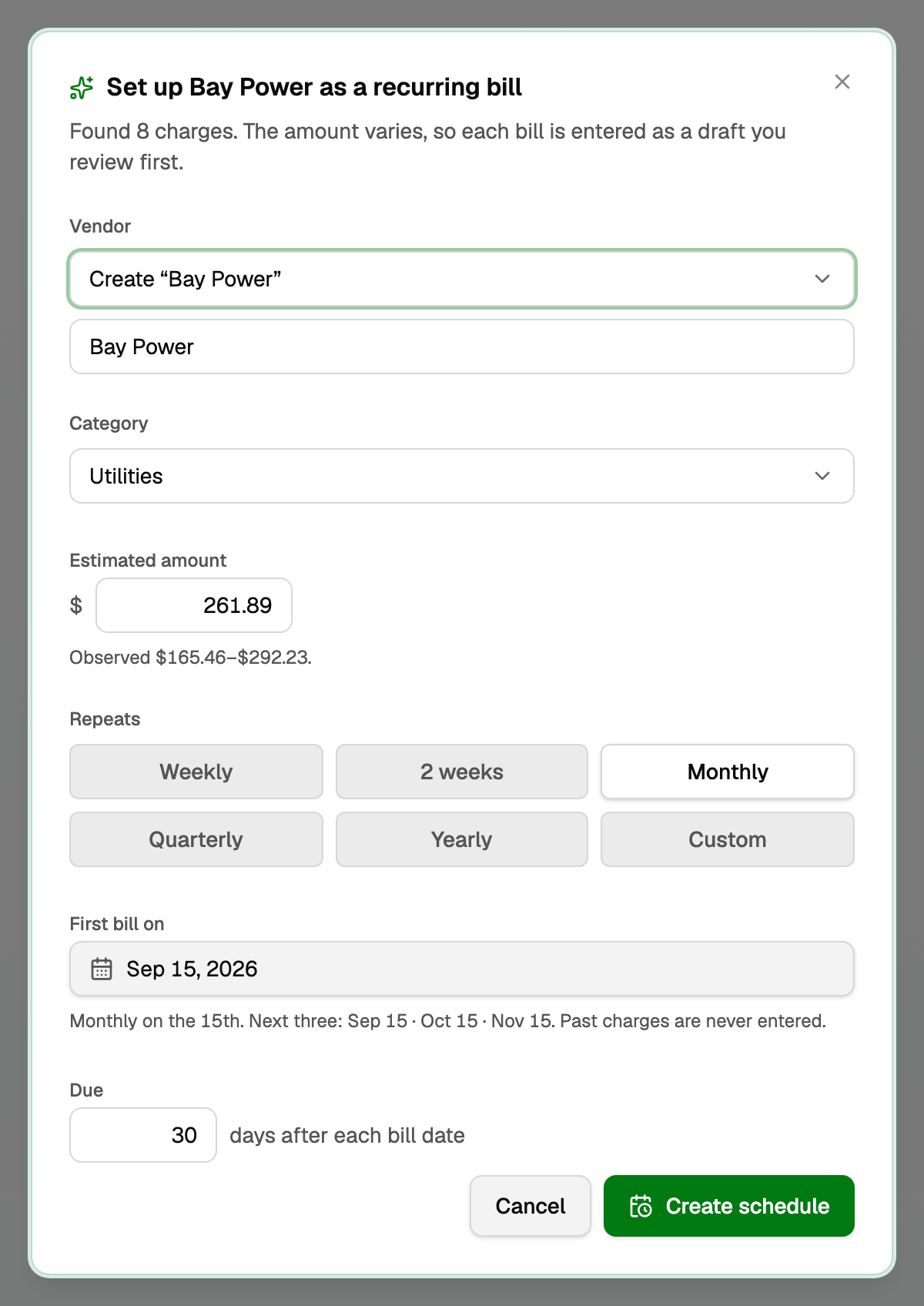
- Set up schedule opens a prefilled dialog. Pick a Vendor, or Create “{name}”, then Create schedule. Every bill is a draft. There is no Post it to my books choice here.
- A variable charge labels the amount Estimated amount. You can leave Category as Pick a category later.
- Dismiss hides that merchant for good. Scan again searches once more, and the same scan runs at night.
- Past charges are never entered. The schedule starts from First bill on.
Make a bill recurring
- Open All pages in the left sidebar, then click Purchases and Bills, then New bill.
- Enter the vendor, dates, and lines. Click Save draft or Save & post.
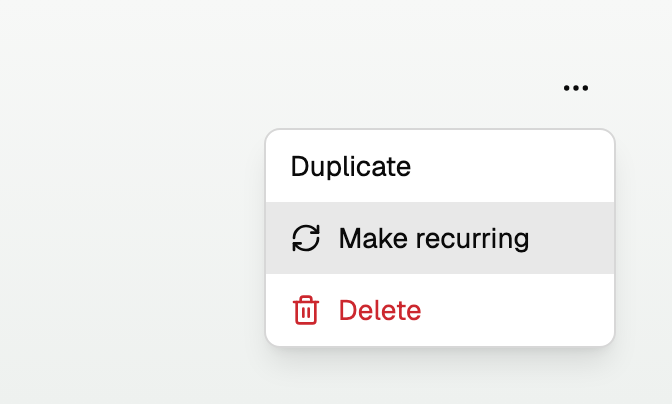
- Open More, then click Make recurring.
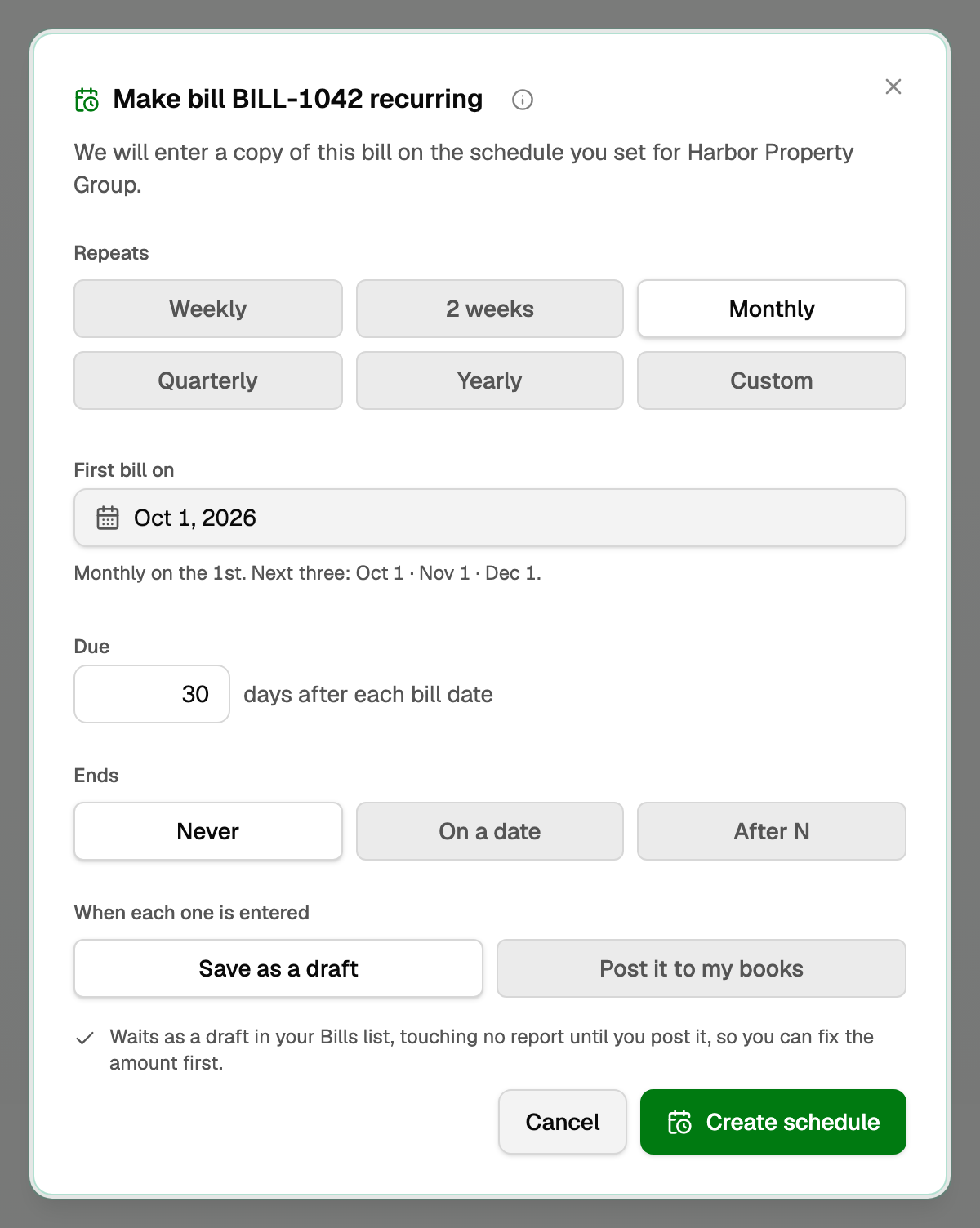
- Choose how often it repeats, First bill on, how many days until it is due, and when it ends.
- Under When each one is entered, choose Save as a draft or Post it to my books. A draft waits in Bills and stays off the profit and loss and Accounts Payable until you post it. Posting records the expense and what you owe with no review. Use that for a fixed amount such as rent. Changing a posted bill later needs a correcting entry.
- Click Create schedule.
The bill you started from is not changed. The schedule copies its shape.
A class filled from the category's default is not copied. Later bills take that default as it stands on the day they run.
On the schedule list, open More to Pause, Resume, Edit, or Delete. Deleting the schedule does not delete bills it already entered.
Imported from QuickBooks
A QuickBooks books import brings recurring bill and expense templates over as Paused schedules. The note starts: Imported from QuickBooks and paused so nothing is entered twice.
Turn it off in QuickBooks, then open More and press Resume. That starts from the next future date and does not enter bills QuickBooks already created.
Recurring invoice templates are not imported. See "Integrations: connect QuickBooks Online".
When a schedule falls behind
If more than one bill is overdue, the schedule shows Needs attention. Nothing is added until you choose:
- Enter all N as drafts. The drafts wait in Bills. They are never posted automatically, even if the schedule is set to post.
- Skip them. Those dates are gone, and the expense is not recorded.
Resume stays off until you pick one, and the menu says enter or skip overdue first.
Good to know
- Create recurring bill opens a new bill. After you save it, use Make recurring.
- Merging a category moves the schedule onto the account you keep, including any waiting suggestion. See "Build and edit your chart of accounts".
- Making that category inactive, putting another account under it, or changing it to Accounts Payable can leave the schedule unable to use it. If you only made it inactive, use Show inactive and Make active on Chart of accounts.
- A schedule set to Save as a draft keeps running. The line uses the schedule's default category, then the vendor's Default expense category, then Uncategorized Expense. Check the category before you post.
- A schedule set to Post it to my books stops and enters nothing. Open More, click Edit, and choose Save as a draft before you enter the missed bill (Enter it as a draft, or Enter all N as drafts). Entering it turns the schedule back on by itself.
- To post under a different category, delete the schedule, correct the category on a bill, and use Make recurring again. Edit has no line category.
- See "Bills: track what you owe and match bank payments" to type a bill by hand, and "Vendor Bill Inbox and matching bank payments to Bills" after you pay the vendor outside BooksGPT.
Updated on: 13/10/2026
Thank you!