
Scheduled transactions: plan what is coming
Scheduled transactions are the money you know is coming or going: rent, payroll, a loan payment, a regular deposit. Adding them shows you whether an account will cover what is due before it is due.
Each one is a forecast. It shows in that account's register and its projected balance, and it never posts by itself. Give it a category and class, and the bank line it becomes is filed with them when you tie the two together. When a waiting bank line clearly matches one schedule (same account, same amount to the cent, within five days), BooksGPT suggests them for you: the line says Scheduled in your review inbox, and you approve it as usual or choose Not this one, which takes the suggestion off and keeps the payment in the forecast. For a split schedule the line offers Split as scheduled instead, and nothing changes until you click it.
Add a schedule
- Open All pages in the left sidebar, then under Daily work click Scheduled.
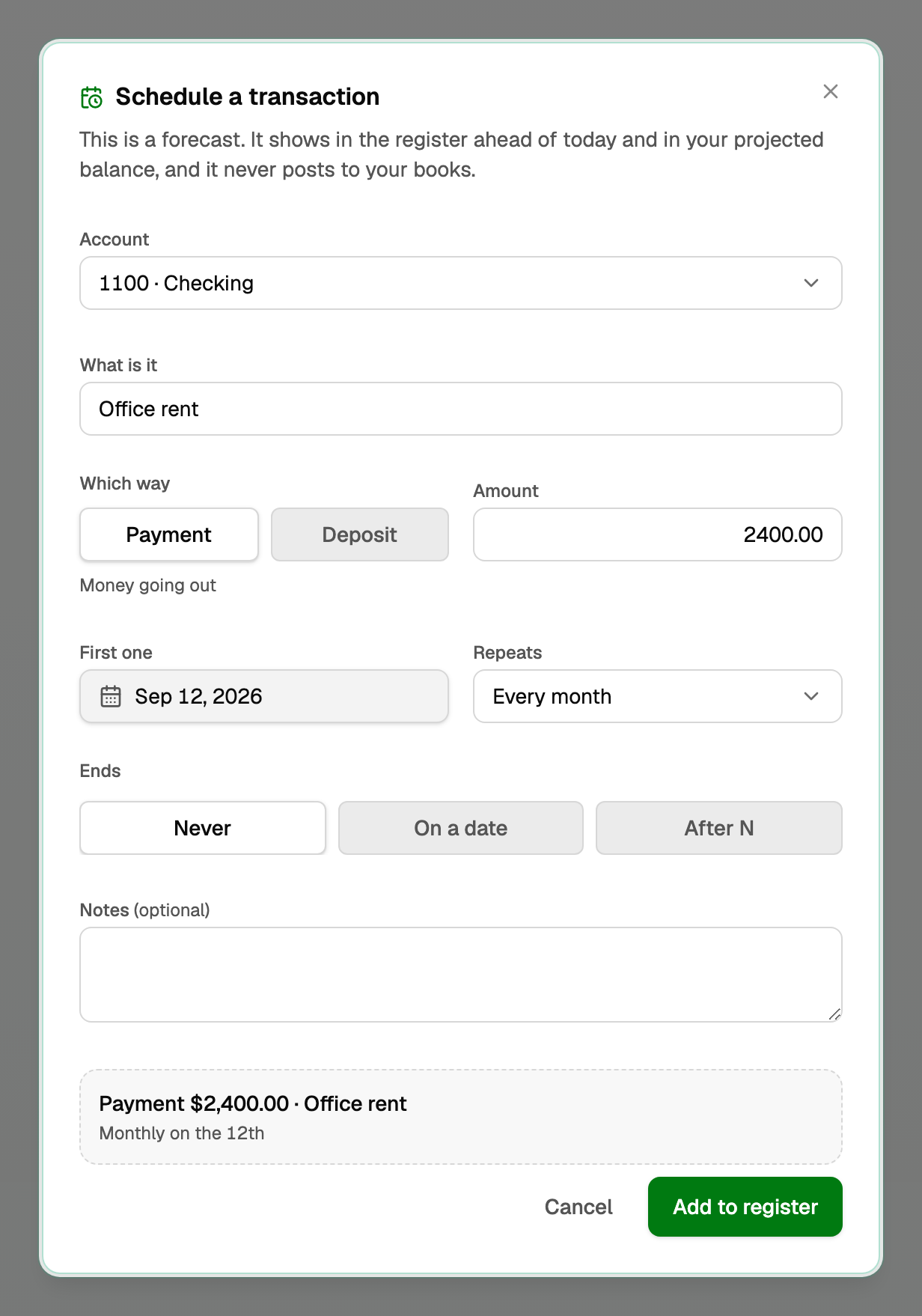
- Click Schedule a transaction.
- In What is it, give it a name you will recognise, like Office rent.
- Choose which way the money moves: Deposit or Payment on a bank, Charge or Payment on a card.
- Enter the amount. Under Category pick what the bank line should be filed as, and its Class if your workspace uses classes. For a payment that covers several things, such as a loan's principal and interest, click Split and give each part its category and amount until it reads Fully allocated.
- Enter the first date.
- Leave Repeats on Just once, or pick an interval such as Every month, or Custom.
- For a repeating one, set Ends to Never, On a date, or After N times. The summary under the form repeats the cadence and any end date.
- Click Add to register.
Every row in the list carries a Forecast label, so no date or amount reads as posted. Category shows what its bank line will be filed as, Repeats names the cadence, Next is the next date or Finished, and the amount carries its direction. A category you have since made inactive shows Inactive: edit the schedule to pick another.
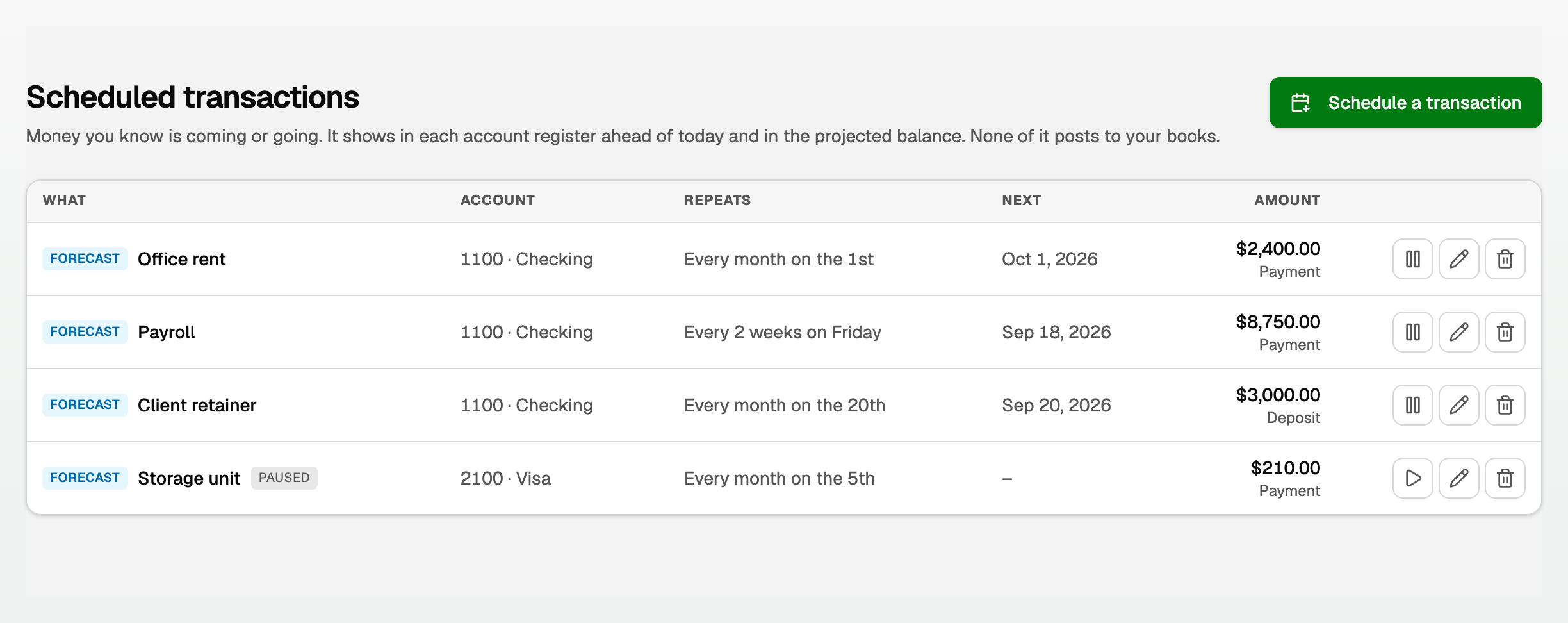
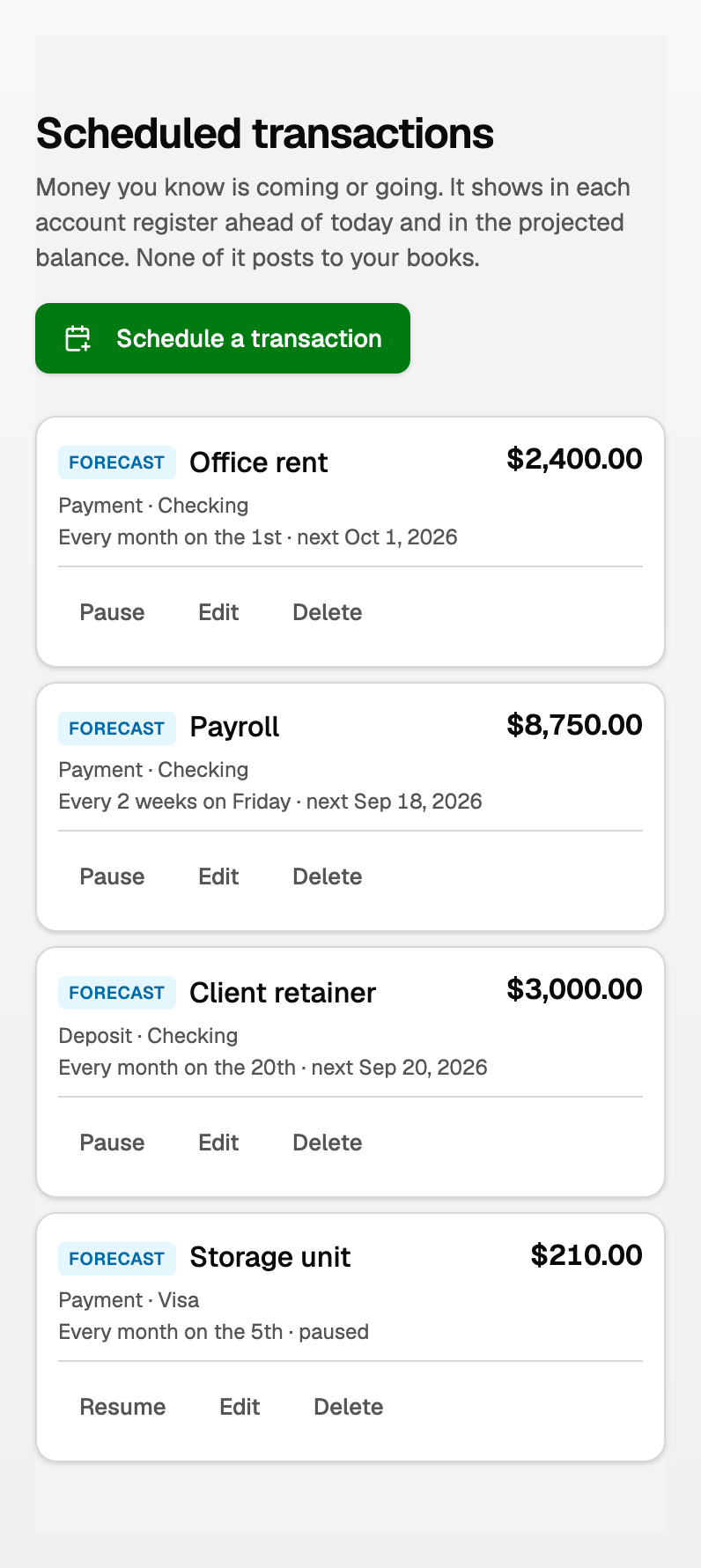
On each row you can:
- Pause it to stop counting it in the projected balance, then Resume it.
- Edit it to change the amount, date, or cadence.
- Delete it. Your books don't change, and bank lines it already filled keep their category.
Coming up in the register
In the account register, what you scheduled appears under Coming up, folded into the Projected balance:
- An item due on or before today that has not matched a posted transaction is marked Overdue (or Due today) at the top of the list. It counts as if it clears today, until it matches or you settle it.
- Click It happened and pick the bank line it became. Use this line files that line with the schedule's category and class, or splits it the way the schedule is split, and posts it; a line you already approved keeps its own category. If the amount was different you can tick Use ... from now on. Mark done records it without a bank line. On an account with no bank feed, such as petty cash, Record transaction adds the transaction for you, filed as scheduled, after showing any that look the same. Click Skip if the money is not coming.
- Upcoming items offer Done (on a phone, It happened) and Skip.
- A row you settle stays in the list, struck through, with Undo for at least a week.
- On a bank account, the Lowest projected balance leaves out late deposits, in case they stay late.
Good to know
- The register's Export puts the projection in its own file, so it can never be read as posted activity.
- A bank line waiting in the review inbox is already in the register's balance, unless it is held as a possible copy of your imported books, so the projection starts from it.
- To read the projection in full, see Open an account register.
Updated on: 18/10/2026
Thank you!