
Vendor credits: record and apply a supplier credit
A vendor credit is money a supplier owes you. It can be a credit memo for a return or an overcharge, or a prepayment you made and have not used yet. Applying it to an open Bill settles part of what you owe without moving cash.
Record a credit memo
- Open All pages in the left sidebar, then under Purchases click Vendor credits.
- Click New vendor credit.
- Pick the vendor.
- Pick the Offset category the credit belongs to, usually the expense it corrects.
- Enter the amount and the date, add a memo if it helps, then click Create credit.
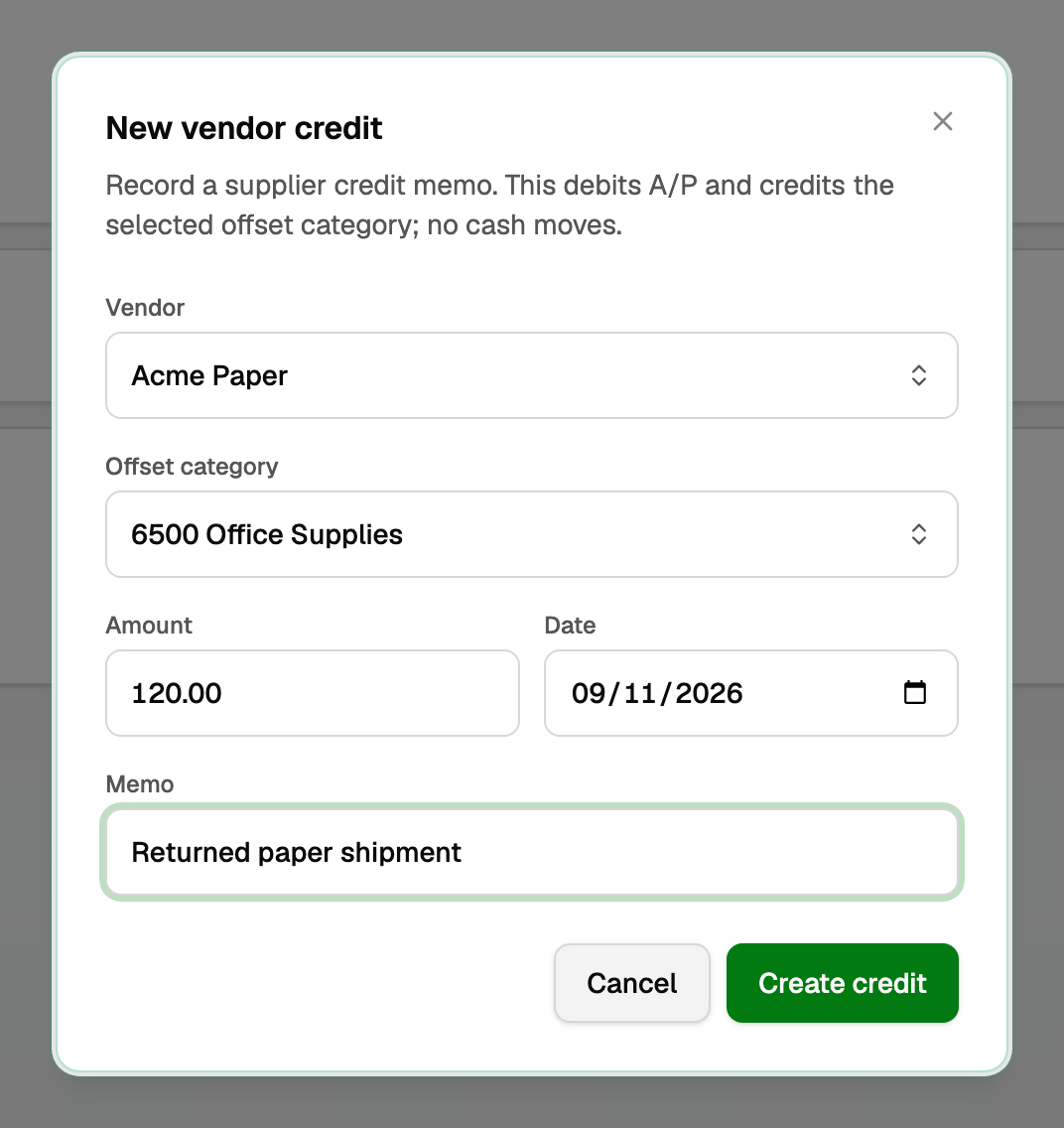
This debits Accounts Payable and credits the offset category. No cash moves. The credit appears in the list with what is still available and what it was worth.
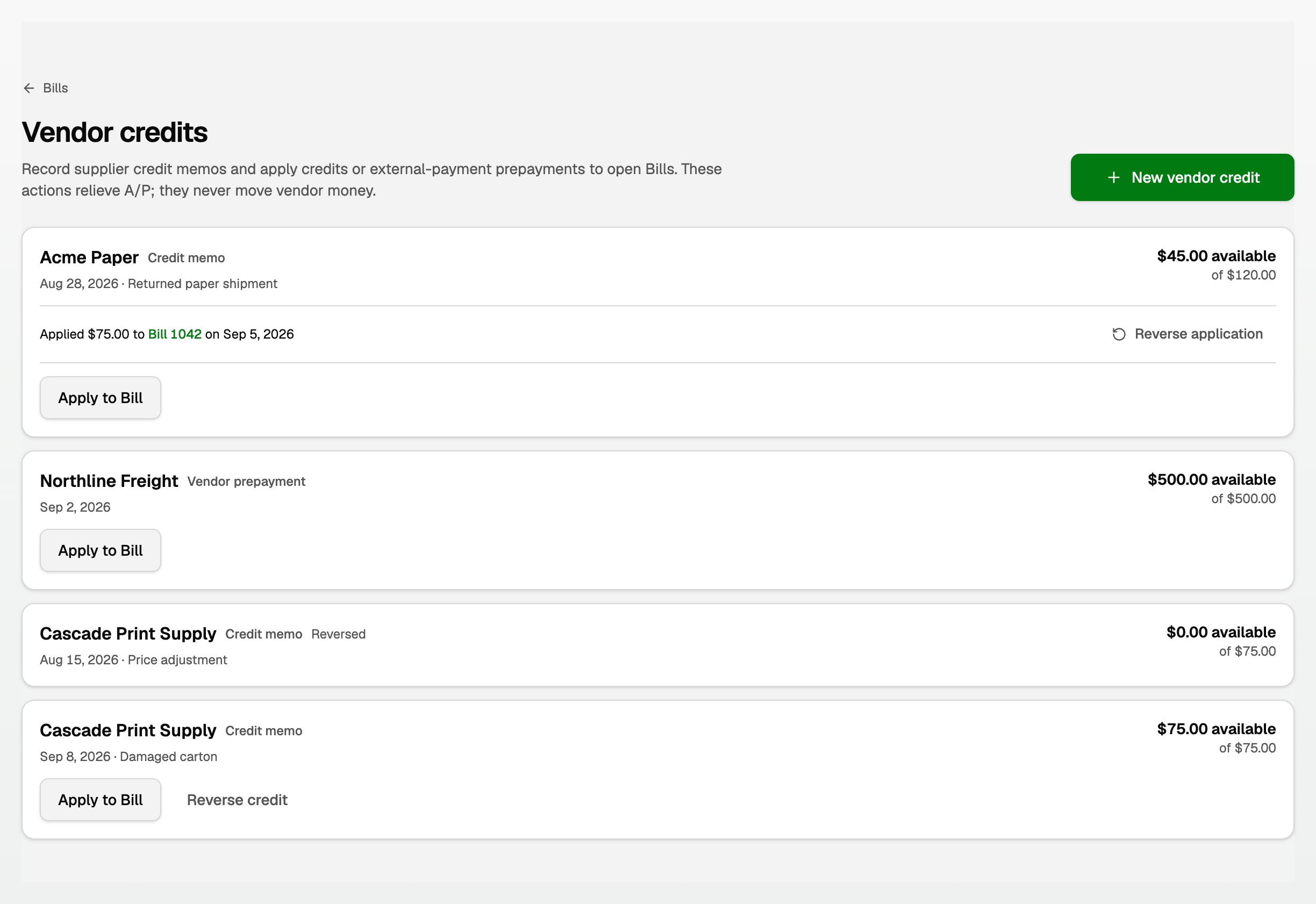
Apply it to a Bill
- On the credit, click Apply to Bill.
- Pick one of that vendor's open Bills. The list shows how much each Bill still owes.
- Set the amount and the date. You cannot apply more than the credit has left or more than the Bill owes.
- Click Apply credit.
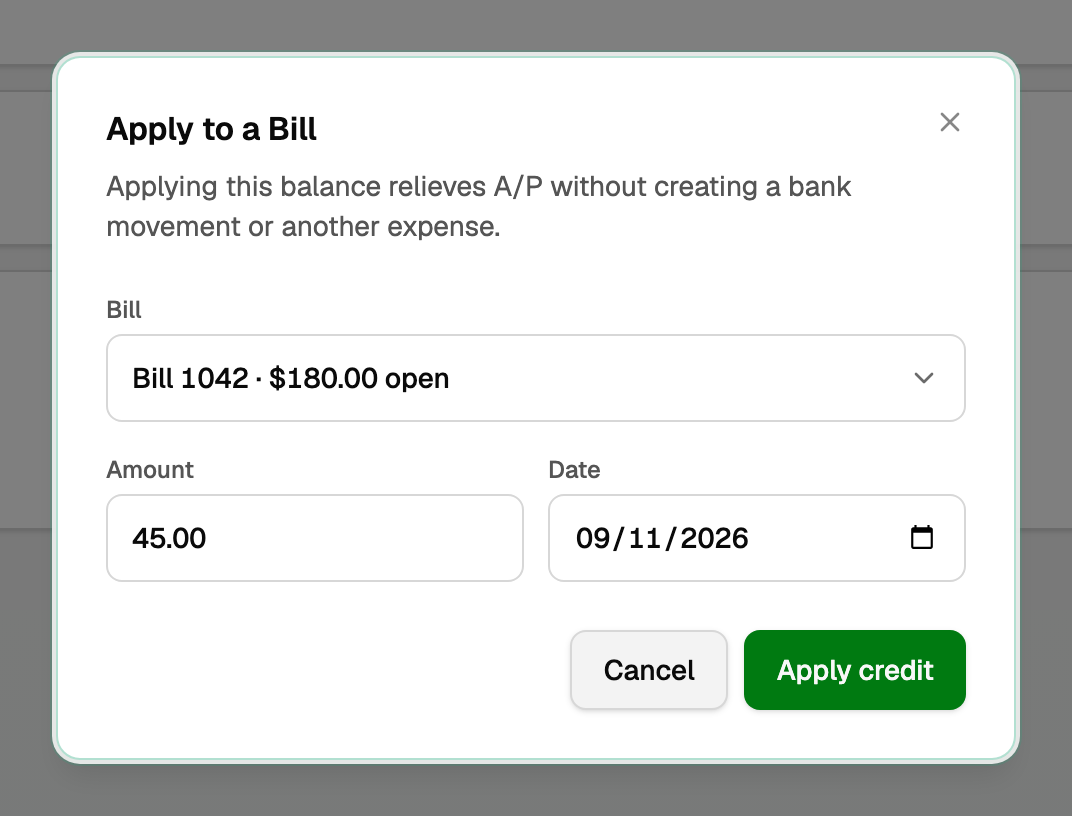
What an application does
- The Bill's balance drops by the amount you applied, and so does the credit's available balance.
- No bank movement is created and no second expense is booked. The application only relieves A/P.
- The application is listed under the credit, linked to the Bill, with Reverse application beside it.
If a payment you matched to Bills was larger than they owed, the extra appears here as a Vendor prepayment instead of an expense. Apply it the same way.
Undo an application or a credit
- Reverse application puts the applied amount back on both sides.
- Reverse credit removes an unused credit memo.
- Both ask for a reversal date and a reason. The original record stays visible, and a dated reversing entry restores the prior A/P balance.
Good to know
- Only an owner or bookkeeper can record, apply, or reverse a vendor credit.
- To enter a Bill in the first place, open Bills. See "Bills: track what you owe and match bank payments".
Updated on: 12/09/2026
Thank you!