
Write and print checks
A check is a payment out of your bank account, like a transfer. BooksGPT records it the moment you write it, so your bank balance in the books counts the money while the check is in the mail. When it clears, you match the bank line to it, so nothing is counted twice.
You print onto laser check paper for your US bank account. It carries the bank's details and check numbers; BooksGPT prints the date, payee, address, amount and memo.
Find checks
Checks has no row in the sidebar. Any of these opens it:
- Click Go to… at the top of the page and type Checks.
- Click the + button at the top right, then Check.
- In Transactions, click Add transaction, then Write check. Print checks is in the ··· menu at the top of that page.
- On a bank account's register, use the Write check and Print checks icons.
Write a check for an expense
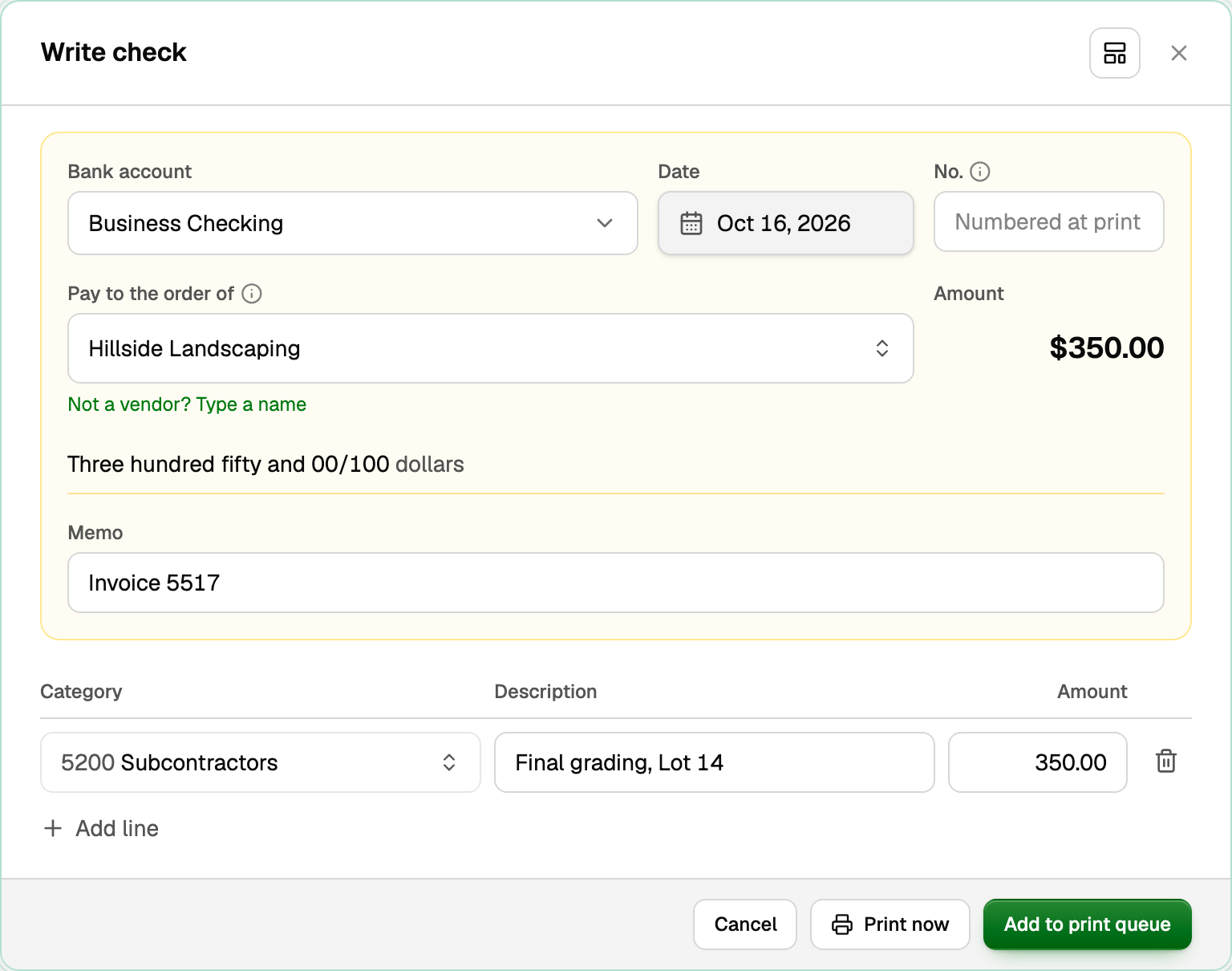
- On the Checks page, click Write check.
- Choose the Bank account and the Date.
- Leave No. blank. BooksGPT numbers the check when it prints.
- Under Pay to the order of, choose the vendor. For someone who is not a vendor, click Not a vendor? Type a name.
- Fill in a line for each expense: Category, Description and Amount. Click Add line for more.
- Add a Memo if you like, then click Add to print queue, or Print now to print it straight away.
- A vendor's open bills are listed under the check. Tick one to pay it with this check instead.
- No mailing address for the vendor? Click Add address, or Hand-delivered to print without one.
Pay bills by check
- Open All pages in the left sidebar, then click Purchases and Bills.
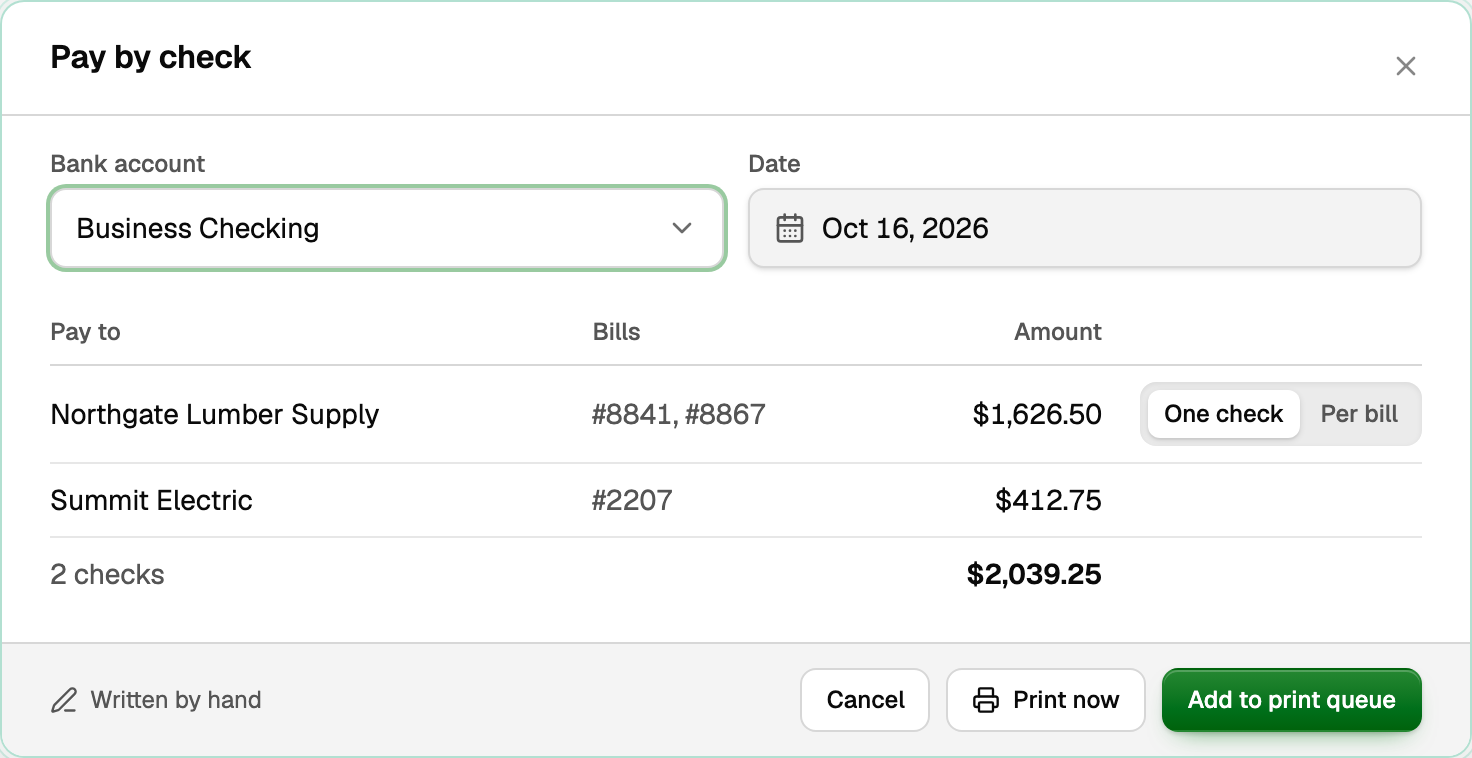
- Tick the bills to pay, then click Pay by check in the bar that appears.
- Choose the bank account and the date.
- Each vendor gets one check; voucher paper lists its bills on the stub. For a separate check per bill, switch that vendor to Per bill.
- Click Add to print queue or Print now.
To pay one bill, open it, click Record payment and choose Check under Paid by.
Record a check you wrote by hand
Type the paper check's number in No. (Check no. on a bill) and the date written on it, then click Record check. BooksGPT records it and never prints it. In Pay by check, click Written by hand to number each check.
Set up your check paper
Do this once for each bank account, before your first print.
- On the Checks page, click Print checks, then the sliders icon (Check paper) at its top.
- Choose Voucher (one check a page, with two stubs below it) or Standard (three checks a page).
- Untick Company name and address if your checks already have it printed.
- Click Print sample page, print it on plain paper and hold it over a check against a window.
- If the print sits off the boxes, type how far to move it under Across and Down, in inches (like +0.04). Print samples until it lines up, then click Save.
Print checks
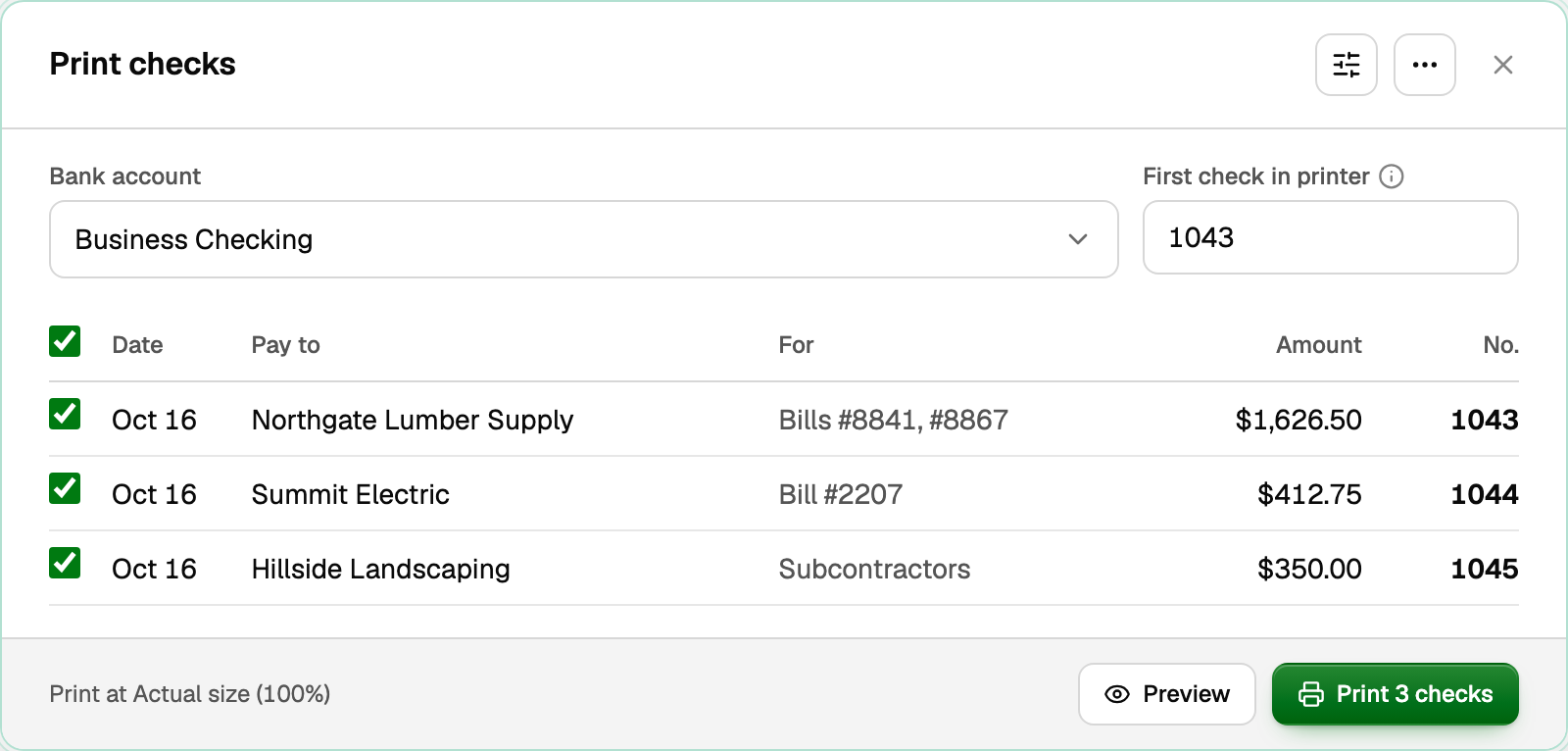
- On the Checks page, click Print checks and choose the bank account.
- Make sure First check in printer is the number printed on the top sheet in your printer.
- On standard paper with a partly used top sheet, choose how many Checks left on the top sheet.
- Tick the checks to print. Each shows the number it will take.
- Click Preview to look first, then Print 3 checks. Print the file at actual size (100%).
Tell BooksGPT what printed
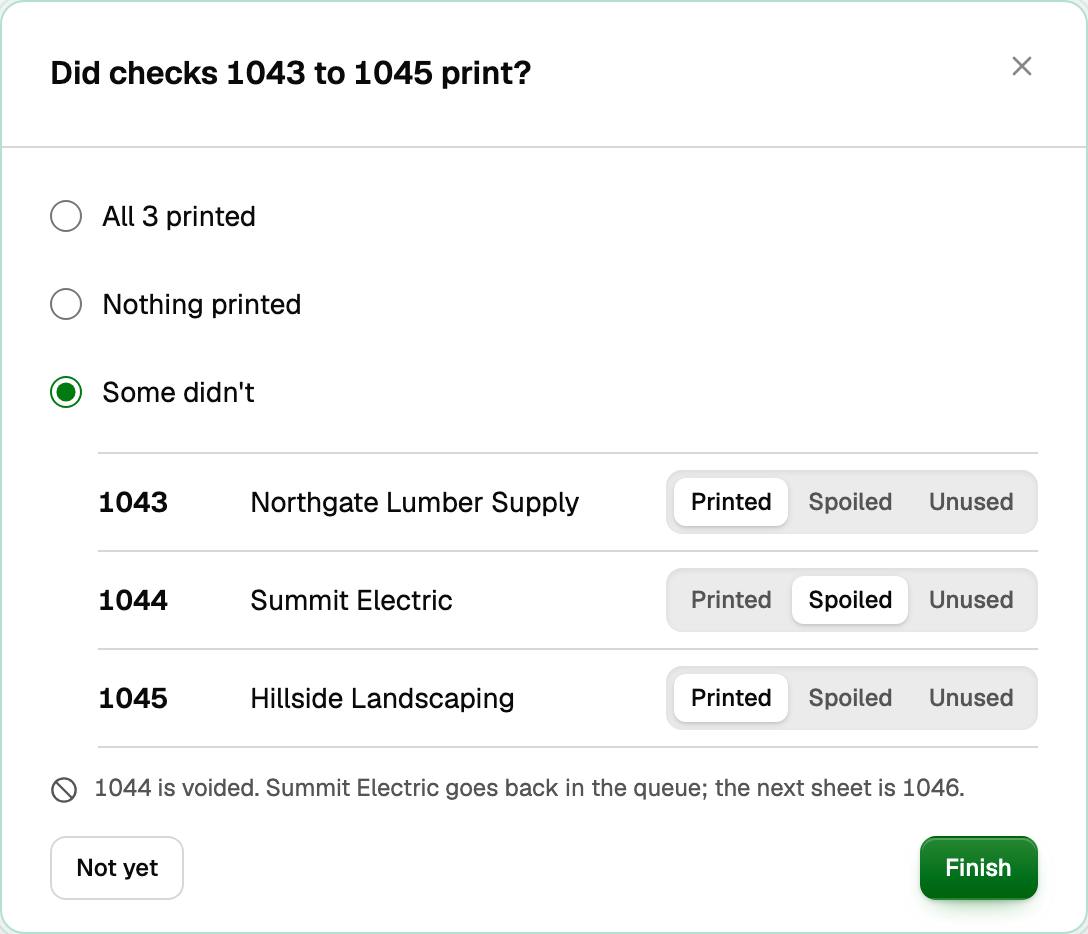
Once the file opens, BooksGPT asks how it went:
- All 3 printed: every check came out right.
- Nothing printed: the printer never started, so no number is used.
- Some didn't: mark each sheet Printed, Spoiled (torn, jammed or misprinted, so its number is voided) or Unused (it never went through). Spoiled and unused checks go back in the queue to print again.
Click Finish. Not yet leaves the print run open, and BooksGPT asks again later.
What happens in your books
- When you save a check, the bank account goes down by its amount at once, before it prints.
- A check for expenses records each line on its category.
- A check for bills records a payment on each bill, so you owe that vendor less.
- The check shows in the bank register with its number, and under Outstanding on the Checks page until it clears.
When the check clears
When the bank line arrives, Review inbox names the check you wrote beside it. Click Match to tie the two together. If Banking lists the line under possible duplicates instead, click Link beside the check there. A check that never printed, or was voided, is never offered.
Void, reprint or copy a check
Click a check on the Checks page to open it.
- Void reverses the money and reopens any bills it paid. Tick Write a new check for the same amount to replace it. A check dated in a closed month is voided on the first open day.
- Reprint voids the old number and sends the check back to the queue for a new one.
- Print a copy (on a cleared check) prints a copy marked not negotiable.
- To void an unused sheet of check paper, open Print checks, click ···, then Void a blank check number….
Print a different name on a vendor's checks
Open the vendor, click Edit and fill in Name on checks. Blank prints the vendor's name.
Ask Copilot
Copilot can write a check, pay bills by check, and void or reprint one. Each arrives as a card, and nothing changes until you click Approve. Printing still happens in Print checks.
If something goes wrong
- The print sits off the boxes. Print at actual size (100%), not fit to page. Then adjust Across and Down in Check paper.
- A check jammed or printed wrong. Mark it Spoiled when BooksGPT asks what printed. Already finished? Open the check and click Reprint.
- The bank already shows the check. If one Review inbox line names its number, BooksGPT can record the check and hold that line for you to match. If anything needs your answer or a fix first, it says so.
Updated on: 18/10/2026
Thank you!