
Sales by product or service: quantities, margin and comparisons
Sales by product shows what each product or service brought in, how many you sold, and how much of each sale you kept. That last part is gross margin: what you sold it for, minus what the goods cost you.
A loaf you buy for $3.20 and sell for $8 keeps $4.80. That is a 60% margin. Margin is how you tell the products that pay for the business from the ones that only keep you busy.
Open the report
- Open All pages in the left sidebar, then click Reports and Sales by product.
- Set Report period. A sale counts on its date, paid or not (the Accrual basis). You can look at up to five years at a time.
- Choose Amount, Quantity, or Summary above the table.
Amount: sales by month
Each month gets a column, then a Total.
- Products and services lists each product, then Total products and services.
- Rest of income, by account lists income that was not sold as a product, then Total rest of income.
- No product and Discounts show with the products when they are not zero.
- Total income matches Profit & loss on the Accrual basis for the same dates: its Total Income, plus Total Other Income when your books have that section. If your Profit & loss shows Cash, switch it to Accrual to compare.
A sale lands under its product when it is an invoice line that names the product. Income recorded any other way, such as a deposit categorized straight to an income account, stays under its income account. So an income account here can show less than the same account on Profit & loss.
Quantity: units sold by month
Each product is counted in its own unit, shown on the row, such as lb or each. Income on accounts has no quantity, so it is left out.
A star on a quantity means some lines on older invoices could not be told apart from an equal line of another product. That quantity is not counted, but the money still is.
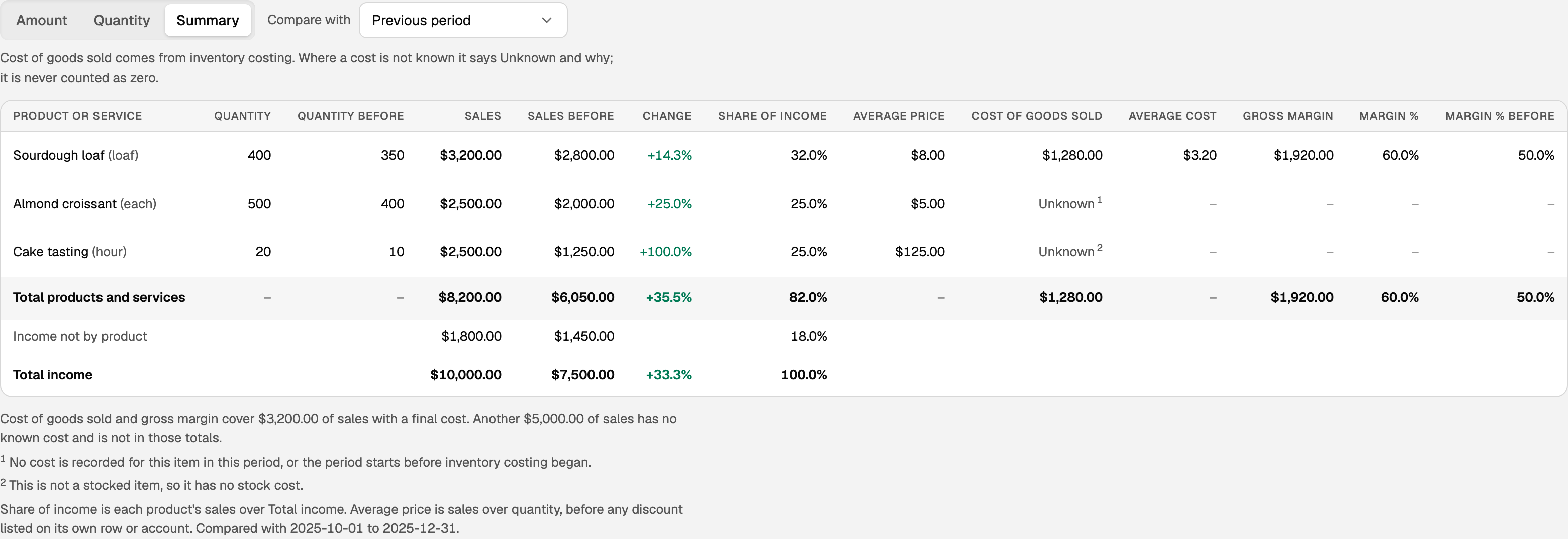
Summary: margin and comparisons
Summary gives one row per product or service for the whole period:
- Quantity and Sales.
- Share of income: this product's sales divided by Total income. Income that is not by product counts in Total income too, so the products can add up to less than 100%.
- Average price: sales divided by quantity, before any discount the books keep on its own row or account.
- Cost of goods sold: what this product added to cost of goods sold in these dates. That is mainly what the goods you sold cost, plus any counts or stock adjustments on the same dates. Average cost is that cost per unit sold.
- Gross margin: sales minus cost of goods sold. Margin % is that margin as a share of the product's own sales.
Under the table, Total products and services, Income not by product and Total income add it up. Total income here matches Total income on Amount.
Compare with an earlier period
- Set Compare with to Previous period or Same period last year. Nothing turns it off.
- Read the new columns: Quantity before, Sales before, Change and Margin % before.
Previous period is the stretch just before yours, the same length. Change is how much sales moved, in percent: green with a plus for a rise, red for a fall. The note under the table names the earlier dates.
When a cost says Unknown
The small number beside Unknown matches a note under the table that says why. What to do about the common reasons:
- Inventory costing is off. Nothing records the cost of the goods you sell yet. Turn it on in Set up inventory costing.
- Not a stocked item. A service has no stock cost. That is expected.
- No cost in this period, or the period starts before costing began. Start the period on or after your costing start date. If it already does, that product's stock has no recorded cost.
- Costs are being recalculated, or need attention. Check back later, or look at Inventory costing and landed costs.
- Imported QuickBooks sales. Those carry no cost, and any imported sale in the period makes the whole row Unknown. Pick dates after your imported history.
The note under the table also says how much of your sales has a final cost and how much is left out of the margin totals.
Sales imported from QuickBooks
If your books came from QuickBooks, imported sales can sit on their income accounts until BooksGPT reads which product each line was for. A notice above the table says how many are waiting.

- An Owner or Bookkeeper clicks Read product detail from QuickBooks.
- Leave the page open or come back later. The report updates when the read finishes.
This changes nothing in your books. It only lets the report place each sale under its product. A sale whose lines do not match its imported entry exactly, account by account, stays on its income account. If the notice says QuickBooks needs to be reconnected or is a different company, reconnect the QuickBooks company your books came from first.
Point of sale history
If you brought in sales files from a point of sale with Import sales history on Products & stock, a separate section below the report shows what the point of sale reported. It is never added to Total income, cost of goods sold or margin, because it is not in your books. See Import your point of sale's sales history.
Export
Click Export beside the report title, then Excel (.xlsx) or CSV (.csv). The file matches the view on screen, comparison columns included, and an Unknown cost is written in words, never as zero. The point of sale section has its own Export.
Updated on: 16/10/2026
Thank you!